Removing Backgrounds and Resizing Designs with AI
Swipe um das Menü anzuzeigen
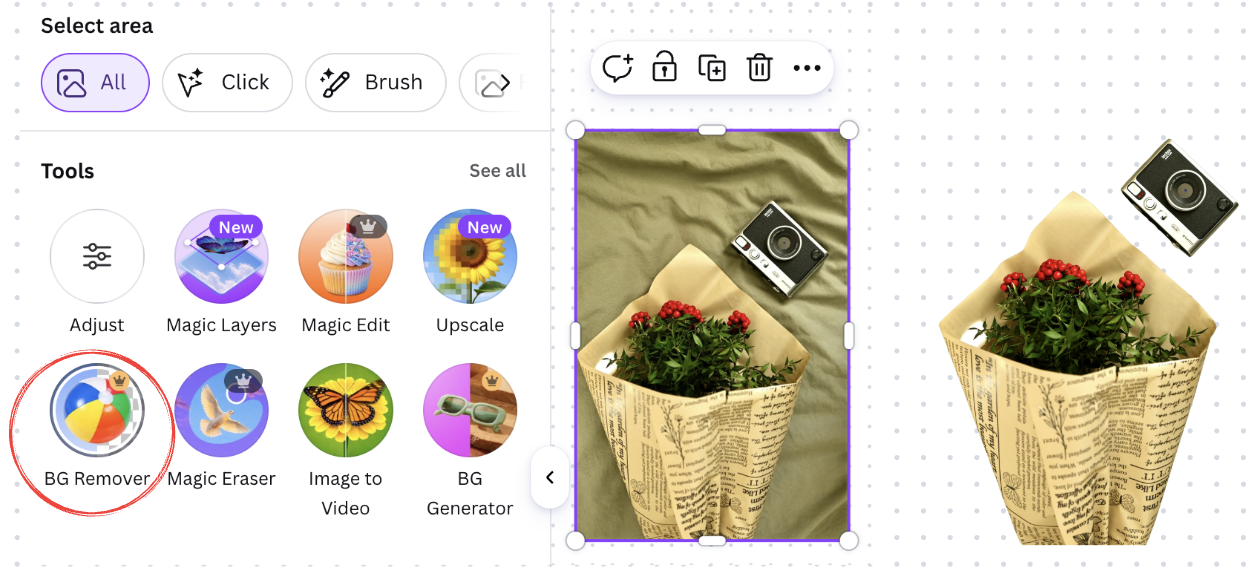
Background Remover strips the background from a photo in a single click, which is useful for product shots, profile pictures, or layering an object over a new scene. Magic Switch takes that a step further by resizing an entire design for a different platform while keeping the layout sensible.
Removing a background:
- Select a photo on your canvas;
- Open Edit photo → Background Remover;
- Canva isolates the main subject automatically;
- Use the eraser or restore brush to fine-tune the edges if needed.
Resizing with Magic Switch:
- Click Resize on the top menu bar;
- Pick a target format, such as Instagram Story or A4 document;
- Canva rearranges text and images to fit the new dimensions;
- Review each generated version and adjust any element that looks cramped.
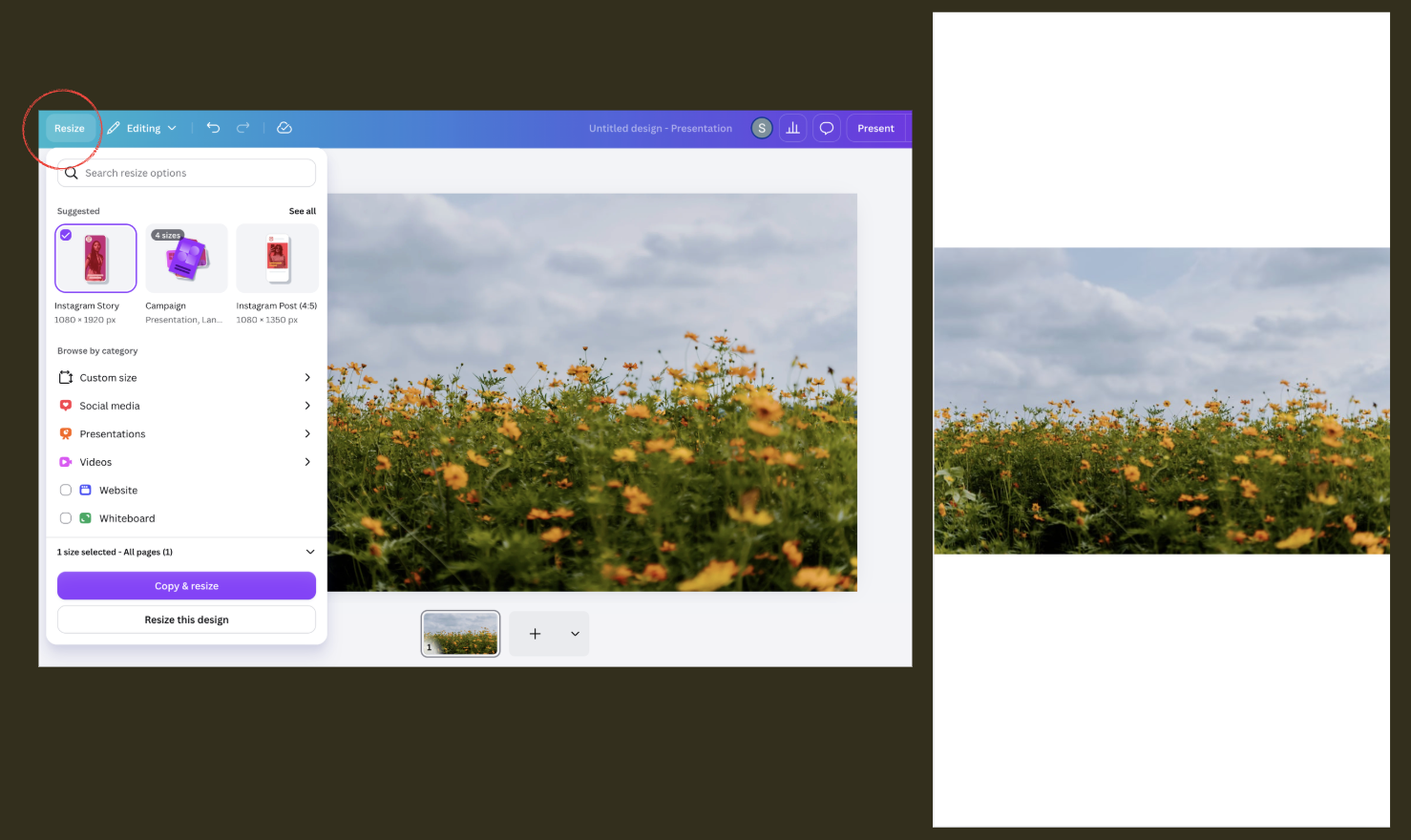

Magic Switch does not guarantee a perfect layout on every format. Always open each resized version and check that text has not been cropped or overlapped.
Combining both tools is common in practice: remove a product's background first, then use Magic Switch to produce a square post, a vertical story, and a banner from the same base design.
Danke für Ihr Feedback!
Fragen Sie AI

Fragen Sie AI

Fragen Sie alles oder probieren Sie eine der vorgeschlagenen Fragen, um unser Gespräch zu beginnen
