Filtering Data with FILTER
Swipe um das Menü anzuzeigen
In this section you start working with a Transactions table, which contains columns such as Order ID, Category, Channel, and Revenue. The Transactions table logs sales data, and your goal is to quickly extract relevant subsets of this data based on specific criteria.
This is where the FILTER function comes in—a core dynamic array function in Excel that allows you to return only the rows or columns that match your chosen conditions.
=FILTER(array;include;[if_empty])

Different versions and regional settings of Excel use different argument separators in formulas. Some versions use a comma , while others use a semicolon ;.
If your Excel uses a different delimiter than the one shown, formulas may return an error even if they are written correctly. In this case, replace the separator with the one used in your Excel settings.
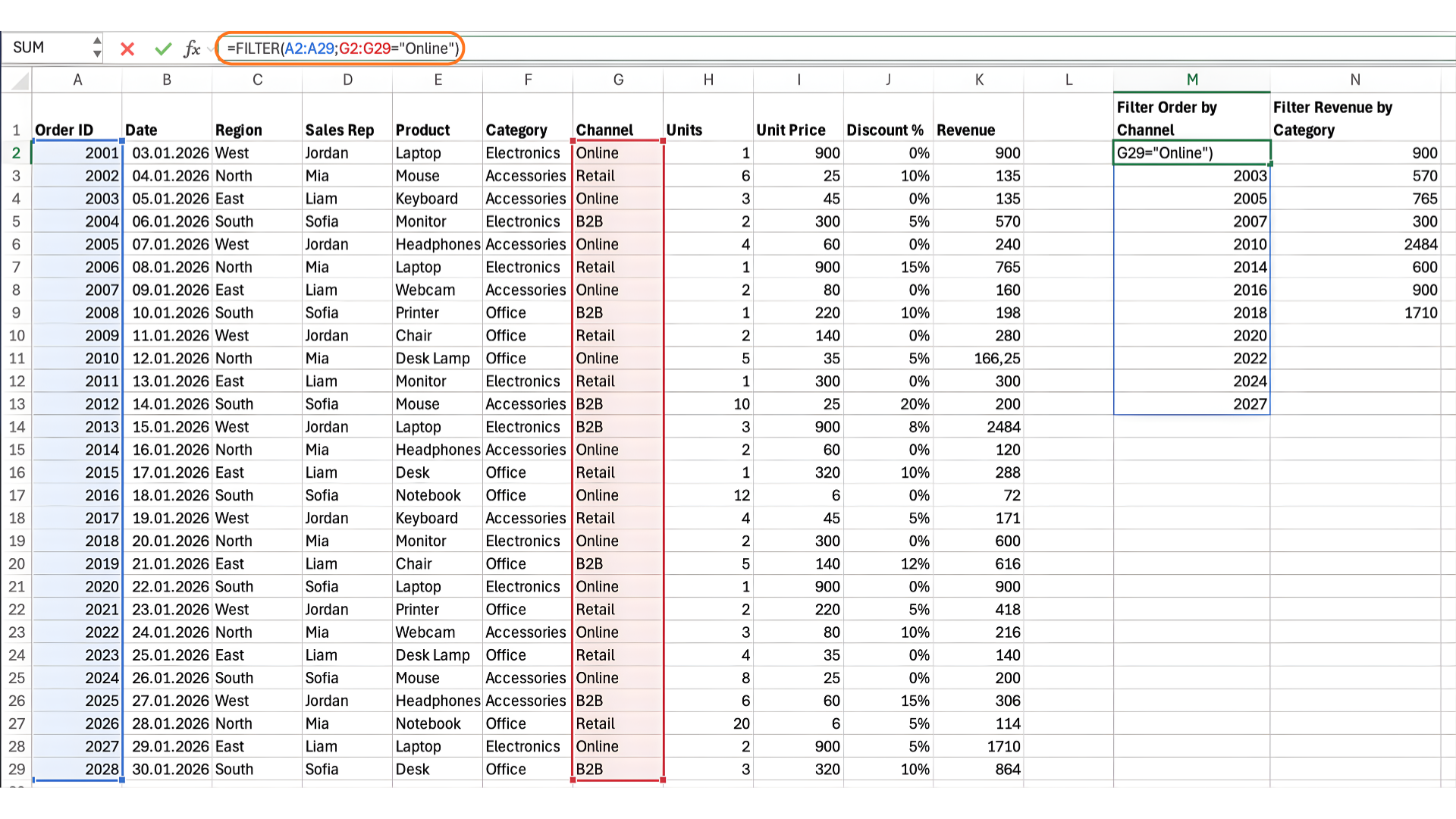
By using FILTER, you can generate a spill range that automatically expands or contracts as the underlying data or your criteria change.
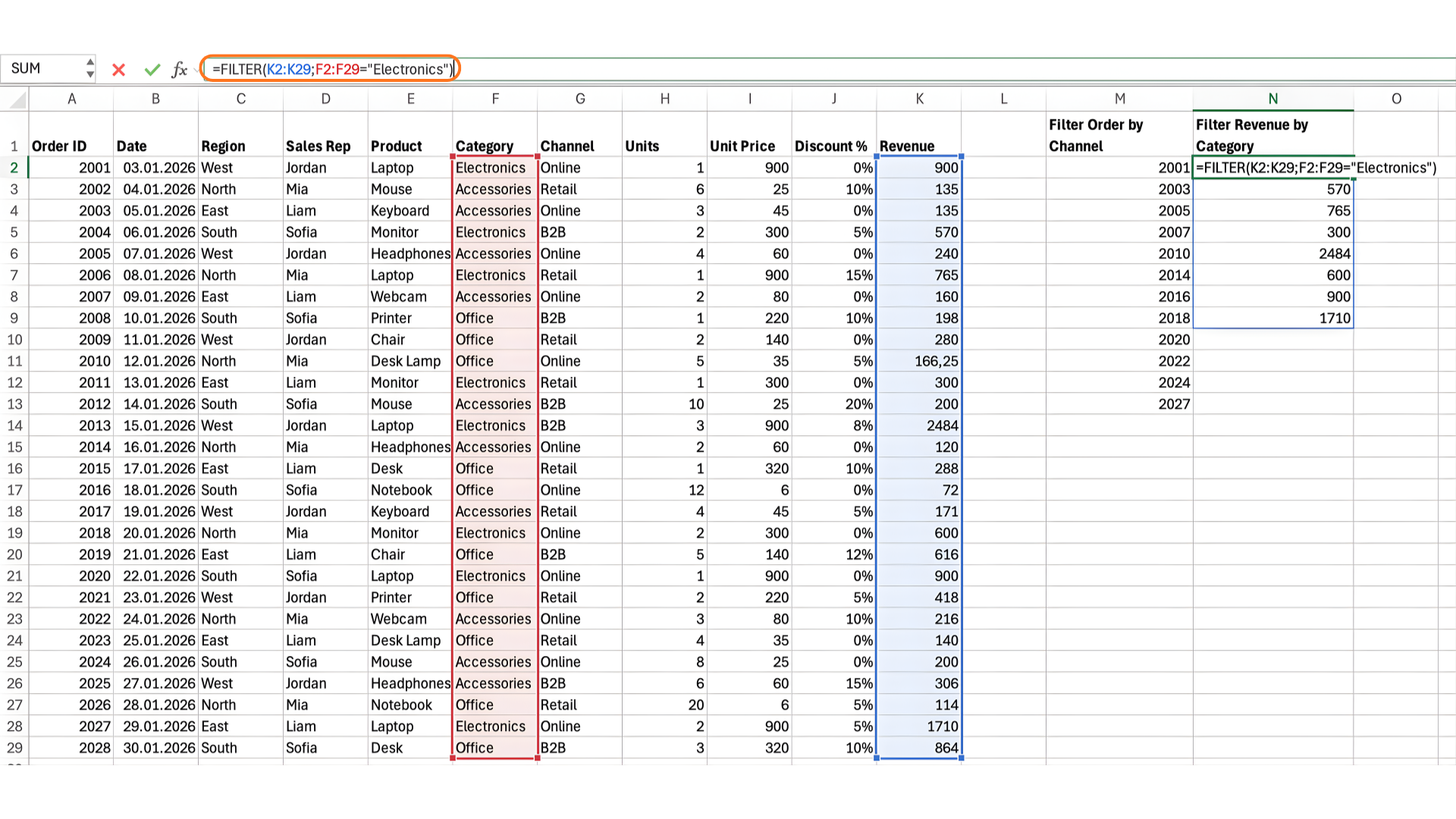
How it works with the ranges:
=FILTER(A2:A29;G2:G29="Online")

=FILTER(K2:K29;F2:F29="Electronics")
How it works with tables:
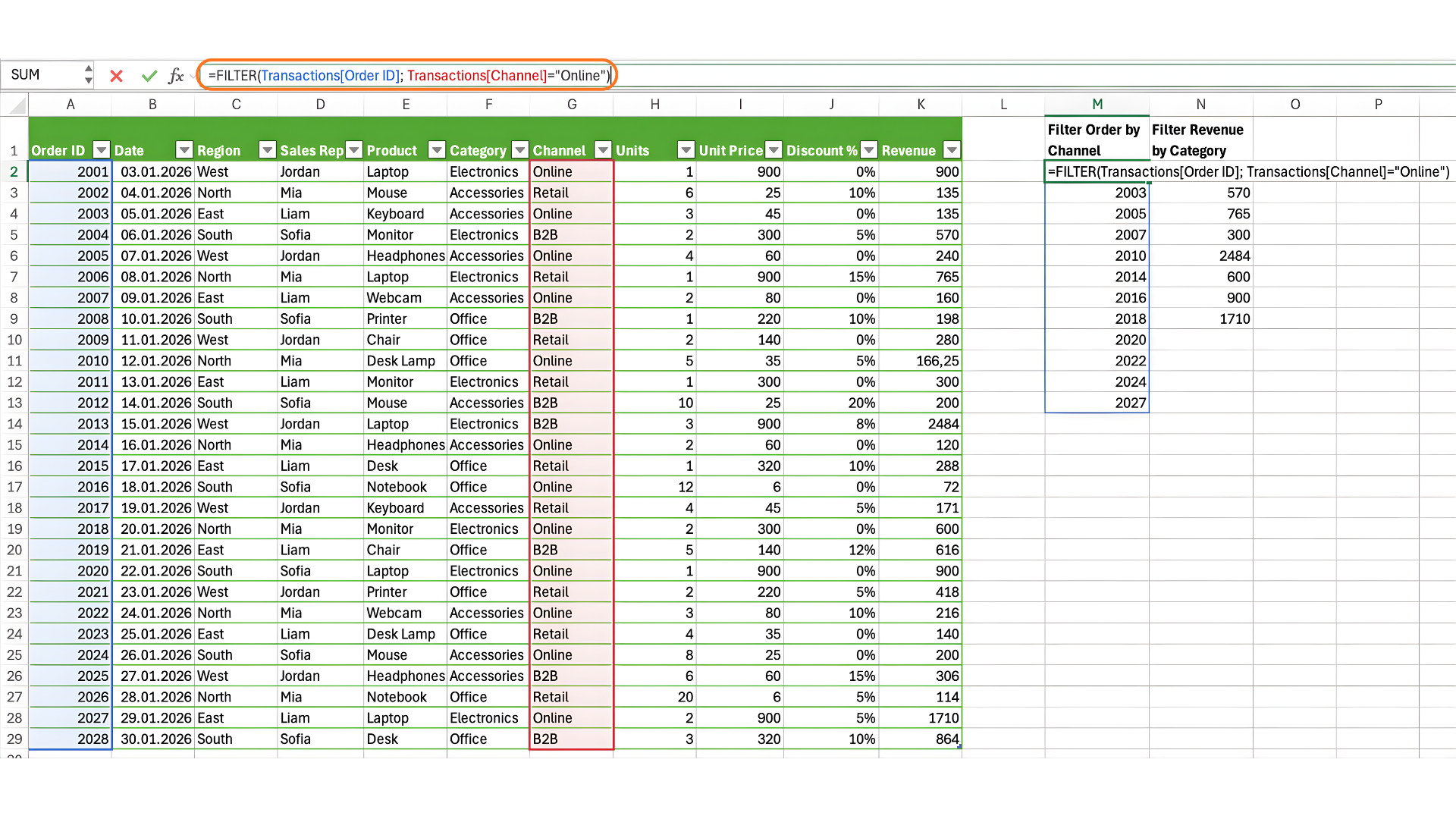
=FILTER(Transactions[Order ID]; Transactions[Channel]="Online")

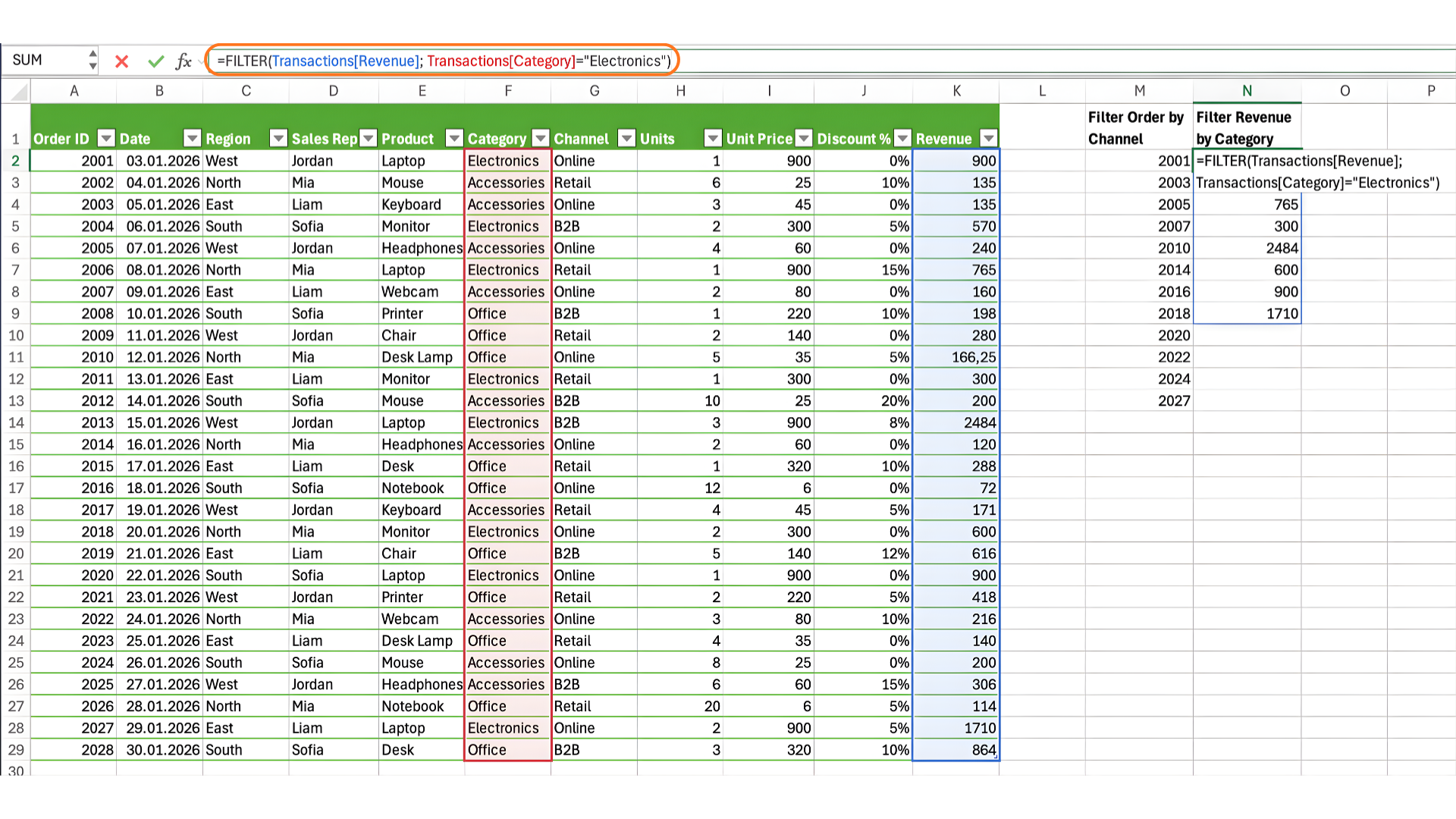
=FILTER(Transactions[Revenue]; Transactions[Category]="Electronics")
The FILTER function is dynamic: as you add, remove, or edit transactions in the source table, or if you change the criteria in your formula, the spill output updates instantly. This means you always see the latest, most relevant data without needing to manually update your formulas or ranges.
FILTER is especially powerful for dashboards or reports where you want your results to always reflect the current data and rules.
Create a dynamic array formula that returns only the Sales Rep values where the Region equals "North". The result should spill into a column and update automatically if the data changes.
The result must be generated with one FILTER formula. For the range, formula can looks like that:
=FILTER(D2:D29;C2:C29="North")
For the Transaction table:
=FILTER(Transactions[Sales Rep];Transactions[Region]="North")
Danke für Ihr Feedback!
Fragen Sie AI

Fragen Sie AI

Fragen Sie alles oder probieren Sie eine der vorgeschlagenen Fragen, um unser Gespräch zu beginnen
Filtering Data with FILTER
In this section you start working with a Transactions table, which contains columns such as Order ID, Category, Channel, and Revenue. The Transactions table logs sales data, and your goal is to quickly extract relevant subsets of this data based on specific criteria.
This is where the FILTER function comes in—a core dynamic array function in Excel that allows you to return only the rows or columns that match your chosen conditions.
=FILTER(array;include;[if_empty])
Different versions and regional settings of Excel use different argument separators in formulas. Some versions use a comma , while others use a semicolon ;.
If your Excel uses a different delimiter than the one shown, formulas may return an error even if they are written correctly. In this case, replace the separator with the one used in your Excel settings.
By using FILTER, you can generate a spill range that automatically expands or contracts as the underlying data or your criteria change.
How it works with the ranges:
=FILTER(A2:A29;G2:G29="Online")

=FILTER(K2:K29;F2:F29="Electronics")
How it works with tables:
=FILTER(Transactions[Order ID]; Transactions[Channel]="Online")

=FILTER(Transactions[Revenue]; Transactions[Category]="Electronics")
The FILTER function is dynamic: as you add, remove, or edit transactions in the source table, or if you change the criteria in your formula, the spill output updates instantly. This means you always see the latest, most relevant data without needing to manually update your formulas or ranges.
FILTER is especially powerful for dashboards or reports where you want your results to always reflect the current data and rules.
Create a dynamic array formula that returns only the Sales Rep values where the Region equals "North". The result should spill into a column and update automatically if the data changes.
The result must be generated with one FILTER formula. For the range, formula can looks like that:
=FILTER(D2:D29;C2:C29="North")
For the Transaction table:
=FILTER(Transactions[Sales Rep];Transactions[Region]="North")
Danke für Ihr Feedback!
