Handling Spill Errors
Swipe um das Menü anzuzeigen
Dynamic array formulas in Excel are designed to automatically fill multiple cells with results, but sometimes you will encounter a #SPILL! error. This error occurs when Excel tries to display a dynamic array output, but something is blocking the spill range—the area where the results would normally appear. The two most common causes of a blocked spill range are existing values in the output area and merged cells that overlap with where the array wants to spill. When this happens, Excel cannot overwrite the obstructing content, so it displays the #SPILL! error to indicate the problem.
Suppose you have a table with Revenue in cells G2:G25, and you enter the following formula in cell H2, as we've done before:
= G2:G25 * 0,9
If there are already values entered in cells H5 or H23, or if you have merged cells H3:H4, Excel will display a #SPILL! error in cell H2. The formula cannot spill its results into the range H2:H25 because something is blocking the way.
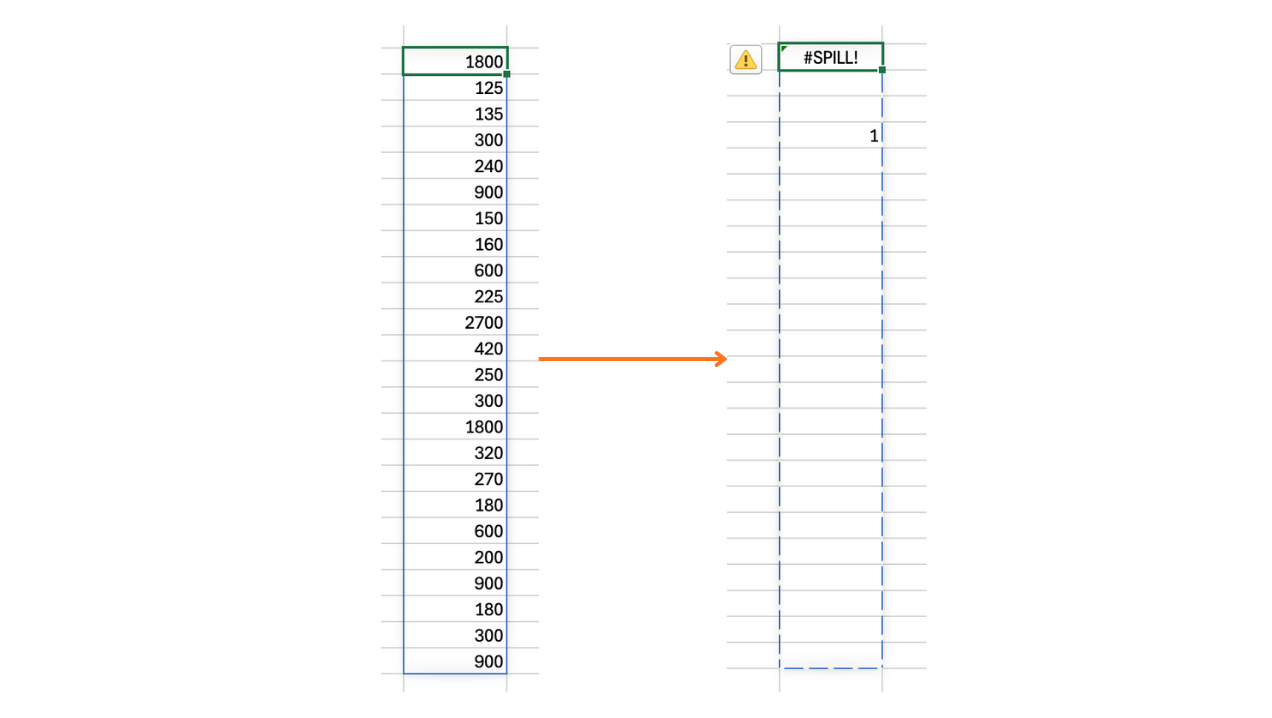
To resolve a #SPILL! error, you need to identify what is blocking the spill range and remove the obstruction. Here is a step-by-step approach you can follow:
- Click the cell with the
#SPILL!error to see the spill range outlined in blue; - Check for any existing values, formulas, or formatting (such as merged cells) within this outlined area;
- If you find any values or formulas, delete them so the range is empty;
- If you find merged cells, unmerge them so each cell in the spill range is available;
- After clearing the blockage, the dynamic array formula should automatically spill and fill the intended range.
Intentionally create and resolve a #SPILL! error caused by a blocked spill range.
- Enter a dynamic array formula in a cell so it will output to a range.
- Block one of the cells in the intended spill range by entering a value or merging cells.
- Confirm that a
#SPILL!error appears in the formula cell. - Remove the blockage so the formula spills as intended.
Get #SPILL! error by typing some value (e.g. 1) inside spill range (e.g. in the H9 cell).
Danke für Ihr Feedback!
Fragen Sie AI

Fragen Sie AI

Fragen Sie alles oder probieren Sie eine der vorgeschlagenen Fragen, um unser Gespräch zu beginnen
