Converting Text to Numbers
Swipe um das Menü anzuzeigen
When working with imported data, one of the most common issues is that numbers are stored as text. At first glance, everything may look correct, but Excel does not recognize such values as numeric. Because of this, formulas like SUM or AVERAGE may return incorrect results or ignore these values completely.
This usually happens when data is imported from CSV files or copied from external sources. Excel may not correctly detect the data type, so numbers end up being treated as text.
How to Convert Text to Numbers
There are several simple ways to fix this.
One common approach is using the VALUE function:
=VALUE(A2)
This function converts text that looks like a number into an actual numeric value.
Another quick method is multiplying by 1:
=A2*1
Excel forces the value to become a number during calculation.
If a cell contains "1000" as text, both approaches will return 1000 as a number. After conversion, Excel will be able to use this value in calculations correctly.
However, if the value is something like "text", the formula will return an error. This helps you identify invalid data that needs special handling.
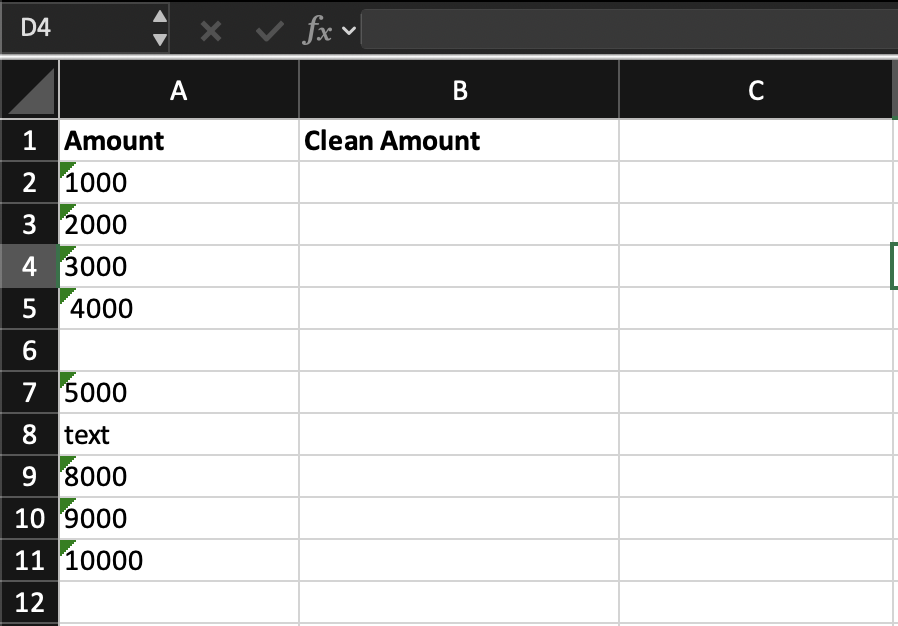
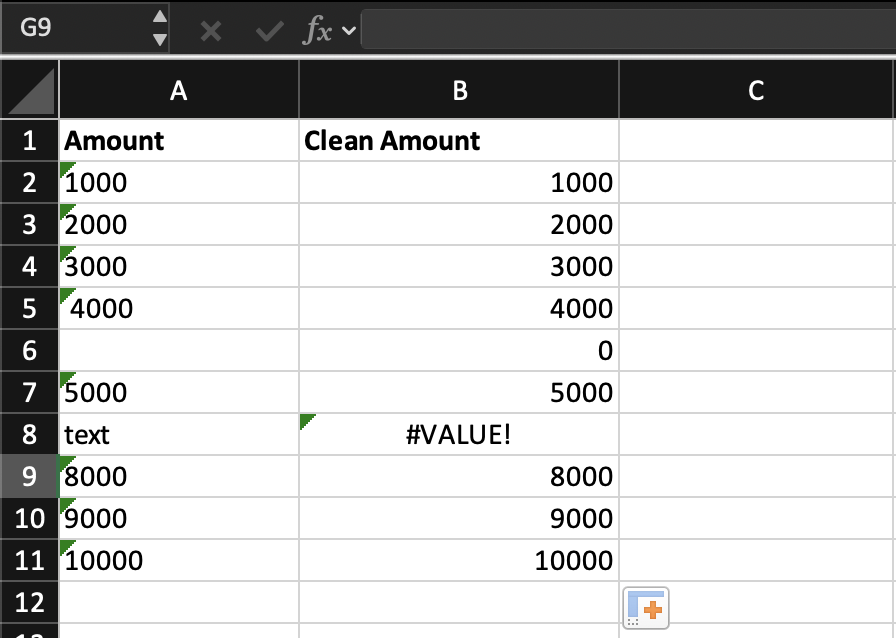
Task
Create a new column called Clean Amount.
Convert all values from the Amount column into numbers using a formula.
Apply the formula to all rows and check which values cannot be converted.

Use =VALUE(B2) to convert text values into numbers and check which cells return an error.
Danke für Ihr Feedback!
Fragen Sie AI

Fragen Sie AI

Fragen Sie alles oder probieren Sie eine der vorgeschlagenen Fragen, um unser Gespräch zu beginnen
