Filtering
Swipe um das Menü anzuzeigen
Filter ein- und ausschalten
- Eine beliebige Zelle im Bereich anklicken → Daten-Tab → Filter oder
Ctrl+Shift+L(Win)/Control+Shift+L(Mac) drücken. Dropdown-Pfeile erscheinen in jeder Kopfzeile; - Mit
Ctrl+Terstellte Tabellen haben Filter automatisch in der Kopfzeile aktiviert — kein manueller Schritt erforderlich; - Erneut auf Filter im Menüband klicken oder
Ctrl+Shift+Lein zweites Mal drücken. Die Dropdown-Pfeile werden aus der Kopfzeile entfernt.
Der Filtertyp hängt vom Datentyp ab:
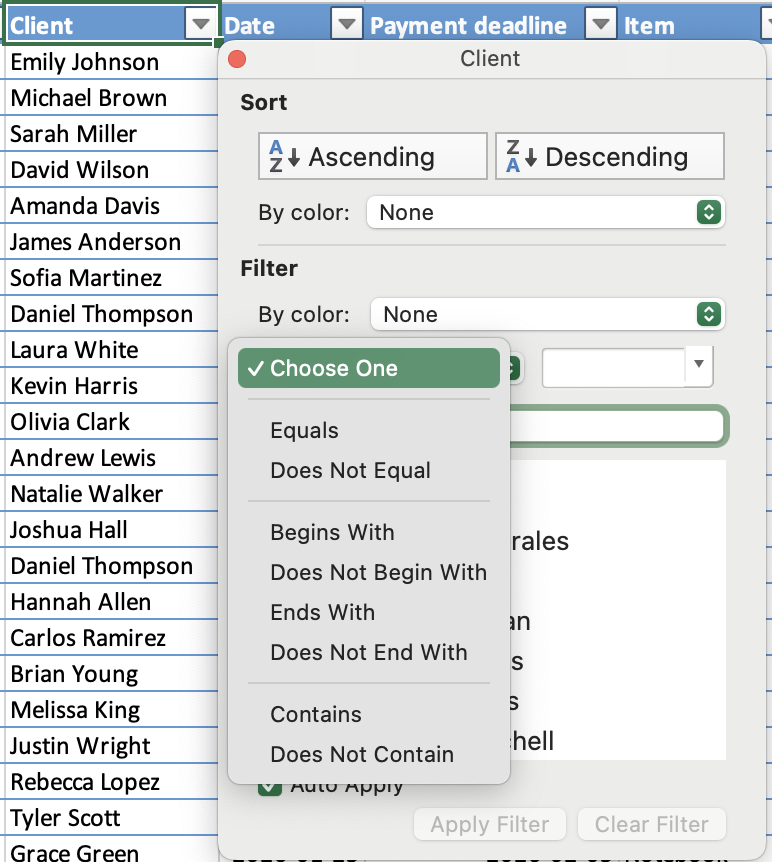
- Textfilter: Filtern nach bestimmten Werten oder Textbedingungen;
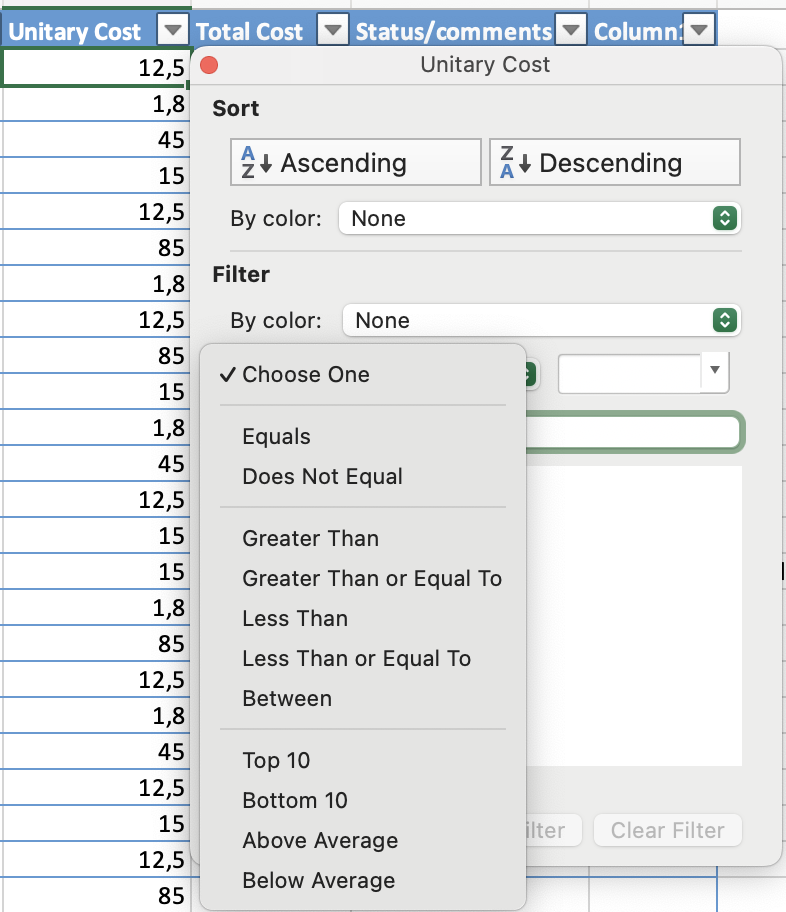
- Zahlenfilter: Filtern nach Vergleichen wie größer als, kleiner als oder zwischen;
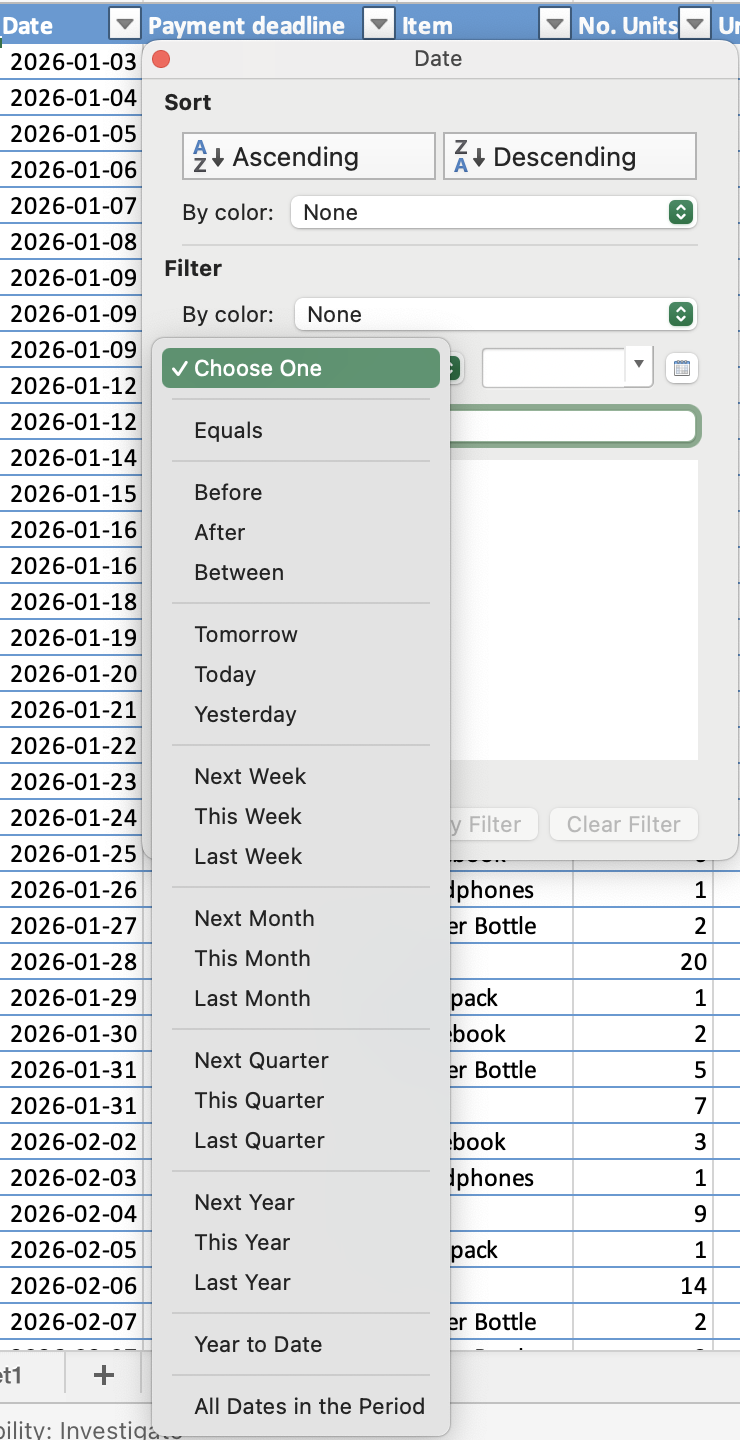
- Datumsfilter: Filtern nach Zeiträumen, wie bestimmten Daten, Monaten oder Jahren.
UND- / ODER-Logik bei mehreren Filtern
- ODER: innerhalb einer einzelnen Spalte — eine Zeile wird angezeigt, wenn sie mit einem der ausgewählten Werte übereinstimmt;
- UND: über verschiedene Spalten hinweg — eine Zeile muss alle aktiven Filter erfüllen, um sichtbar zu bleiben.

Tastenkombination schaltet alle Filter gleichzeitig aus. Durch Drücken von Ctrl+Shift+L werden sämtliche aktiven Filterbedingungen in allen Spalten gleichzeitig entfernt – nicht nur in der aktuellen Spalte. Wenn nur eine Spalte zurückgesetzt werden soll, im Dropdown-Menü dieser Spalte Filter löschen verwenden.
Danke für Ihr Feedback!
Fragen Sie AI

Fragen Sie AI

Fragen Sie alles oder probieren Sie eine der vorgeschlagenen Fragen, um unser Gespräch zu beginnen
Filtering
Filter ein- und ausschalten
- Eine beliebige Zelle im Bereich anklicken → Daten-Tab → Filter oder
Ctrl+Shift+L(Win)/Control+Shift+L(Mac) drücken. Dropdown-Pfeile erscheinen in jeder Kopfzeile; - Mit
Ctrl+Terstellte Tabellen haben Filter automatisch in der Kopfzeile aktiviert — kein manueller Schritt erforderlich; - Erneut auf Filter im Menüband klicken oder
Ctrl+Shift+Lein zweites Mal drücken. Die Dropdown-Pfeile werden aus der Kopfzeile entfernt.
Der Filtertyp hängt vom Datentyp ab:
- Textfilter: Filtern nach bestimmten Werten oder Textbedingungen;
- Zahlenfilter: Filtern nach Vergleichen wie größer als, kleiner als oder zwischen;
- Datumsfilter: Filtern nach Zeiträumen, wie bestimmten Daten, Monaten oder Jahren.
UND- / ODER-Logik bei mehreren Filtern
- ODER: innerhalb einer einzelnen Spalte — eine Zeile wird angezeigt, wenn sie mit einem der ausgewählten Werte übereinstimmt;
- UND: über verschiedene Spalten hinweg — eine Zeile muss alle aktiven Filter erfüllen, um sichtbar zu bleiben.
Tastenkombination schaltet alle Filter gleichzeitig aus. Durch Drücken von Ctrl+Shift+L werden sämtliche aktiven Filterbedingungen in allen Spalten gleichzeitig entfernt – nicht nur in der aktuellen Spalte. Wenn nur eine Spalte zurückgesetzt werden soll, im Dropdown-Menü dieser Spalte Filter löschen verwenden.
Danke für Ihr Feedback!
