Steuerung von Bezügen und Formelergebnissen
Swipe um das Menü anzuzeigen
Wenn Sie eine Formel nach unten ziehen, passt Excel jede Zellreferenz um eine Zeile an. Meistens ist das genau das gewünschte Verhalten: Die Formel für Zeile 10 soll auf die Daten der Zeile 10 verweisen. Manche Referenzen dürfen sich jedoch nie ändern: ein Steuersatz in einer einzelnen Zelle, ein Wechselkurs, ein fester Schwellenwert. Ohne Dollarzeichen werden diese Referenzen beim Ziehen stillschweigend zerstört.

Wenn =D9*G1 nach unten gezogen wird, wird aus Zeile 10 =D10*G2, aus Zeile 11 =D11*G3 und so weiter. G2 und G3 sind leer – daher ergibt jede Steuerberechnung null. Keine Fehlermeldung. Nur falsche Zahlen, die plausibel aussehen.
Zellreferenzen
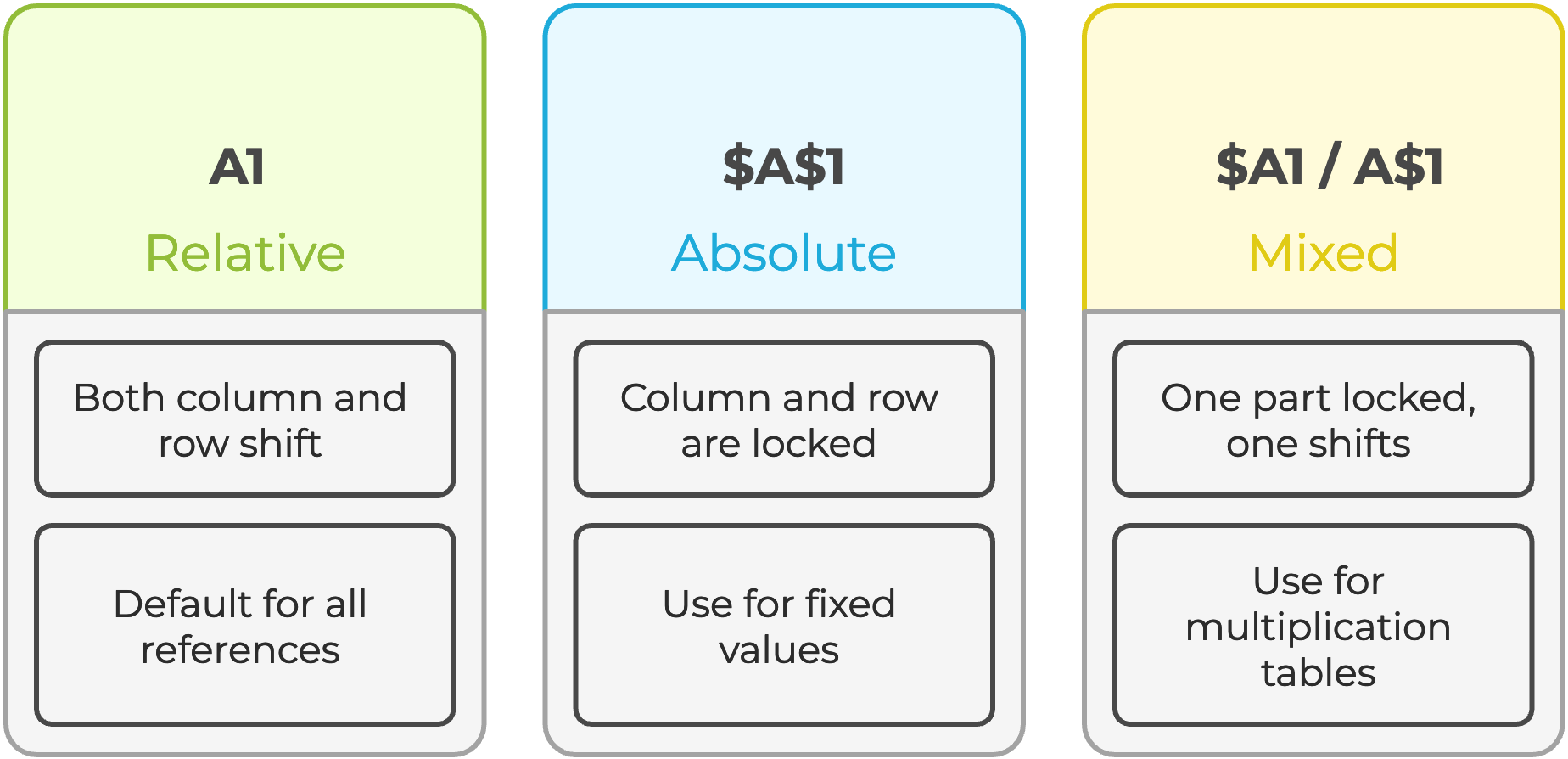
Wählen Sie einen beliebigen Zellbezug innerhalb einer Formel in der Bearbeitungsleiste aus und drücken Sie F4, um automatisch zwischen allen vier Bezugstypen zu wechseln.
Inhalte einfügen Spezial
Manchmal ist es notwendig, berechnete Ergebnisse festzuhalten, einen Schnappschuss an eine Kollegin oder einen Kollegen zu senden, eine Neuberechnung zu verhindern oder eine zirkuläre Abhängigkeit zu unterbrechen. Werte einfügen entfernt die Formel und behält nur die von der Formel erzeugte Zahl.
- Verwenden Sie die Tastenkombination
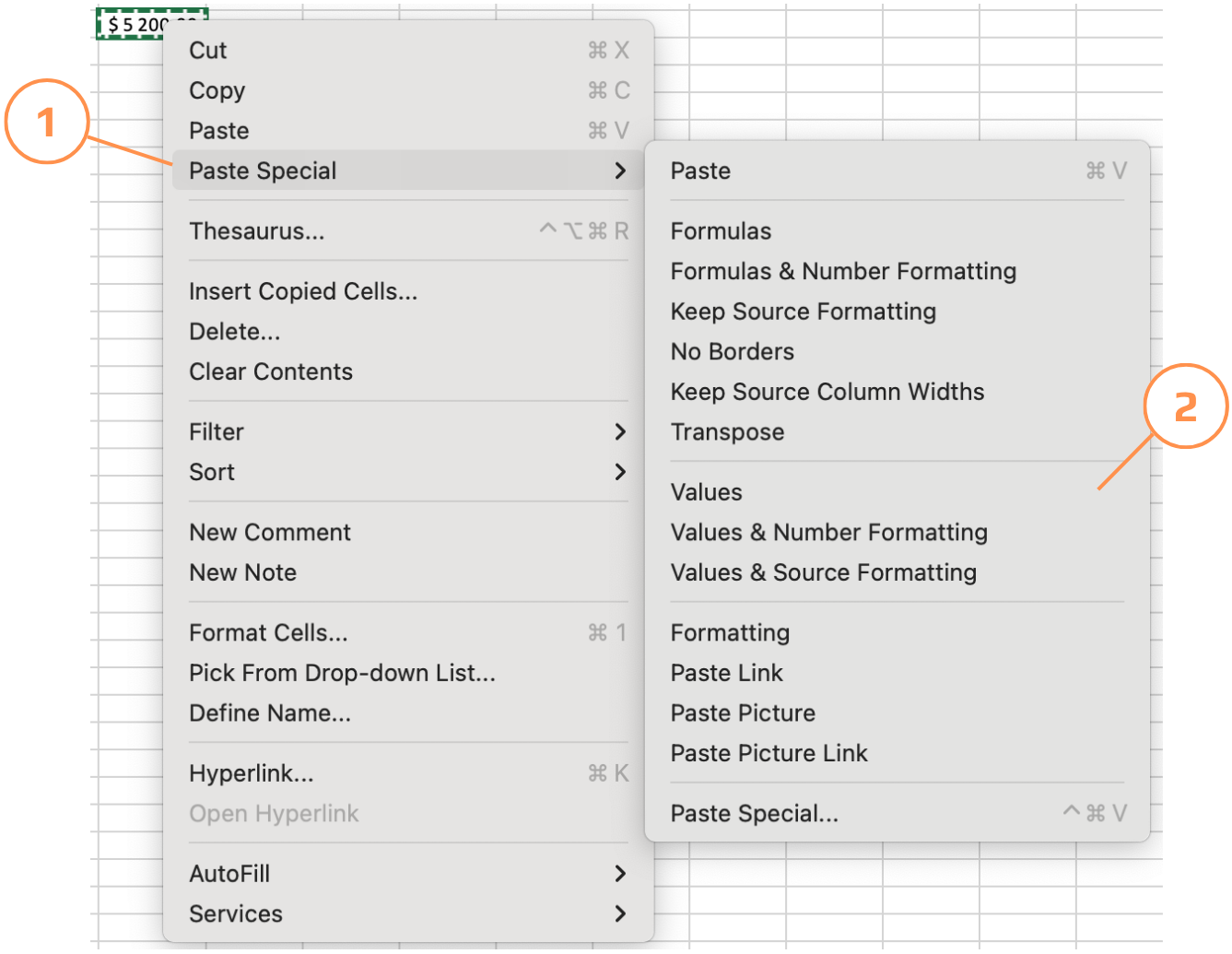
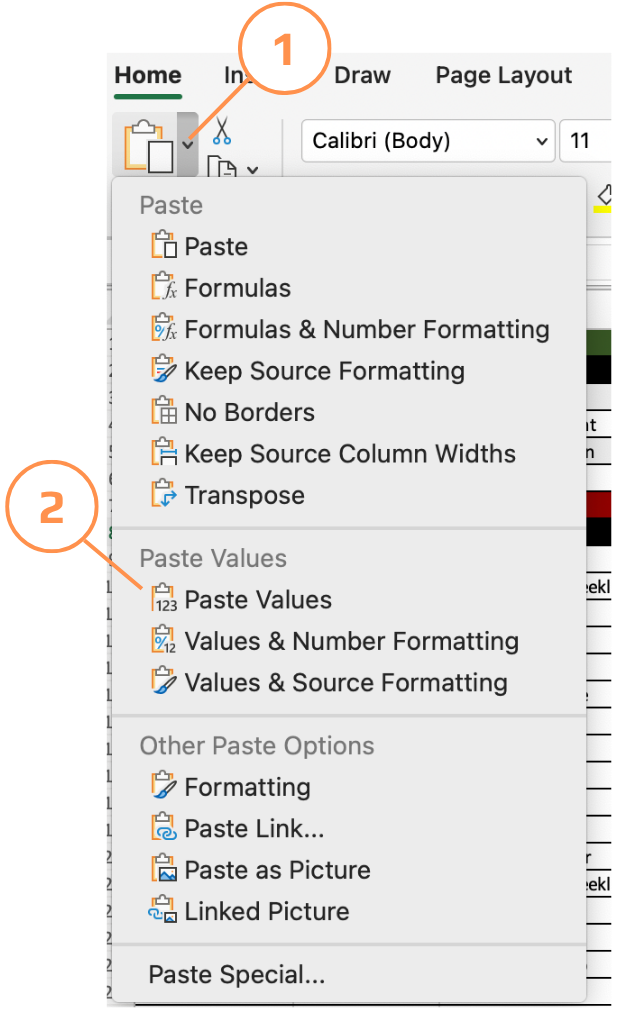
Ctrl+Alt+V, um nur Werte einzufügen; - Kopieren Sie die Zellen → Rechtsklick auf das Ziel → Inhalte einfügen Spezial wählen → Werte;
- Das Menü Inhalte einfügen Spezial bietet mehr als nur Werte — Sie können nur Formate, nur Formeln, Zeilen in Spalten umwandeln oder als verknüpftes Bild einfügen. Alles erreichbar über Start → Einfügen → Inhalte einfügen Spezial.
Daten aus einem anderen Blatt abrufen
Wenn ein Wert in mehreren Tabellenblättern verwendet wird – etwa ein Steuersatz, ein Jahr oder ein Firmenname – ist es deutlich übersichtlicher, diesen Wert einmal in einem eigenen Blatt zu speichern und überall darauf zu verweisen, anstatt ihn zu duplizieren. Ändert sich der Wert, wird er an einer Stelle aktualisiert und jede Formel passt sich automatisch an.
=D9*'Tax rate'!$A$2
Das ! (Ausrufezeichen) trennt den Blattnamen von der Zelladresse. Excel fügt dies automatisch ein, wenn Sie beim Eingeben einer Formel auf eine Zelle in einem anderen Blatt klicken – Sie müssen es nicht manuell eingeben.
Danke für Ihr Feedback!
Fragen Sie AI

Fragen Sie AI

Fragen Sie alles oder probieren Sie eine der vorgeschlagenen Fragen, um unser Gespräch zu beginnen
