Clusterverwaltung
Swipe um das Menü anzuzeigen

Clusterverwaltung bezeichnet den Prozess der Steuerung des Lebenszyklus Ihrer Rechenressourcen. Das Wissen, wann ein Cluster gestartet, gestoppt oder neu gestartet werden muss, ist entscheidend für die Leistungsverwaltung und die Kontrolle der Cloud-Kosten.
Nachdem Sie nun wissen, wie ein Cluster erstellt wird, müssen Sie lernen, wie Sie ihn verwalten. In der Cloud werden Ihnen für jede Sekunde, in der sich ein Cluster im Status "Running" befindet, Kosten berechnet. Als professioneller Data Engineer oder Analyst bedeutet dies nicht nur, Code schreiben zu können, sondern auch, Ressourcen effizient zu verwalten, um das Budget Ihres Unternehmens (oder Ihr eigenes) nicht zu verschwenden.
Verständnis der Cluster-Status

Auf der Compute-Seite erscheinen verschiedene Statussymbole neben dem Namen Ihres Clusters. Das Verständnis dieser Symbole ist entscheidend, um zu wissen, ob Sie Code ausführen können:
- Running (Grüner Kreis): Die Engine ist bereit und einsatzfähig. Notebooks und Abfragen können sofort ausgeführt werden;
- Terminated (Grauer Kreis): Die Engine ist ausgeschaltet. Es entstehen keine Kosten, aber Sie können keinen Code ausführen, bis Sie sie erneut starten;
- Pending (Drehender Kreis): Der Cluster wird "hochgefahren". Der Cloud-Anbieter stellt aktuell die Hardware für Sie bereit;
- Restarting: Der Cluster wird heruntergefahren und sofort wieder gestartet, was nützlich ist, wenn Sie eine Konfiguration geändert haben.
Manuelle Steuerung: Starten, Stoppen und Neustarten
Auf der rechten Seite Ihres Clusters in der Listenansicht finden Sie verschiedene Aktionssymbole:
- Der Play-Button (Start): Verwenden Sie diesen, wenn Sie morgens mit der Arbeit beginnen. Es dauert etwa 3–5 Minuten, um von "Terminated" zu "Running" zu wechseln;
- Der Quadrat-Button (Terminate/Stop): Verwenden Sie diesen, sobald Sie eine Aufgabe abgeschlossen haben. Durch Klicken wird die Abrechnung sofort gestoppt. Wichtig: Das Beenden eines Clusters löscht weder Ihre Arbeit noch Ihre Notebooks; es schaltet lediglich die "Engine" aus und leert den Speicher (Variablen im Speicher werden gelöscht, ähnlich wie beim Herunterfahren eines eigenen Computers).
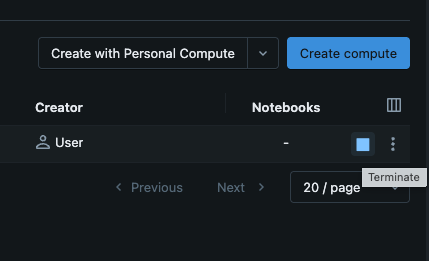
- Der kreisförmige Pfeil (Neustart): Wenn Ihr Cluster träge wirkt oder Sie eine neue Bibliothek installiert haben, die einen Neustart erfordert, verwenden Sie die Schaltfläche „Neustart“.
Bearbeiten vs. Klonen
Manchmal stellt man fest, dass die erstellte „Engine“ nicht ganz passt.
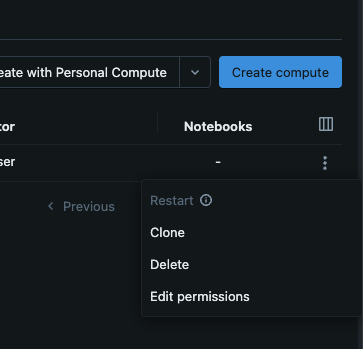
- Bearbeiten: Sie können die Größe Ihres Clusters oder die Runtime-Version ändern, indem Sie auf den Namen klicken und „Bearbeiten“ auswählen. Beachten Sie, dass Sie den Cluster in der Regel beenden müssen, bevor Sie Änderungen an der Hardware speichern können;
- Klonen: Wenn Ihnen Ihre aktuelle Konfiguration gefällt, Sie aber einen zweiten, identischen Cluster benötigen (zum Beispiel für ein anderes Projekt), spart Ihnen die Schaltfläche „Klonen“ das erneute Ausfüllen aller Einstellungen.
Die goldene Regel beim Geldsparen
Der teuerste Cluster ist der, der "läuft", aber absolut nichts tut. Gewöhnen Sie sich immer an, vor dem Ausloggen den Compute-Tab zu überprüfen. Wenn Sie ein grünes Licht sehen und keinen Code mehr ausführen, klicken Sie auf die Quadrat (Stopp)-Schaltfläche. In der Welt von Big Data ist "Stoppen" genauso wichtig wie "Starten."
1. Wird beim "Beenden" eines Clusters das von Ihnen geschriebene Notebook gelöscht?
2. Welcher Status zeigt an, dass der Cluster gerade hochfährt und noch nicht bereit ist, Code auszuführen?
3. Sie haben Ihre Analyse für heute abgeschlossen. Was ist die beste Vorgehensweise, um unnötige Cloud-Kosten über Nacht zu vermeiden?
Danke für Ihr Feedback!
Fragen Sie AI

Fragen Sie AI

Fragen Sie alles oder probieren Sie eine der vorgeschlagenen Fragen, um unser Gespräch zu beginnen
