Sorting and Filtering Pivot Data
Stryg for at vise menuen
After creating a Pivot Table, you often need to change the order of results or focus on a subset of data. You'll sort Pivot results and apply filters using different parts of the Pivot Table interface.
Pivot Tables provide built-in tools for sorting and filtering data without changing the source dataset.
Sorting Pivot Data
Sorting controls the order of items displayed in a Pivot Table. You can sort: alphabetically by labels, or by the calculated values shown in the Pivot Table.
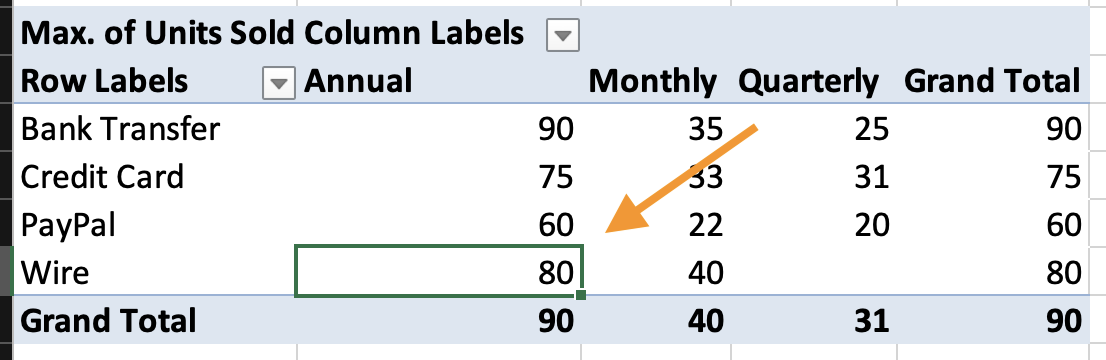
To sort by value:
- Click any numeric cell in the Pivot Table;
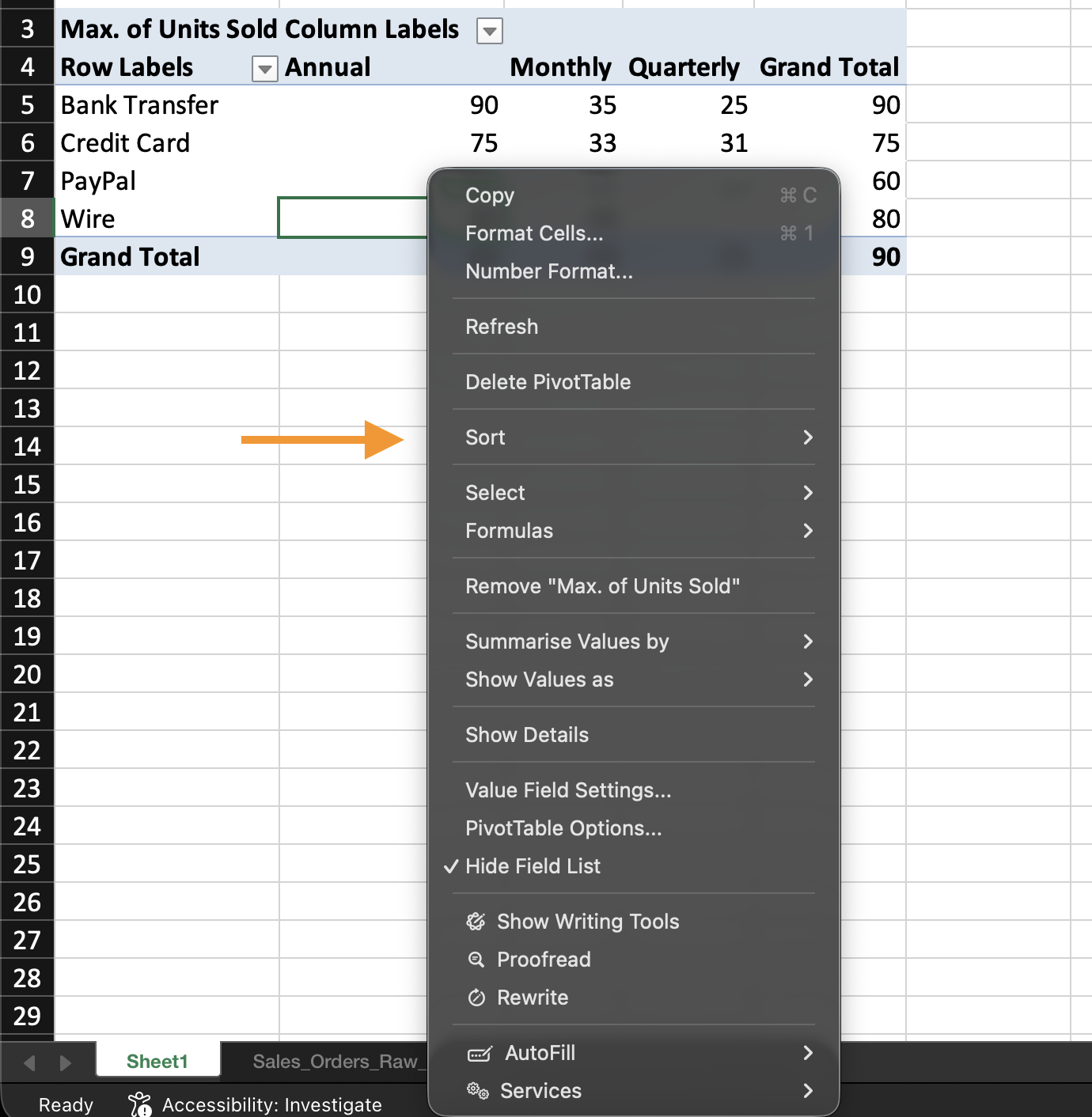
- Right-click the cell to open the context menu;
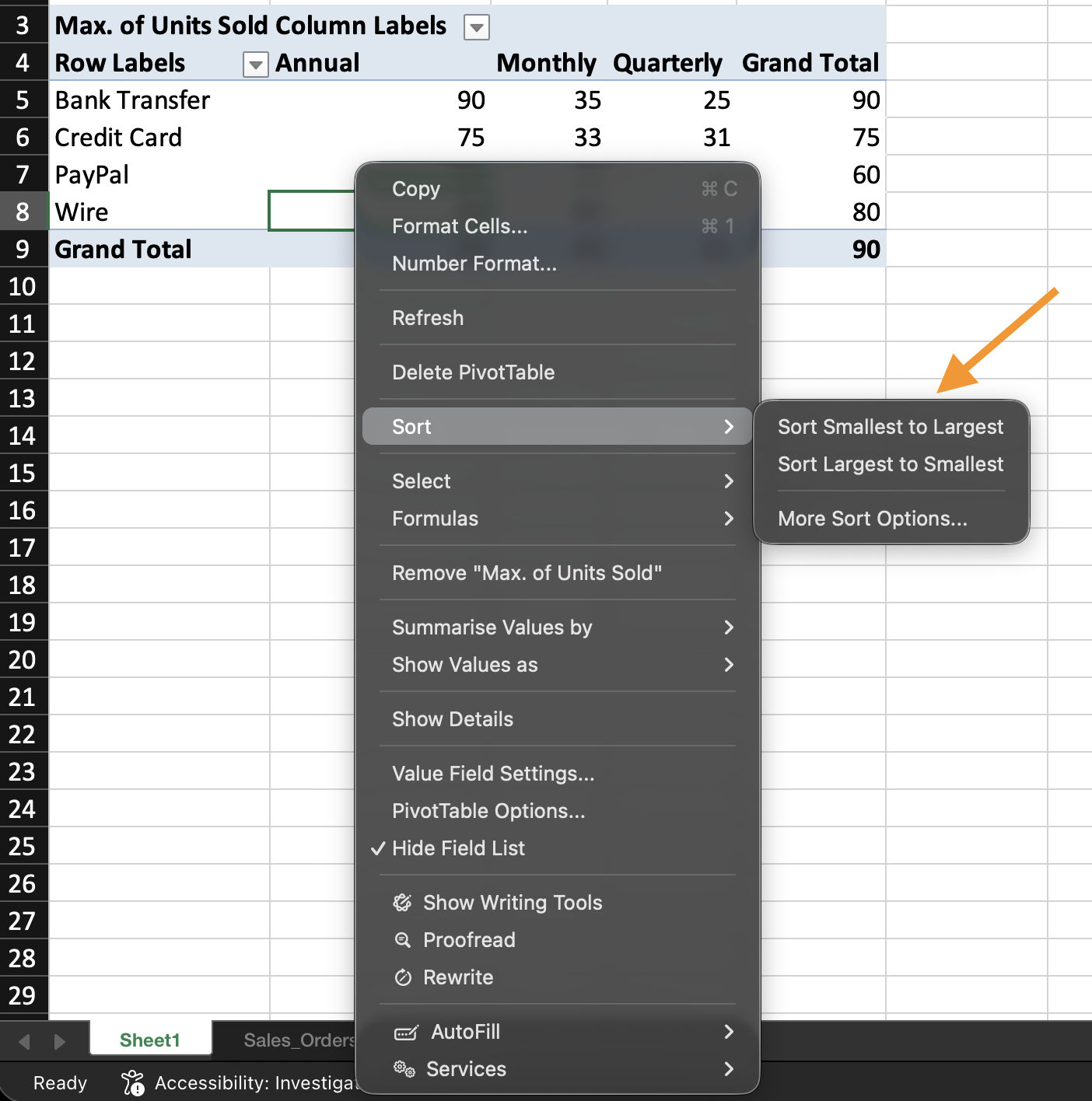
- Choose Sort;
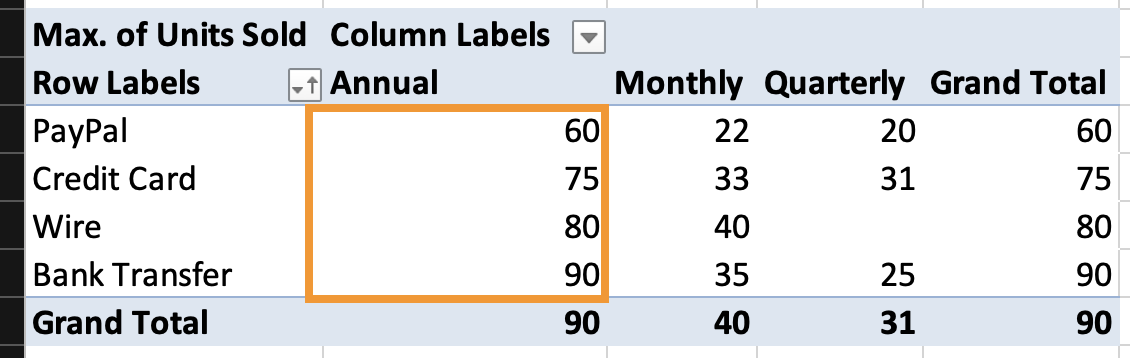
- Select Largest to Smallest or Smallest to Largest.
Excel will sort the row or column labels based on the values of the selected field.
To sort alphabetically:
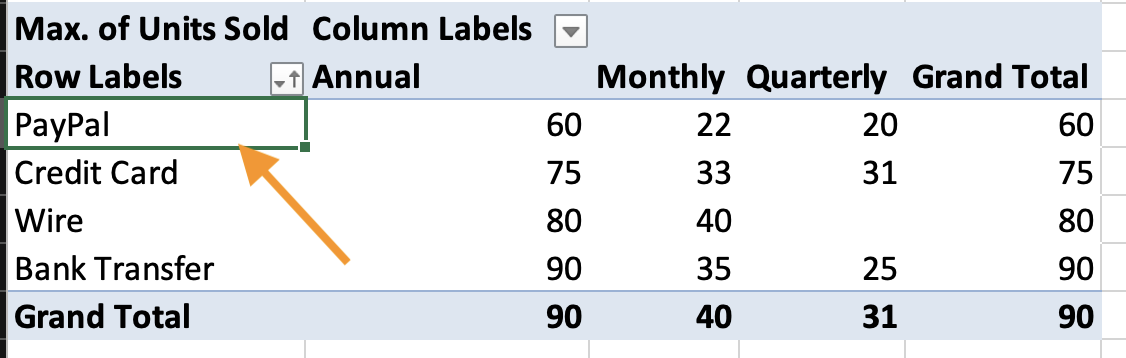
- Click the dropdown next to the row or column labels;
- Choose Sort A to Z or Sort Z to A.
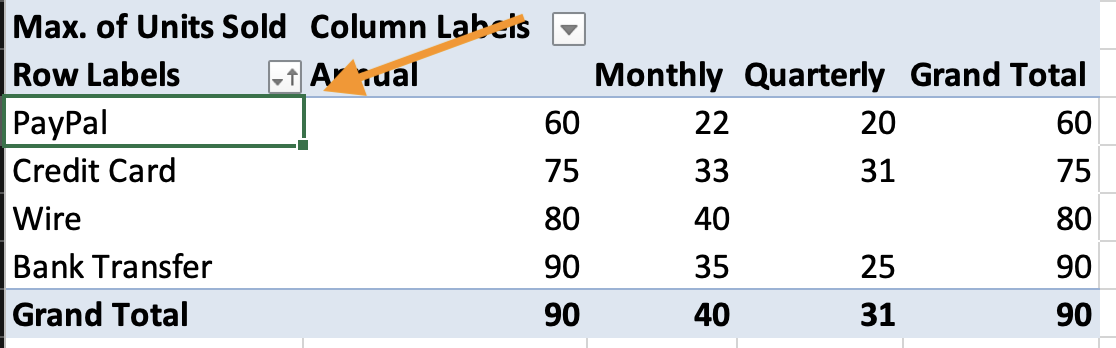
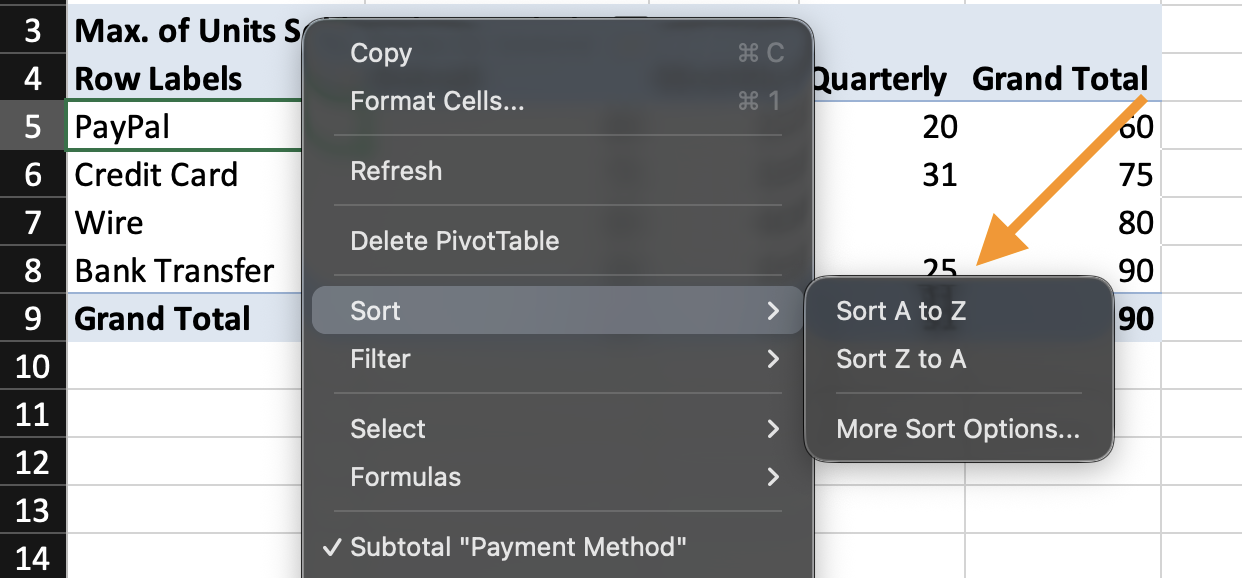
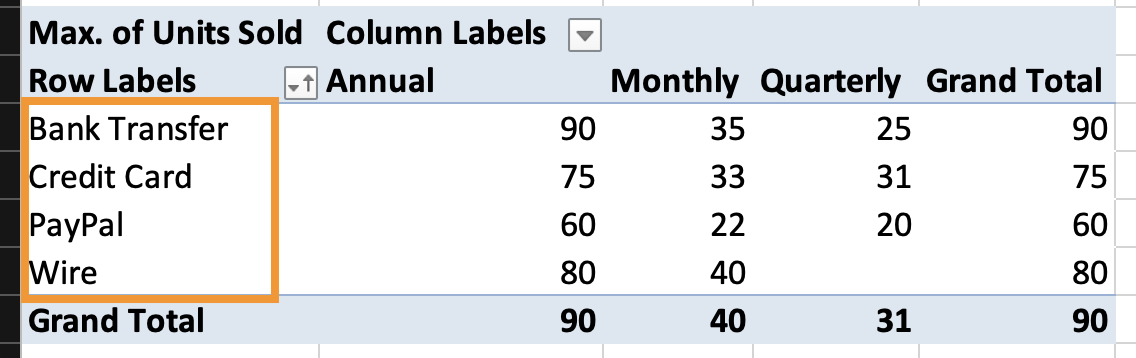

Sorting changes only the report view. The source data remains unchanged.
Filtering Pivot Data
Filtering controls which records are included in the Pivot Table calculations. Pivot Tables support filtering in three places.
Report Filter (Filters Area)
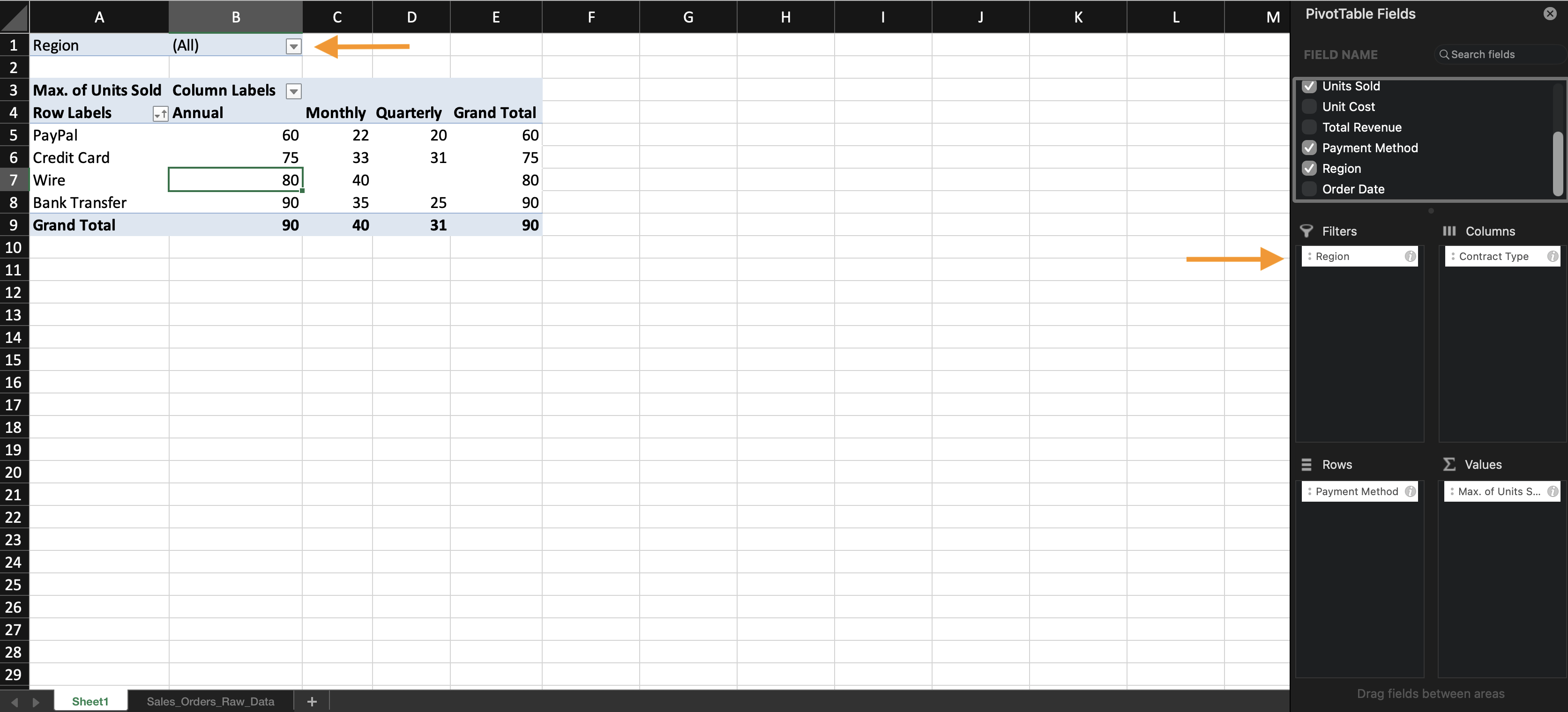
The Filters area is located in the Pivot Table Field List. To apply a Report Filter:
- In the Field List, drag a field into the Filters area;
- A filter dropdown appears above the Pivot Table;
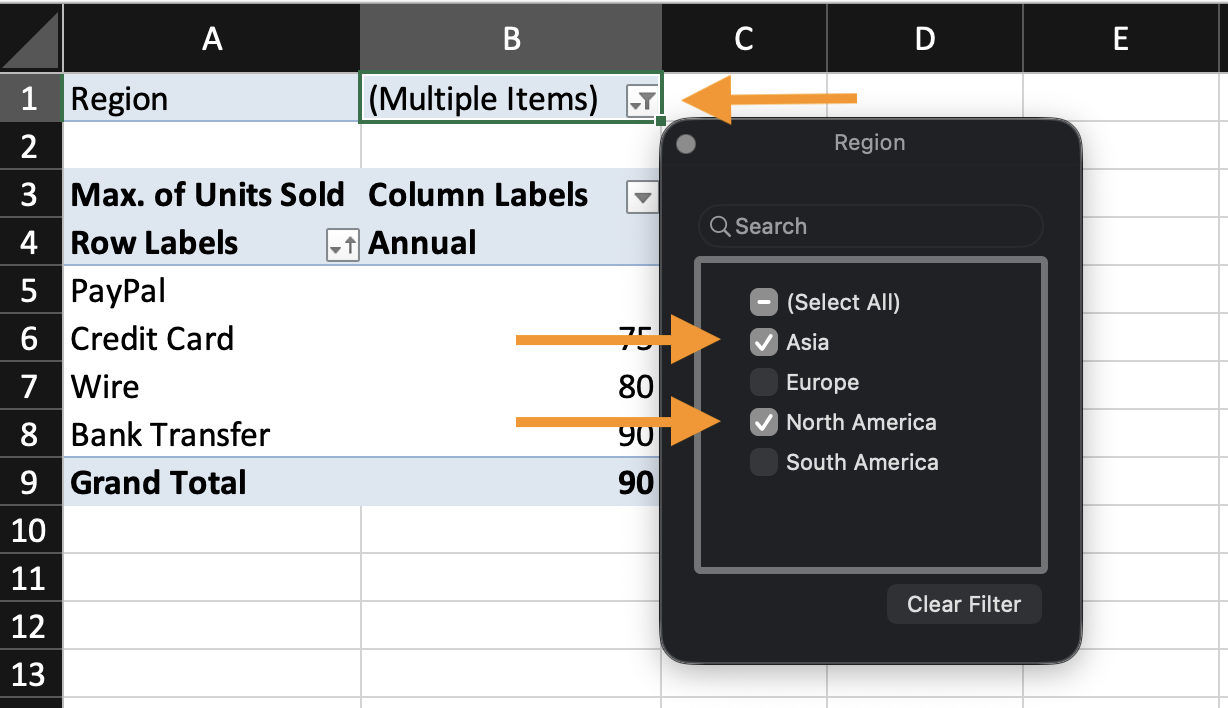
- Open the dropdown and select the values you want to include.
This filter affects the entire Pivot Table.
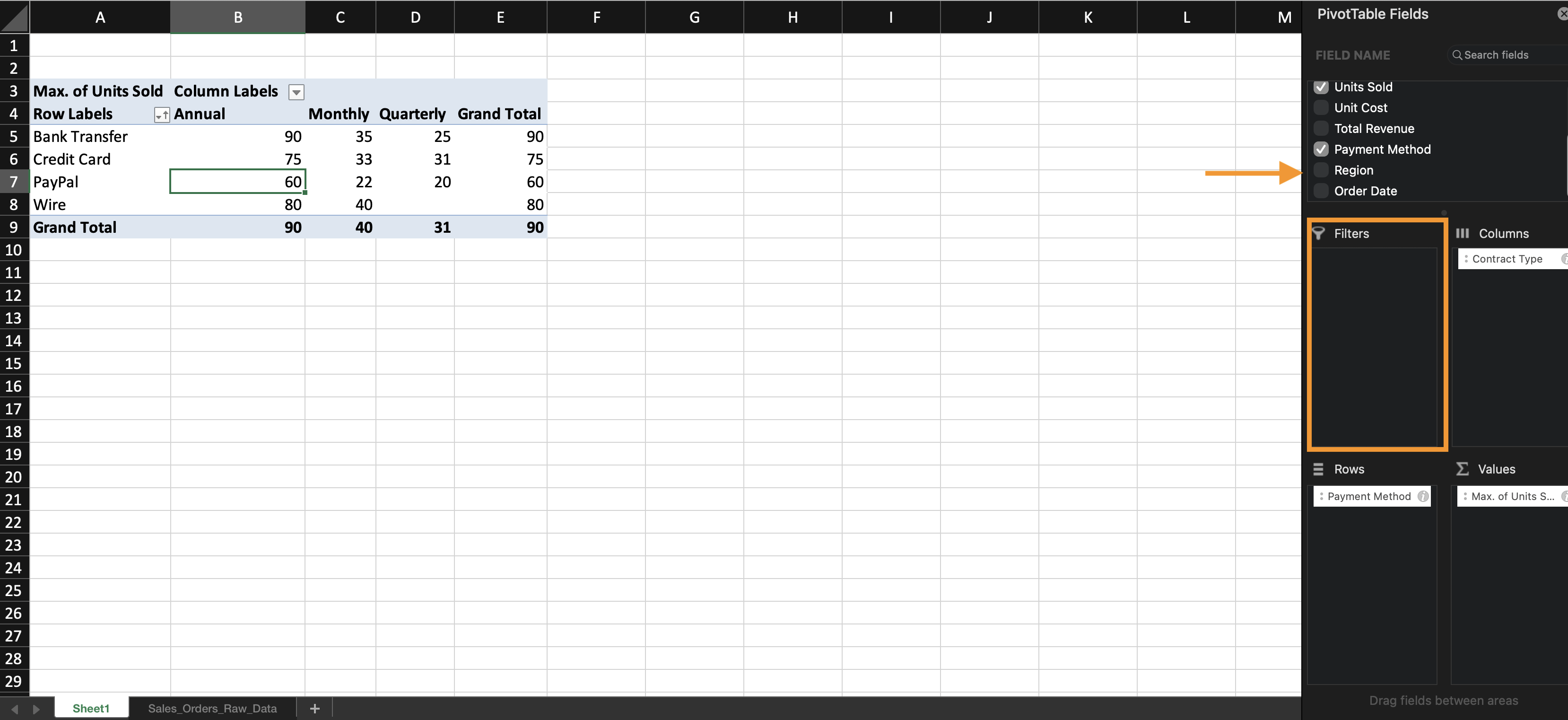
Label Filters
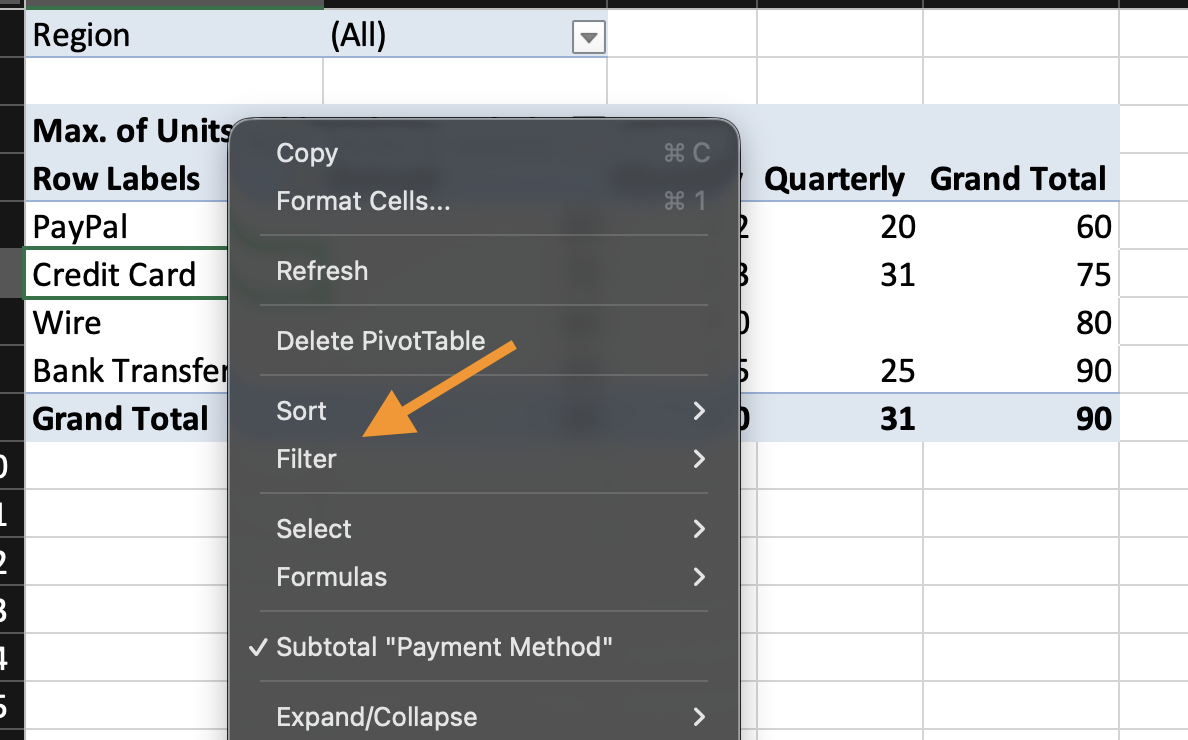
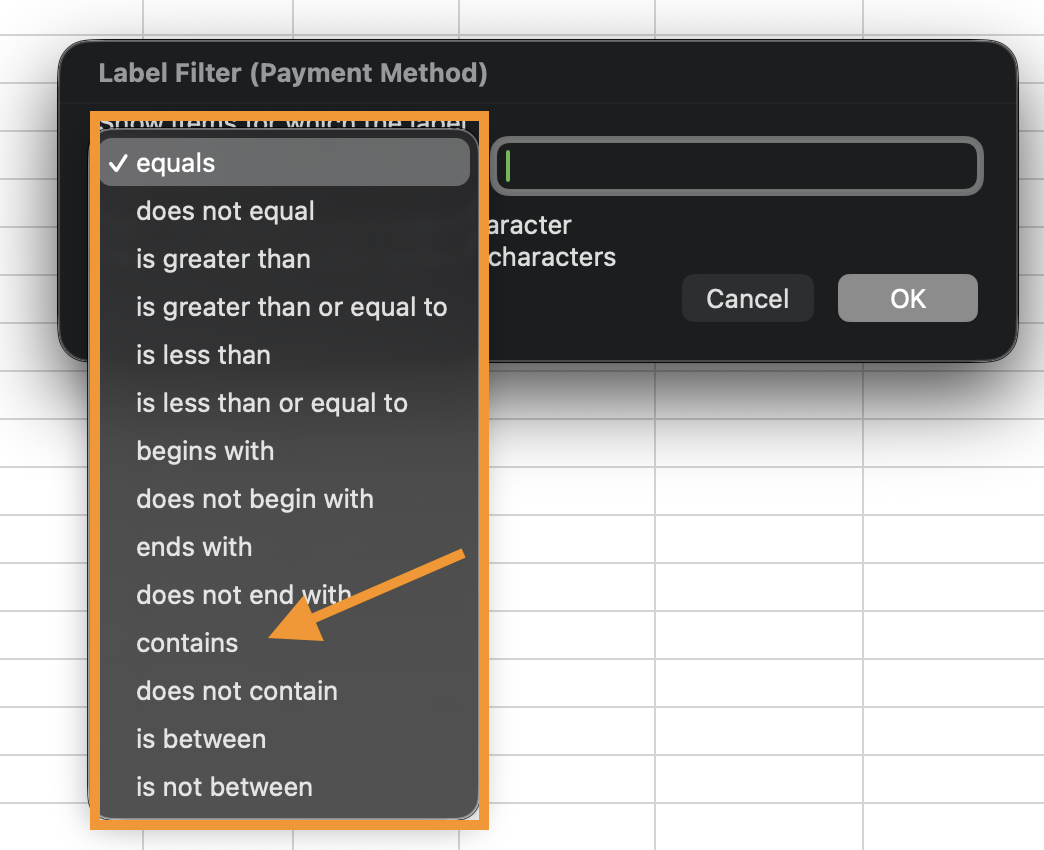
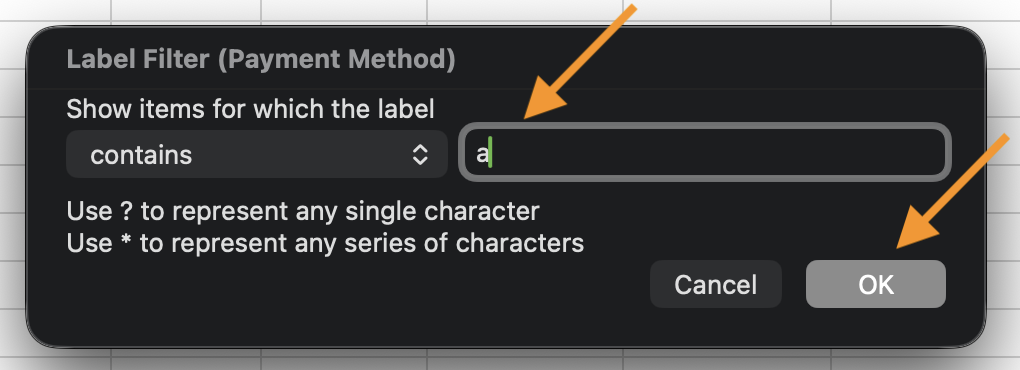
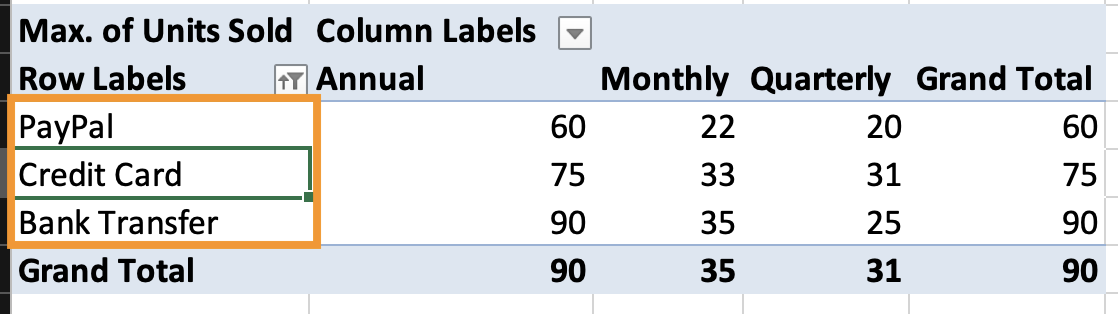
Label filters are applied directly to row or column labels. To apply a Label Filter:
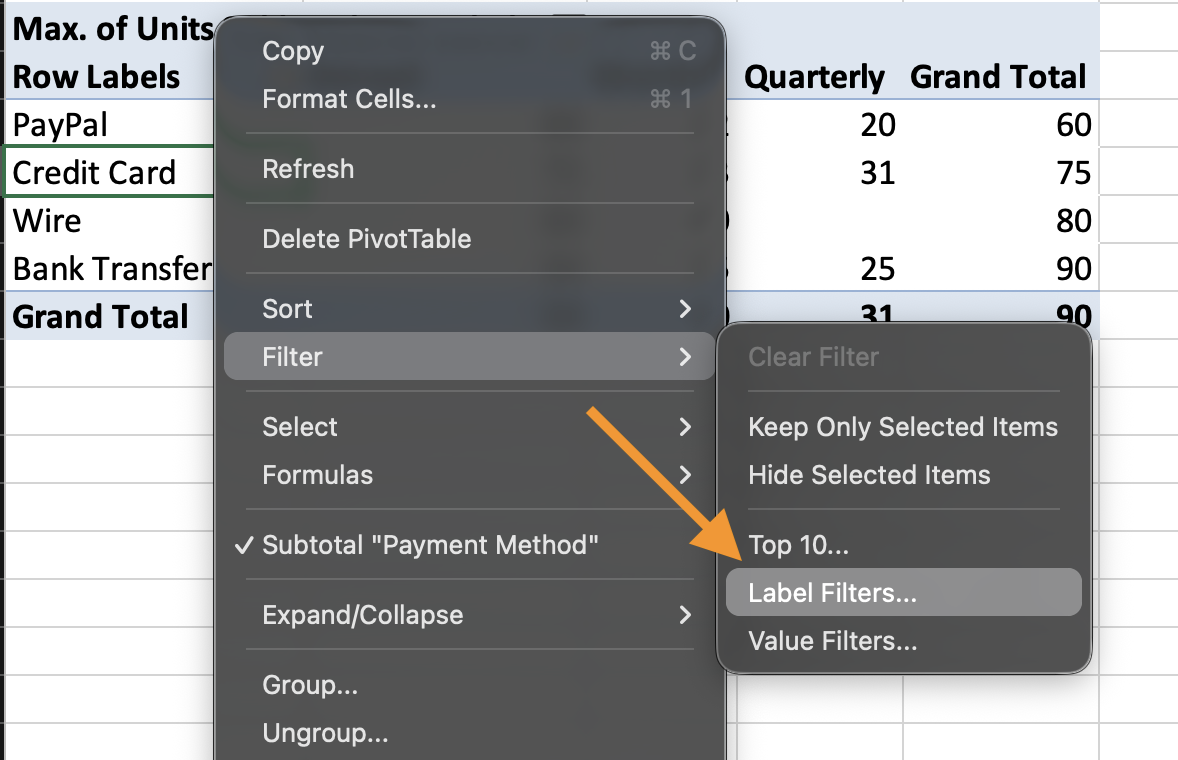
- Click the dropdown next to Row Labels in the Pivot Table;
- Choose Label Filters;
- Select a condition (for example,
containsorbegins with).
Label filters work with text values.
Value Filters (Based on Calculations)
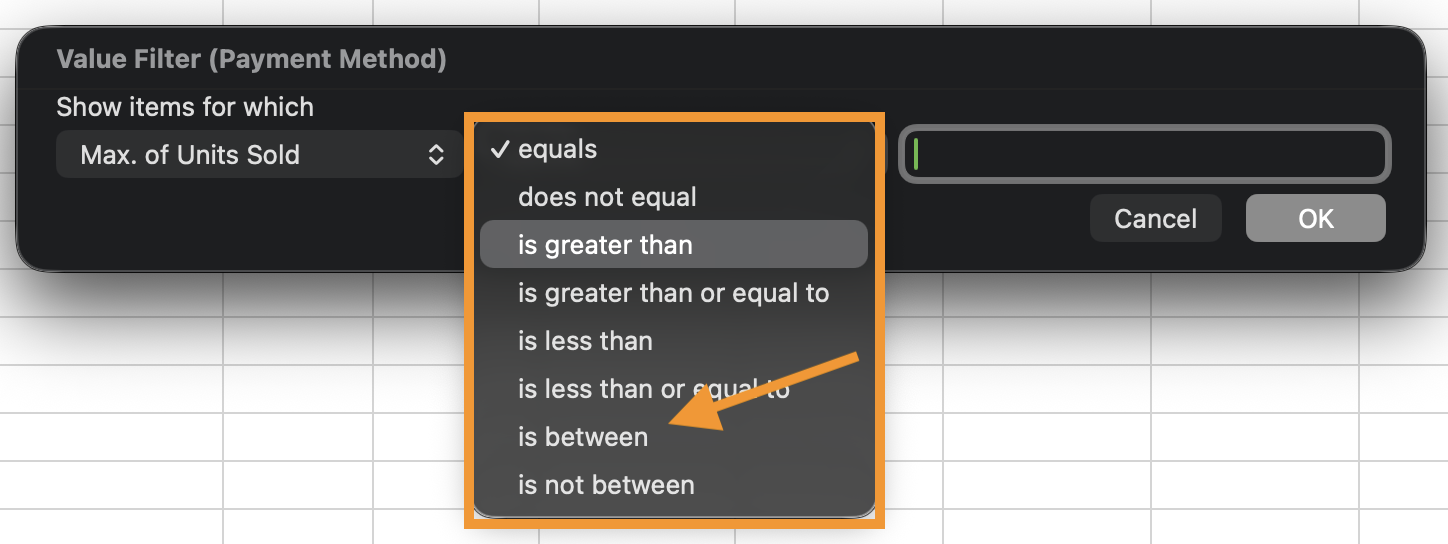
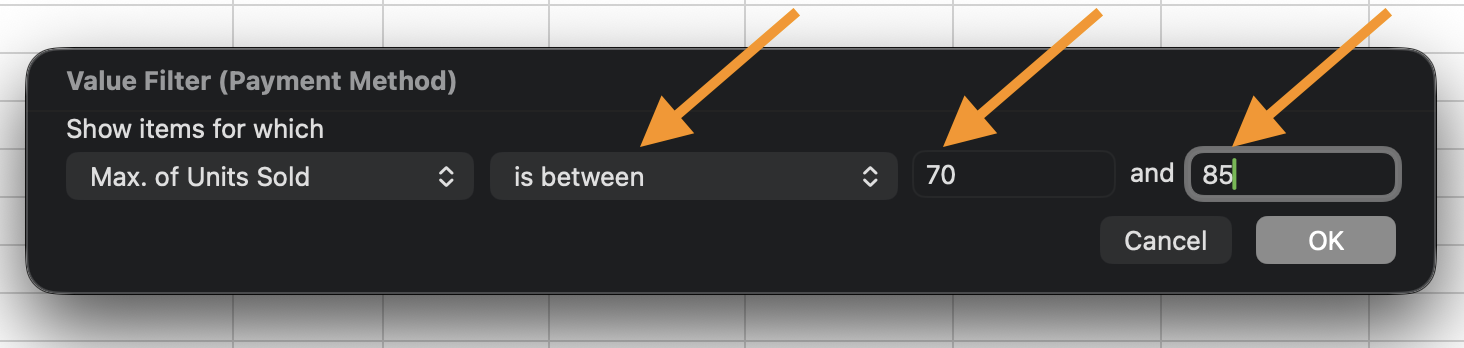
Value filters are based on the calculated results shown in the Pivot Table. To apply a Value Filter:
- Open the Row Labels dropdown;
- Choose Value Filters;
- Select a rule (for example,
is between); - Enter a numeric condition.
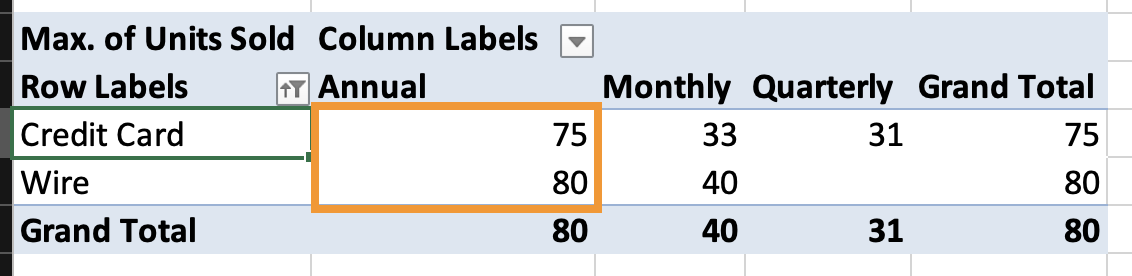
Value filters use the aggregation result, not the raw data.

Task
- Sort the Pivot Table by total values, largest to smallest;
- Add Region to the Filters area;
- Filter the Pivot Table to show only North.
Tak for dine kommentarer!
Spørg AI

Spørg AI

Spørg om hvad som helst eller prøv et af de foreslåede spørgsmål for at starte vores chat
