Brug af navngivne områder for hastighed
Stryg for at vise menuen
En formel som =SUMIFS($E$2:$E$51;$C$2:$C$51;J2) er korrekt, men uigennemsigtig. En formel som =SUMIFS(Revenue; Region; J2) angiver præcist, hvad den gør. Enhver, der læser den — inklusive dig selv om seks måneder — forstår den med det samme.
Navngivne områder erstatter celleadresser med beskrivende etiketter. Ud over læsbarhed gør de formler lettere at vedligeholde: hvis dataintervallet ændres, opdaterer du navnet én gang, og alle formler, der bruger det navn, opdateres automatisk.
Opret et navngivet område
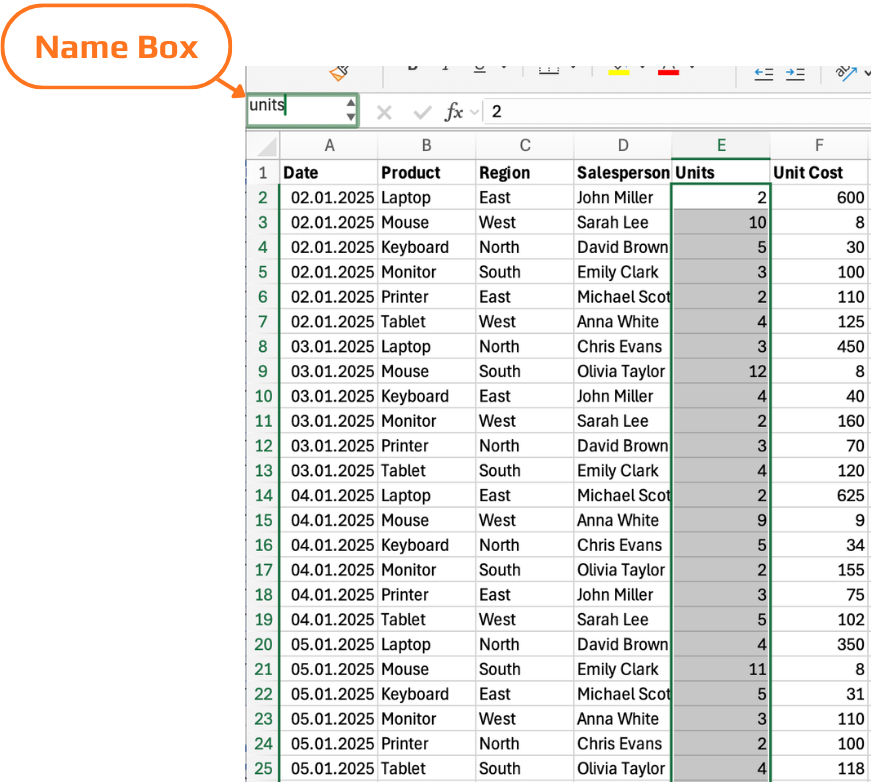
Navneboksen er feltet i venstre ende af formellinjen, der normalt viser den aktive celles adresse.
- Vælg den celle eller det område, du vil navngive;
- Klik på Navneboksen;
- Indtast navnet → tryk på Enter.
Navngivningsregler
- Navne skal starte med et bogstav eller en understreg — ikke et tal;
- Ingen mellemrum tilladt — brug understregninger (
Unit_Cost) eller camelCase (UnitCost); - Navne er ikke store/små bogstaver-følsomme —
Revenueogrevenuehenviser til det samme navn; - Navne må ikke ligne celleadresser —
E2ellerR1C1er ikke gyldige navne; - Navne kan være op til 255 tegn.
Når de er defineret, bruges navnet præcis som en celleadresse: =SUM(Revenue) i stedet for =SUM($E$2:$E$51).
Navngivne områder vises i Formel-autofuldførelse — begynd at skrive navnet, og Excel foreslår det i rullemenuen, ligesom funktionsnavne. Tryk på Tab for at indsætte.
Navnestyring
Navnestyring viser alle navngivne områder og formler i projektmappen med deres aktuelle reference, omfang og værdi. Herfra kan du:
- Redigere et navn eller dets reference — hvis datarækker tilføjes og et navngivet område skal udvides, opdater referencen her;
- Slette navne, der ikke længere er nødvendige;
- Filtrere efter omfang (regneark vs. projektmappe-navne) eller efter fejlstatus.
Hvis et navngivet område peger på et område, der er blevet slettet eller flyttet, markerer Navnestyring det med #REF!. Gennemgå navne med jævne mellemrum — især i projektmapper, der er blevet kraftigt redigeret — for at holde navnelisten ren.
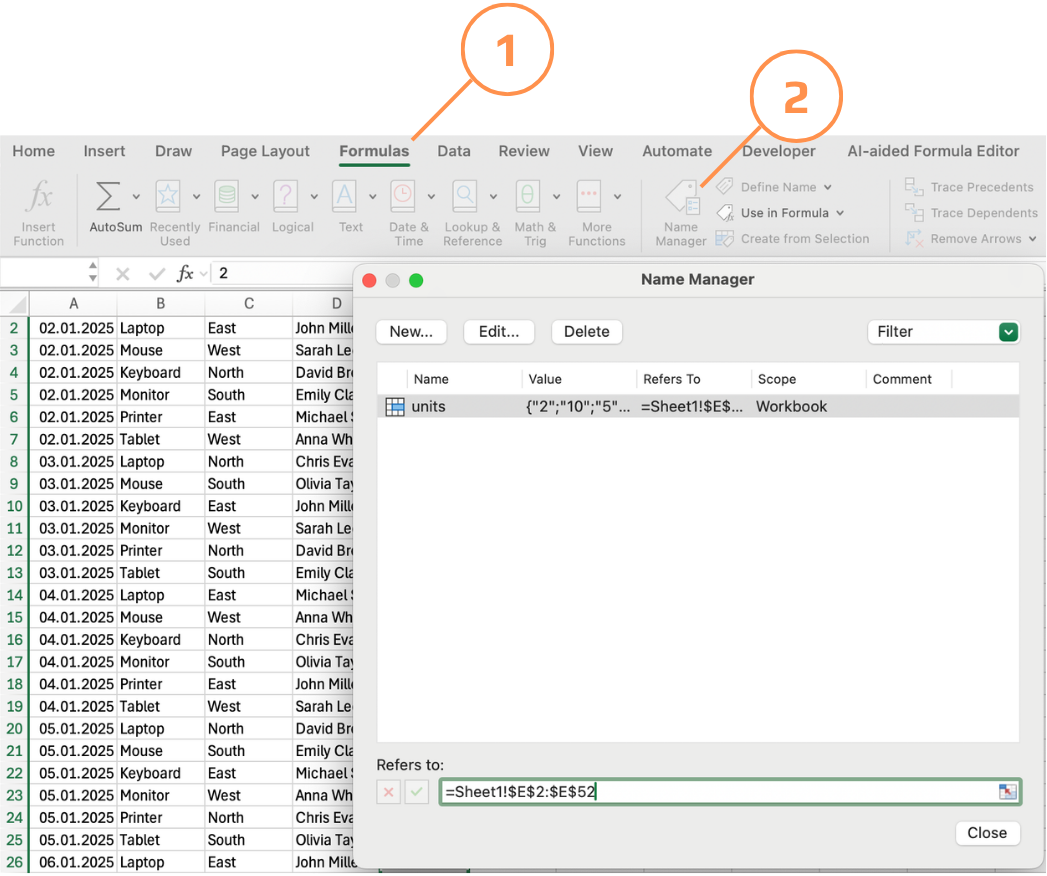
Brug navngivne områder til at beregne omsætning.
Opret navngivne områder for kolonnerne Units og Unit Cost, og brug dem derefter til at beregne Revenue.
- Opret et navngivet område
Unitsfor området E2:E52. - Opret et navngivet område
Unit_costsfor området F2:F52. - Indtast i celle G2 en formel, der beregner Revenue ved hjælp af de navngivne områder.
- Vælg området → skriv navnet i Navneboksen → tryk på Enter.
- Eller brug Formler → Definer navn.
- I G2 anvendes:
=Units*Unit_costs
- Bekræft om nødvendigt som matrix-/dynamisk formel (afhængigt af Excel-version).
- Sørg for, at begge områder har samme størrelse (E2:E52 og F2:F52).
Tak for dine kommentarer!
Spørg AI

Spørg AI

Spørg om hvad som helst eller prøv et af de foreslåede spørgsmål for at starte vores chat
