Smarte Markeringsteknikker
Stryg for at vise menuen
Markering er det trin, der sker før næsten alt andet — før formatering, før kopiering, før indtastning af en formel over et område. Langsom markering er usynlig friktion: det føles normalt, indtil du lærer at gøre det med ét tastetryk i stedet for ti sekunders trækning.
I vores salgstabel vil du konstant skulle markere specifikke kolonner for at formatere, hele dataområder for at kopiere eller undergrupper af rækker for at analysere. Hver teknik i dette kapitel gælder direkte for denne arbejdsgang.
Udvidelse af navigation til markering
Du har lært at flytte dig med Ctrl + Arrow. Den vigtige indsigt her er enkel: hold Shift nede for at markere i stedet for blot at flytte.
Markering af hele rækker og kolonner
Valg af ikke-sammenhængende områder
Nogle gange er det nødvendigt at vælge flere adskilte områder — for eksempel kolonnerne A og E (Date og Revenue), mens B, C og D springes over.
- Tilføj et ekstra område til markeringen: hold
Ctrl/Cmdnede og klik eller træk over det ekstra område; - Tilføj en ekstra række/kolonne: hold
Ctrl/Cmdnede og klik på række- eller kolonneoverskriften.
-
Klik på
A1, tryk påShift + Space— bekræft, at hele første række er markeret. Anvend en lys gul fyldfarve: Hjem → Fyldfarve → Gul. -
Klik på
C1, og tryk derefter påCtrl + Shift + ↓/Cmd + Shift + ↓. Skift skriftfarven til rød: Hjem → Skriftfarve → Rød. -
Vælg kolonnerne A, B og E ved at holde
Ctrl/Cmdnede og klikke på kolonneoverskrifterne A, B og E—bekræft, at alle tre hele kolonner er markeret. Gør derefter teksten fed ved at klikke på Fed-knappen på Hjem-fanen i båndet. -
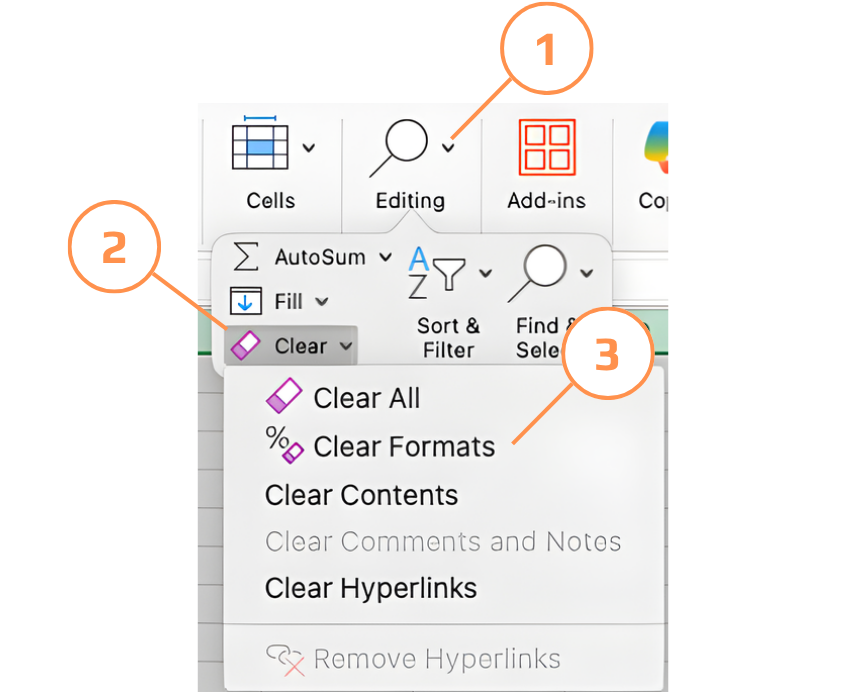
Klik et vilkårligt sted uden for dataene. Tryk på
Ctrl + A/Cmd + Afor at markere hele arket. Gå til Hjem → Redigering → Ryd → Ryd formater.
Nu er det muligt at markere hele kolonner, rækker, tabeller og dynamiske dataområder med det samme.
Tak for dine kommentarer!
Spørg AI

Spørg AI

Spørg om hvad som helst eller prøv et af de foreslåede spørgsmål for at starte vores chat
