Deling af Filer og Håndtering af Adgang
Stryg for at vise menuen
Excel giver brugere mulighed for at dele projektmapper direkte via OneDrive og samarbejde uden at sende filvedhæftninger manuelt. I stedet for at oprette flere kopier af projektmappen kan teams arbejde i den samme delte fil.
Før en projektmappe kan deles, skal den være gemt i OneDrive eller SharePoint. Lokale filer, der kun er gemt på en computer, kan ikke bruge moderne samarbejdsfunktioner.
Åbning af delingsvinduet
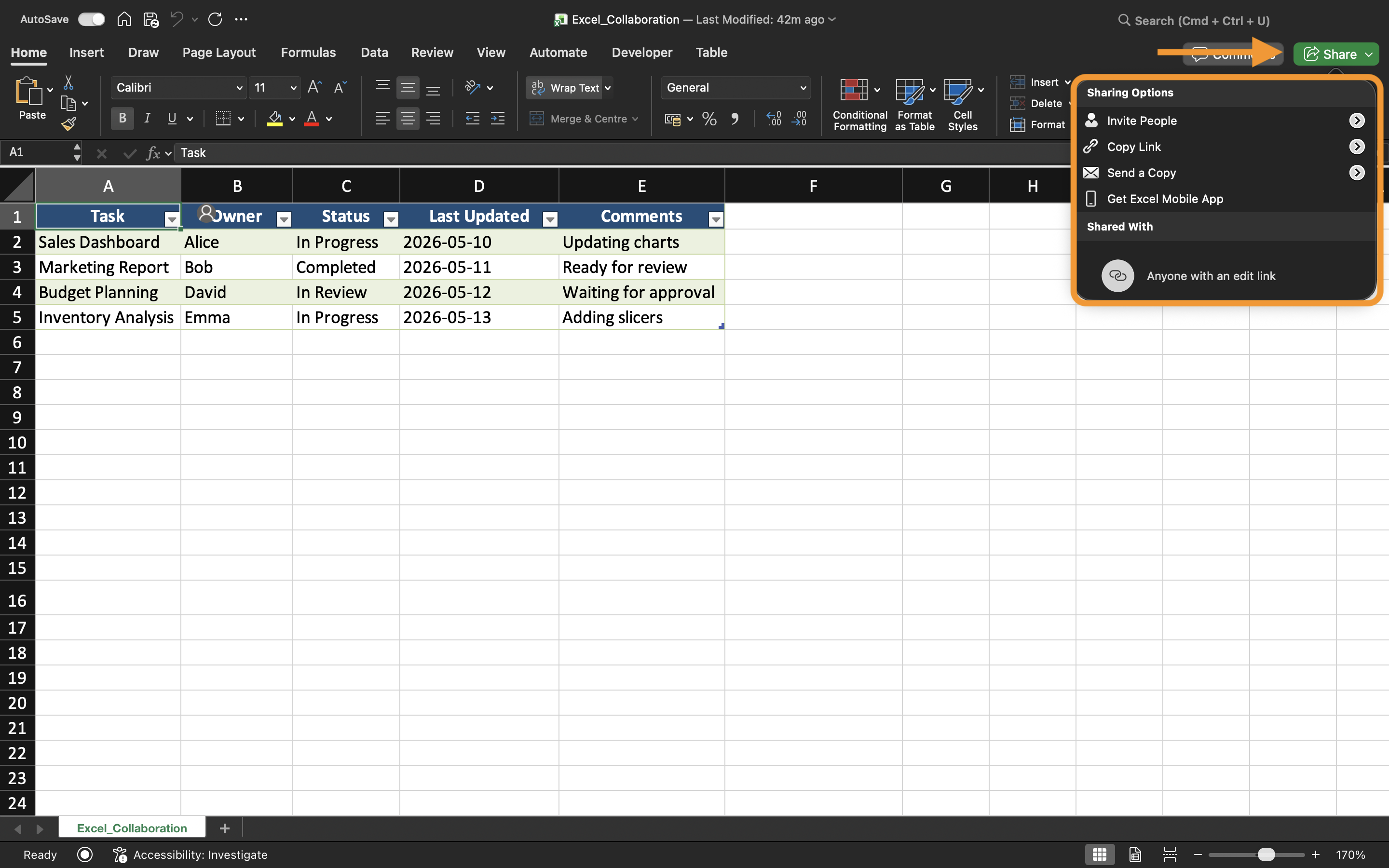
For at dele en projektmappe:
- Åbn Excel-projektmappen;
- Vælg knappen Del nær øverste højre hjørne;
- Vælg, hvordan filen skal deles.
Excel giver brugere mulighed for at invitere samarbejdspartnere via e-mailadresser eller generere delingslinks.
Forståelse af tilladelsestyper
Når en projektmappe deles, tilbyder Excel forskellige tilladelsesniveauer afhængigt af, hvordan samarbejdspartnere skal interagere med filen.
De to mest almindelige tilladelsestyper er:
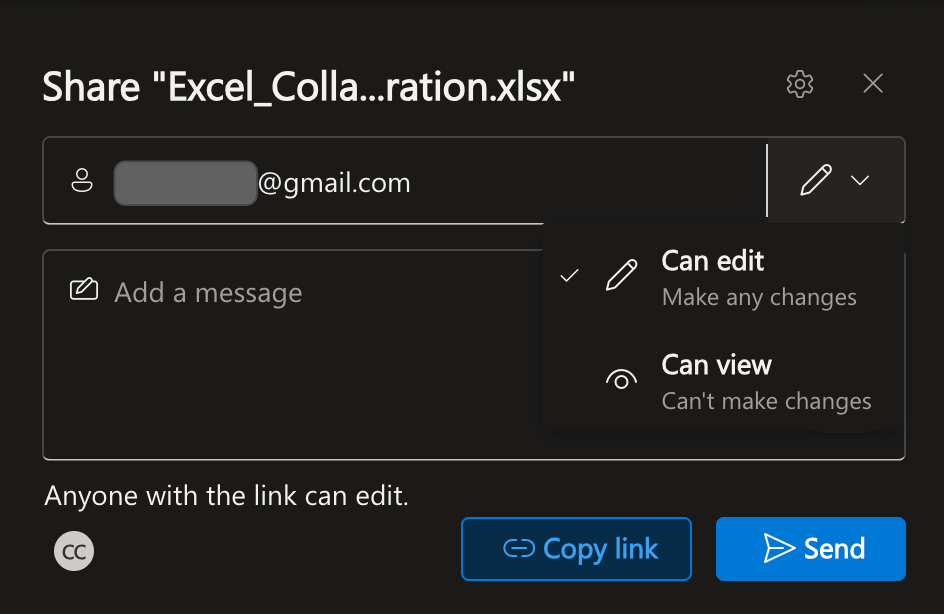
- Kan redigere: brugere kan ændre indholdet i projektmappen;
- Kan se: brugere kan kun se projektmappen.
Valg af den korrekte tilladelsestype er vigtigt, når der arbejdes med følsomme rapporter eller færdiggjorte filer.
For eksempel kan en økonomichef give regnskabsteamet mulighed for at redigere en projektmappe, mens ledelsen kun får visningstilladelse.
Deling via e-mailinvitationer
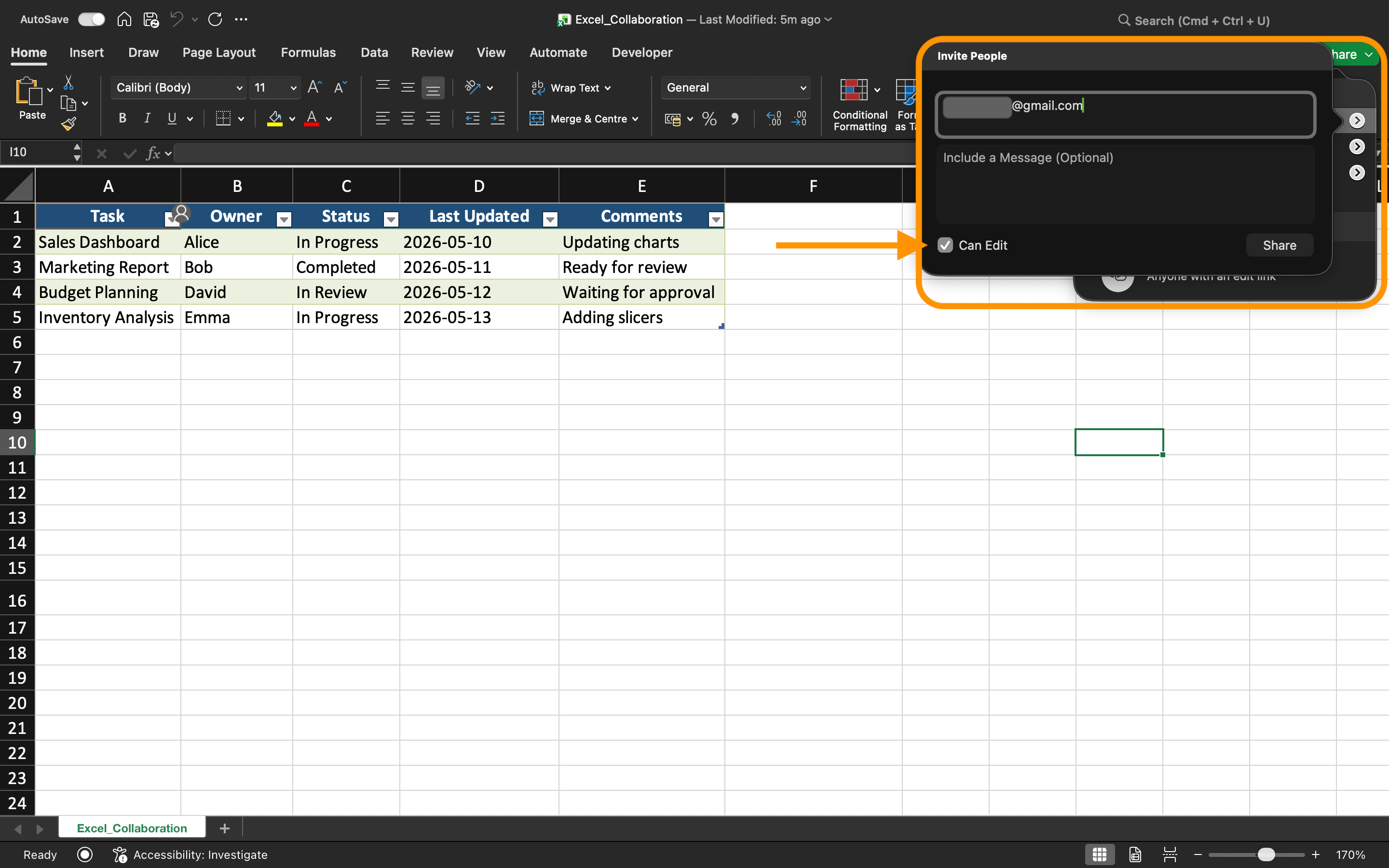
Excel kan sende invitations til projektmapper direkte via e-mail. Når du indtaster samarbejdspartneres e-mailadresser, modtager brugerne et link, der automatisk åbner den delte projektmappe.
Denne metode anvendes ofte internt i organisationer, da adgangen forbliver knyttet til specifikke brugerkonti.
Ved deling via invitationer giver Excel også mulighed for at:
- Tilføje en kort besked;
- Styre redigeringstilladelser;
- Forhindre samarbejdspartnere i at dele filen videre.
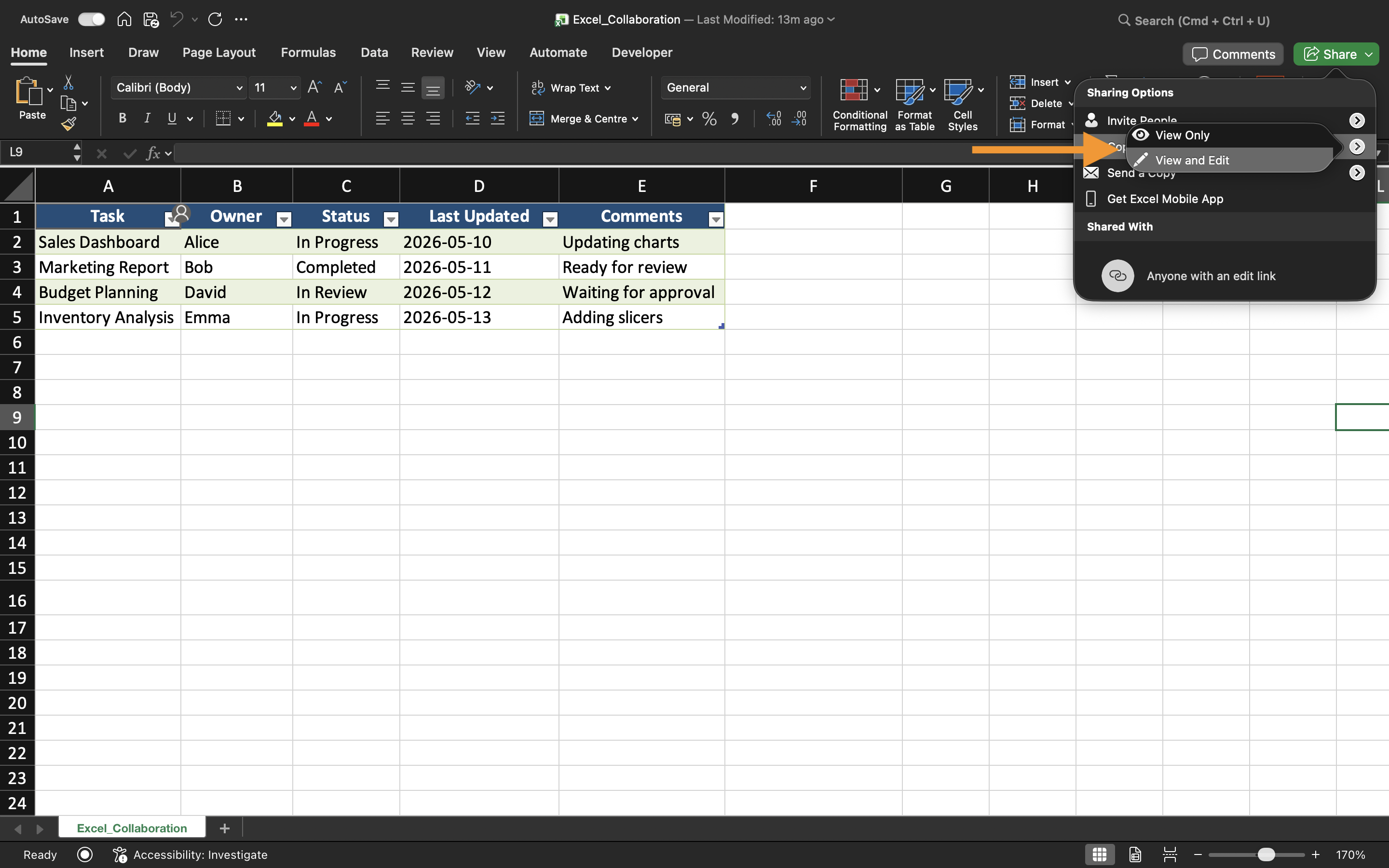
Oprettelse af delingslinks
I stedet for at invitere brugere individuelt kan Excel generere samarbejdslinks.
Almindelige linktyper omfatter:
- Kun-visning links;
- Redigerbare links;
- Kun-organisation links.
Links gør samarbejde hurtigere, især når mange brugere skal have adgang til den samme projektmappe.
Det er dog vigtigt altid at gennemgå tilladelsesindstillingerne grundigt, før links sendes eksternt.
Administration af projektmappeadgang
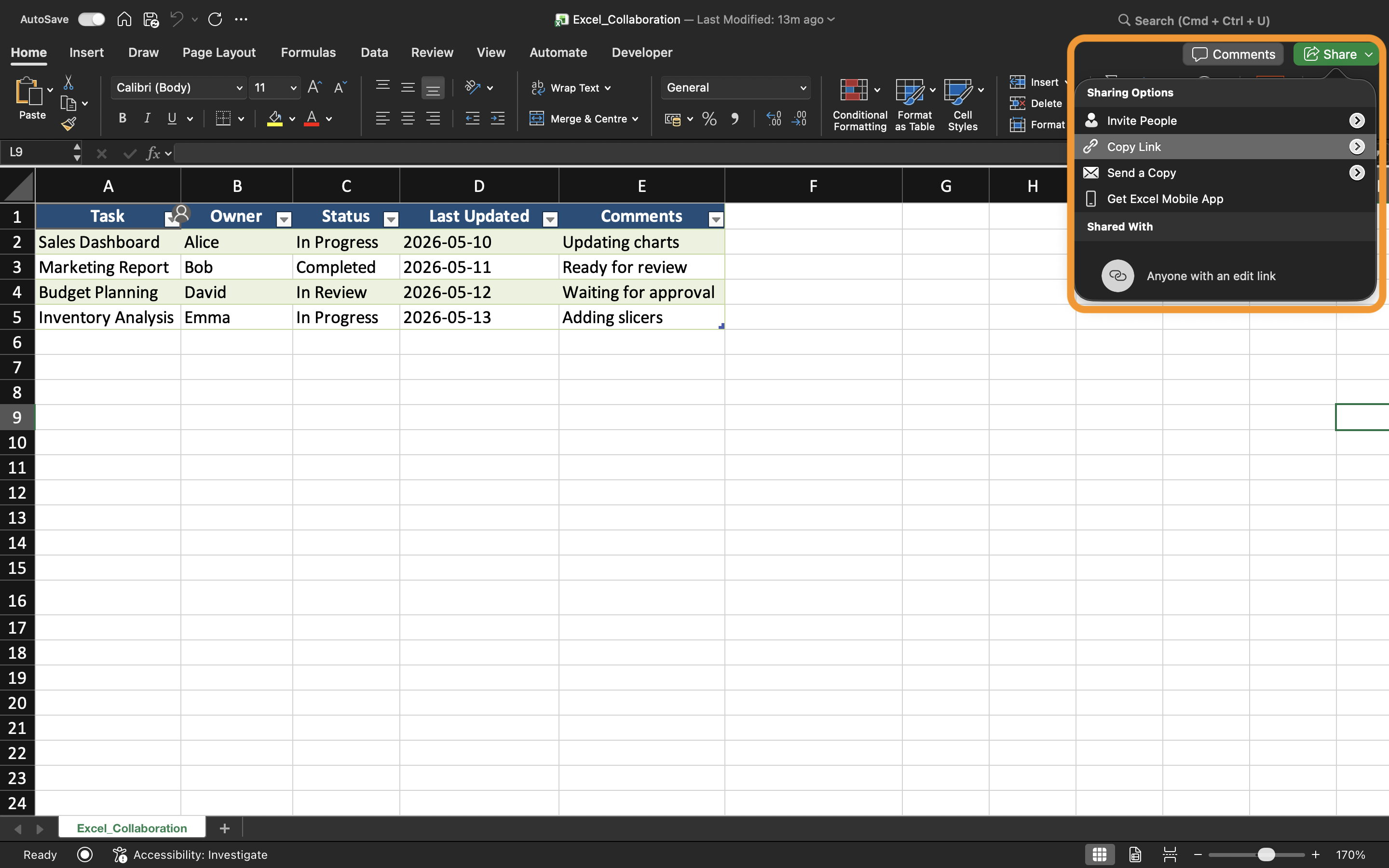
Adgang til projektmapper kan til enhver tid ændres via delingsindstillingerne.
Excel giver brugere mulighed for at:
- Fjerne samarbejdspartnere;
- Ændre tilladelser;
- Deaktivere delingslinks;
- Gennemgå hvem der aktuelt har adgang.
Dette bidrager til bedre sikkerhed og forhindrer uautoriserede ændringer i projektmappen.
Bedste praksis for delte filer
Ved professionel deling af Excel-projektmapper:
- Brug tydelige navne til projektmapper;
- Opbevar filer i organiserede mapper;
- Undgå at sende dublerede vedhæftede filer;
- Begræns redigeringstilladelser når det er muligt;
- Gennemgå adgang for samarbejdspartnere regelmæssigt.
Disse vaner hjælper teams med at opretholde mere overskuelige og sikre samarbejdsprocesser.
Opgave
Projektmappen indeholder en månedlig salgsrapport, der bruges af flere afdelingsledere. Målet er at dele projektmappen med redigeringstilladelse til teammedlemmer og oprette et separat visningslink til ledelsen.
- Gem projektmappen på OneDrive;
- Åbn delingsvinduet;
- Opret en delingsinvitation med redigeringstilladelse;
- Generér et visningslink kun til læsning;
- Gennemgå de aktuelle adgangsindstillinger for projektmappen.
Tak for dine kommentarer!
Spørg AI

Spørg AI

Spørg om hvad som helst eller prøv et af de foreslåede spørgsmål for at starte vores chat
Deling af Filer og Håndtering af Adgang
Excel giver brugere mulighed for at dele projektmapper direkte via OneDrive og samarbejde uden at sende filvedhæftninger manuelt. I stedet for at oprette flere kopier af projektmappen kan teams arbejde i den samme delte fil.
Før en projektmappe kan deles, skal den være gemt i OneDrive eller SharePoint. Lokale filer, der kun er gemt på en computer, kan ikke bruge moderne samarbejdsfunktioner.
Åbning af delingsvinduet
For at dele en projektmappe:
- Åbn Excel-projektmappen;
- Vælg knappen Del nær øverste højre hjørne;
- Vælg, hvordan filen skal deles.
Excel giver brugere mulighed for at invitere samarbejdspartnere via e-mailadresser eller generere delingslinks.
Forståelse af tilladelsestyper
Når en projektmappe deles, tilbyder Excel forskellige tilladelsesniveauer afhængigt af, hvordan samarbejdspartnere skal interagere med filen.
De to mest almindelige tilladelsestyper er:
- Kan redigere: brugere kan ændre indholdet i projektmappen;
- Kan se: brugere kan kun se projektmappen.
Valg af den korrekte tilladelsestype er vigtigt, når der arbejdes med følsomme rapporter eller færdiggjorte filer.
For eksempel kan en økonomichef give regnskabsteamet mulighed for at redigere en projektmappe, mens ledelsen kun får visningstilladelse.
Deling via e-mailinvitationer
Excel kan sende invitations til projektmapper direkte via e-mail. Når du indtaster samarbejdspartneres e-mailadresser, modtager brugerne et link, der automatisk åbner den delte projektmappe.
Denne metode anvendes ofte internt i organisationer, da adgangen forbliver knyttet til specifikke brugerkonti.
Ved deling via invitationer giver Excel også mulighed for at:
- Tilføje en kort besked;
- Styre redigeringstilladelser;
- Forhindre samarbejdspartnere i at dele filen videre.
Oprettelse af delingslinks
I stedet for at invitere brugere individuelt kan Excel generere samarbejdslinks.
Almindelige linktyper omfatter:
- Kun-visning links;
- Redigerbare links;
- Kun-organisation links.
Links gør samarbejde hurtigere, især når mange brugere skal have adgang til den samme projektmappe.
Det er dog vigtigt altid at gennemgå tilladelsesindstillingerne grundigt, før links sendes eksternt.
Administration af projektmappeadgang
Adgang til projektmapper kan til enhver tid ændres via delingsindstillingerne.
Excel giver brugere mulighed for at:
- Fjerne samarbejdspartnere;
- Ændre tilladelser;
- Deaktivere delingslinks;
- Gennemgå hvem der aktuelt har adgang.
Dette bidrager til bedre sikkerhed og forhindrer uautoriserede ændringer i projektmappen.
Bedste praksis for delte filer
Ved professionel deling af Excel-projektmapper:
- Brug tydelige navne til projektmapper;
- Opbevar filer i organiserede mapper;
- Undgå at sende dublerede vedhæftede filer;
- Begræns redigeringstilladelser når det er muligt;
- Gennemgå adgang for samarbejdspartnere regelmæssigt.
Disse vaner hjælper teams med at opretholde mere overskuelige og sikre samarbejdsprocesser.
Opgave
Projektmappen indeholder en månedlig salgsrapport, der bruges af flere afdelingsledere. Målet er at dele projektmappen med redigeringstilladelse til teammedlemmer og oprette et separat visningslink til ledelsen.
- Gem projektmappen på OneDrive;
- Åbn delingsvinduet;
- Opret en delingsinvitation med redigeringstilladelse;
- Generér et visningslink kun til læsning;
- Gennemgå de aktuelle adgangsindstillinger for projektmappen.
Tak for dine kommentarer!
