Kommentarer og Kommunikation
Stryg for at vise menuen
Excel giver samarbejdspartnere mulighed for at kommunikere direkte i delte projektmapper ved hjælp af kommentarer og omtaler. Dette hjælper teams med at diskutere ændringer, stille spørgsmål og gennemgå data uden at skulle bruge eksterne beskedtjenester.
Kommentarer er særligt nyttige, når flere brugere arbejder på rapporter, budgetter, prognoser eller projektstyringsark.
Forståelse af trådede kommentarer
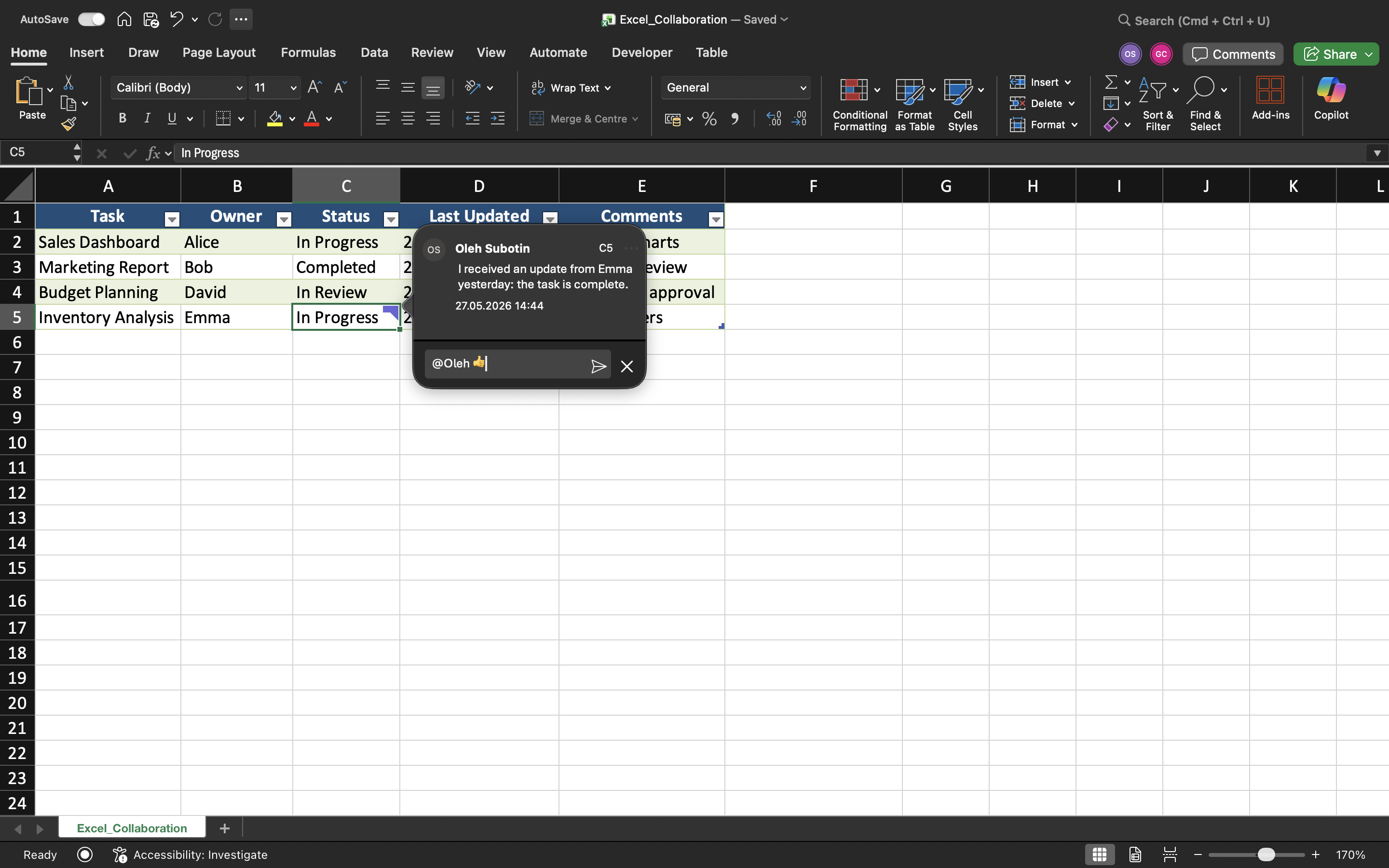
Moderne Excel anvender trådede kommentarer, som gør det muligt for brugere at oprette diskussioner knyttet til specifikke celler.
Når en kommentar tilføjes:
- Vises en lille indikator i cellen;
- Samarbejdspartnere kan svare på diskussionen;
- Samtalen forbliver forbundet til regnearkets data.
Dette gør kommunikationen i projektmappen mere organiseret og lettere at følge.
Tilføjelse af kommentarer til celler
For at indsætte en kommentar:
- Vælg en celle;
- Højreklik på cellen;
- Vælg Ny kommentar;
- Indtast beskeden.
Kommentarer bruges ofte til at:
- Anmode om dataopdateringer;
- Forklare beregninger;
- Gennemgå usædvanlige værdier;
- Give feedback til samarbejdspartnere.
Da kommentarer forbliver knyttet til regnearkets celler, forbliver diskussioner forbundet til de relevante data.
Brug af omtaler
Excel understøtter @omtaler i kommentarer. Omtaler giver besked til specifikke samarbejdspartnere og hjælper med at rette opmærksomheden mod vigtige ændringer i projektmappen.
For eksempel:
@Daniel Bekræft venligst omsætningstallene for Q3.
Når en samarbejdspartner nævnes, kan Excel sende en notifikation afhængigt af delingsmiljøet og kontoindstillingerne.
Omtaler forbedrer kommunikationen og mindsker forvirring under samarbejdsprojekter.
Løsning af kommentarer
Når et problem er løst eller gennemgået, kan kommentarer markeres som Løst.
Løste kommentarer:
- Forbliver gemt i projektmappens historik;
- Mindsker rod i regnearket;
- Hjælper teams med at holde styr på afsluttede diskussioner.
Dette skaber mere overskuelige samarbejdsprocesser, især i store delte projektmapper.
Noter vs kommentarer
Excel indeholder også noter, som adskiller sig fra moderne trådede kommentarer.
I moderne samarbejdsprocesser foretrækkes kommentarer normalt frem for noter.
Opgave
Projektmappen indeholder en delt projekttracker, der bruges af flere teammedlemmer. Målet er at kommunikere opdateringer i projektmappen ved hjælp af kommentarer og nævnelser.
- Tilføj kommentarer til flere regnearksceller;
- Svar på en eksisterende kommentar;
- Brug en @nævnelse i en kommentar;
- Afslut en færdig diskussion;
- Sammenlign noter og kommentarer i projektmappen.
Tak for dine kommentarer!
Spørg AI

Spørg AI

Spørg om hvad som helst eller prøv et af de foreslåede spørgsmål for at starte vores chat
Kommentarer og Kommunikation
Excel giver samarbejdspartnere mulighed for at kommunikere direkte i delte projektmapper ved hjælp af kommentarer og omtaler. Dette hjælper teams med at diskutere ændringer, stille spørgsmål og gennemgå data uden at skulle bruge eksterne beskedtjenester.
Kommentarer er særligt nyttige, når flere brugere arbejder på rapporter, budgetter, prognoser eller projektstyringsark.
Forståelse af trådede kommentarer
Moderne Excel anvender trådede kommentarer, som gør det muligt for brugere at oprette diskussioner knyttet til specifikke celler.
Når en kommentar tilføjes:
- Vises en lille indikator i cellen;
- Samarbejdspartnere kan svare på diskussionen;
- Samtalen forbliver forbundet til regnearkets data.
Dette gør kommunikationen i projektmappen mere organiseret og lettere at følge.
Tilføjelse af kommentarer til celler
For at indsætte en kommentar:
- Vælg en celle;
- Højreklik på cellen;
- Vælg Ny kommentar;
- Indtast beskeden.
Kommentarer bruges ofte til at:
- Anmode om dataopdateringer;
- Forklare beregninger;
- Gennemgå usædvanlige værdier;
- Give feedback til samarbejdspartnere.
Da kommentarer forbliver knyttet til regnearkets celler, forbliver diskussioner forbundet til de relevante data.
Brug af omtaler
Excel understøtter @omtaler i kommentarer. Omtaler giver besked til specifikke samarbejdspartnere og hjælper med at rette opmærksomheden mod vigtige ændringer i projektmappen.
For eksempel:
@Daniel Bekræft venligst omsætningstallene for Q3.
Når en samarbejdspartner nævnes, kan Excel sende en notifikation afhængigt af delingsmiljøet og kontoindstillingerne.
Omtaler forbedrer kommunikationen og mindsker forvirring under samarbejdsprojekter.
Løsning af kommentarer
Når et problem er løst eller gennemgået, kan kommentarer markeres som Løst.
Løste kommentarer:
- Forbliver gemt i projektmappens historik;
- Mindsker rod i regnearket;
- Hjælper teams med at holde styr på afsluttede diskussioner.
Dette skaber mere overskuelige samarbejdsprocesser, især i store delte projektmapper.
Noter vs kommentarer
Excel indeholder også noter, som adskiller sig fra moderne trådede kommentarer.
I moderne samarbejdsprocesser foretrækkes kommentarer normalt frem for noter.
Opgave
Projektmappen indeholder en delt projekttracker, der bruges af flere teammedlemmer. Målet er at kommunikere opdateringer i projektmappen ved hjælp af kommentarer og nævnelser.
- Tilføj kommentarer til flere regnearksceller;
- Svar på en eksisterende kommentar;
- Brug en @nævnelse i en kommentar;
- Afslut en færdig diskussion;
- Sammenlign noter og kommentarer i projektmappen.
Tak for dine kommentarer!
