Versionshistorik og Filgendannelse
Stryg for at vise menuen
Excel gemmer automatisk tidligere versioner af projektmapper, når filer gemmes i OneDrive eller SharePoint. Dette gør det muligt for brugere at gennemgå ældre tilstande af projektmappen, gendanne mistede oplysninger og genskabe filer efter utilsigtede ændringer.
Versionshistorik er en af de vigtigste samarbejdsfunktioner, da det hjælper teams med sikkert at administrere delte projektmapper over tid.
Forståelse af versionshistorik
Når der foretages ændringer i en skybaseret projektmappe, gemmer Excel automatisk historiske versioner. Disse versioner skaber en tidslinje over opdateringer af projektmappen.
Versionshistorik hjælper brugere med at:
- Gendanne ældre tilstande af projektmappen;
- Genskabe slettede oplysninger;
- Gennemgå tidligere ændringer i projektmappen;
- Fortryde større redigeringsfejl.
Dette er især nyttigt, når flere samarbejdspartnere arbejder i den samme fil.
Åbning af versionshistorik
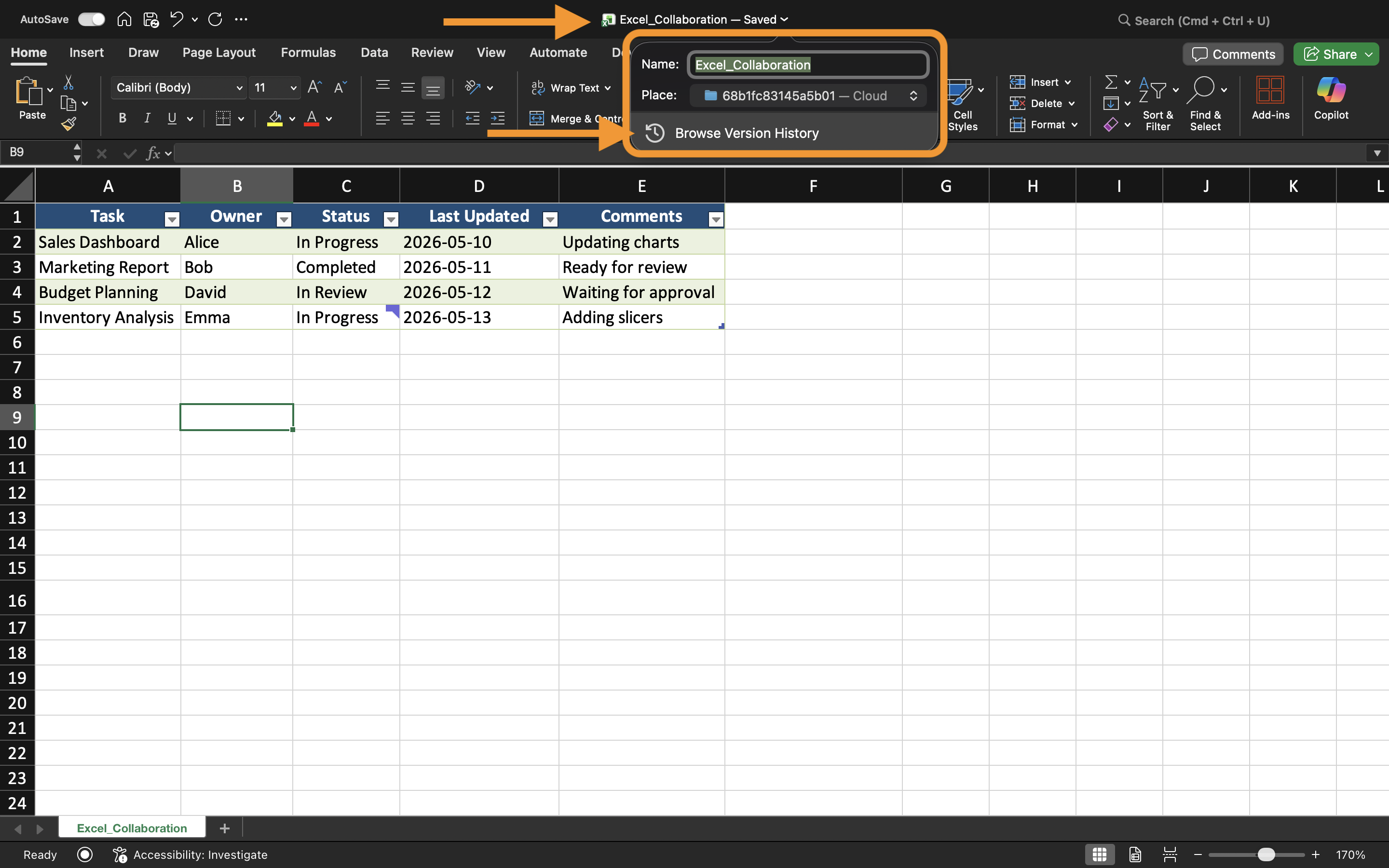
For at se projektmappens historik:
- Åbn den delte projektmappe;
- Vælg projektmappens navn nær toppen af Excel;
- Vælg Versionshistorik.
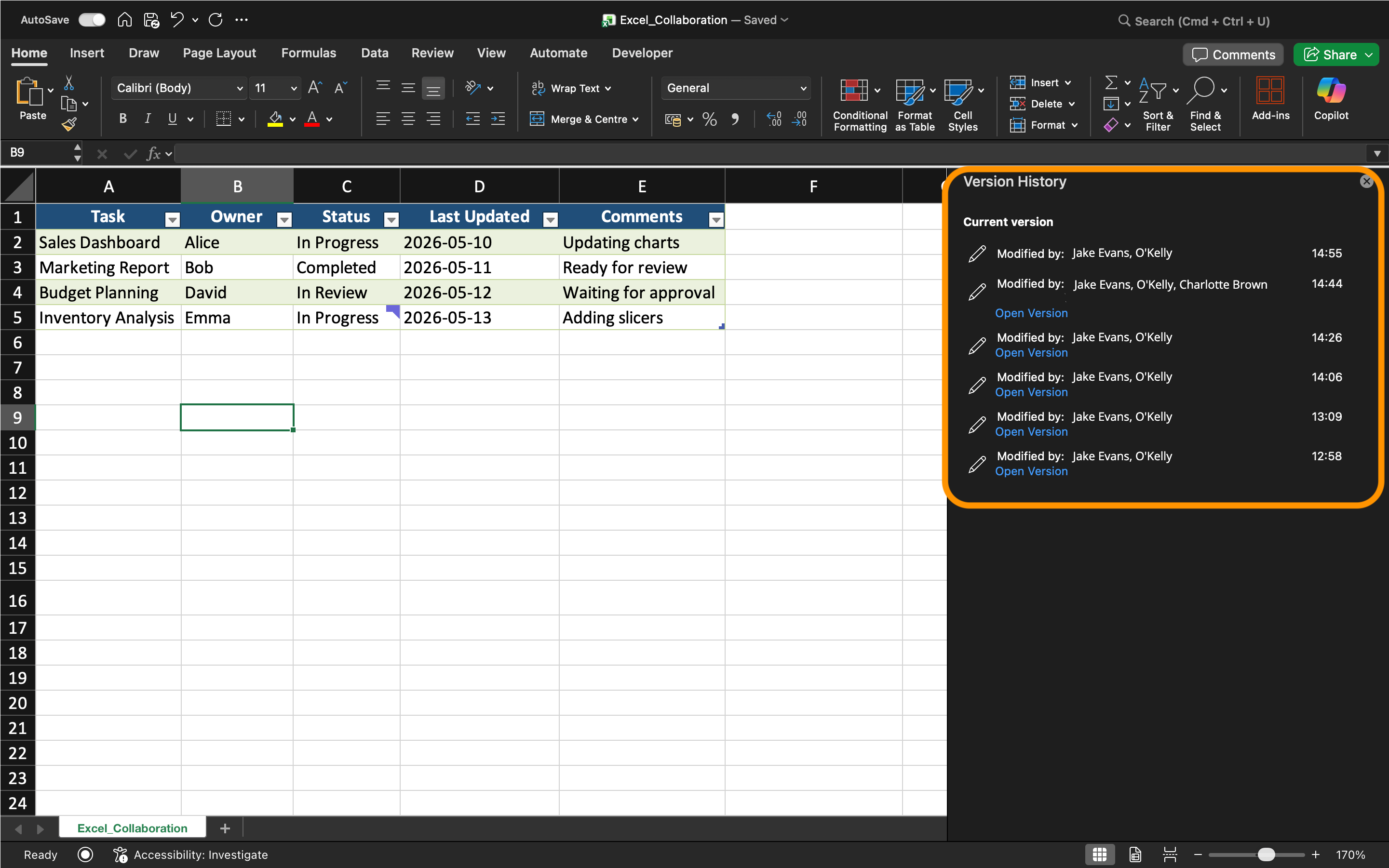
Excel viser en liste over tidligere gemte versioner af projektmappen sammen med tidsstempler og oplysninger om samarbejdspartnere.
Brugere kan åbne ældre versioner uden straks at erstatte den aktuelle projektmappe.
Gendannelse af ældre versioner
Hvis data i projektmappen bliver beskadiget eller ved et uheld slettet, kan en ældre version gendannes.
For at gendanne en version:
- Åbn Versionshistorik;
- Vælg den ønskede version af projektmappen;
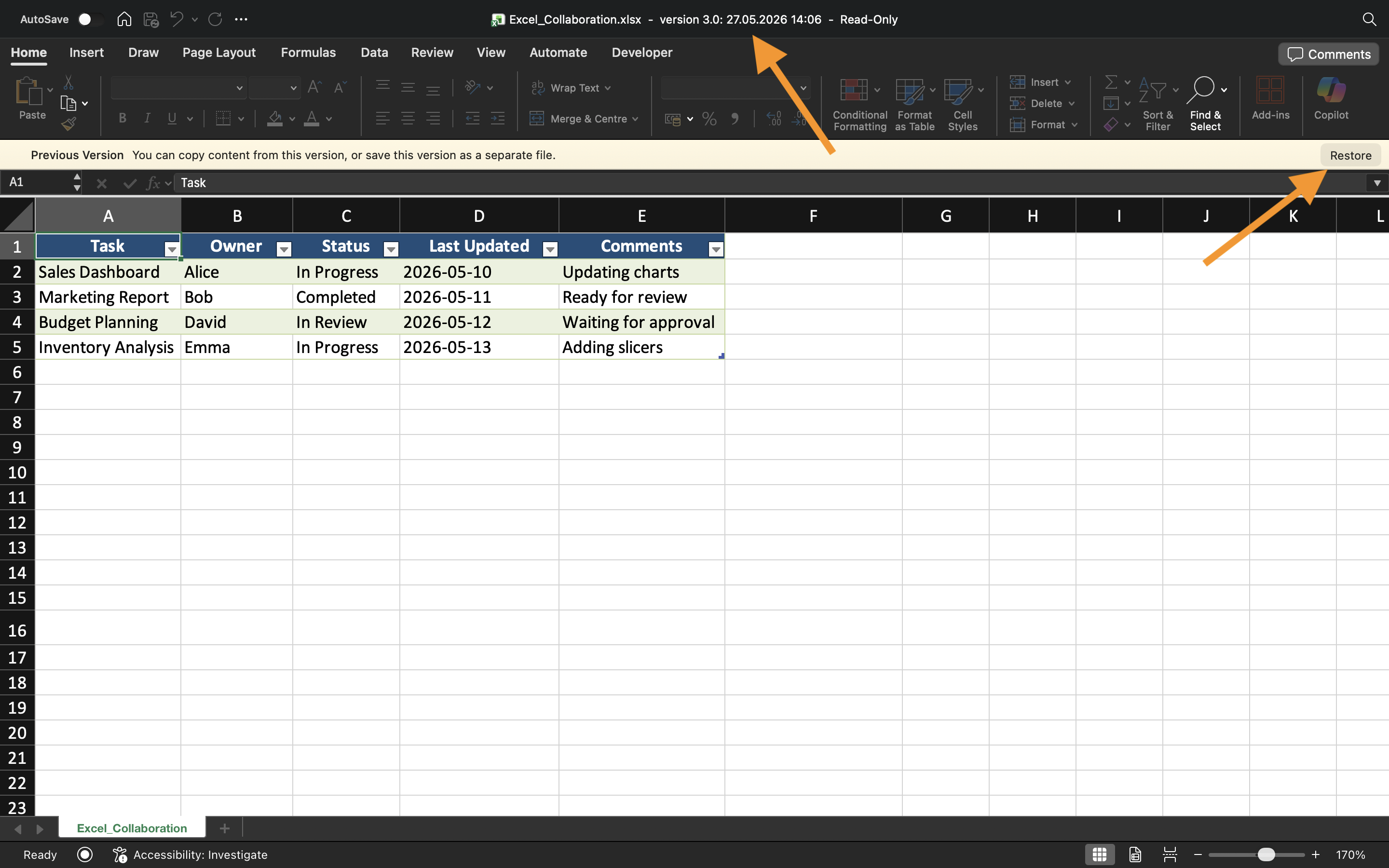
- Gennemgå indholdet af projektmappen;
- Vælg Gendan, hvis versionen er korrekt.
Excel erstatter derefter den aktuelle tilstand af projektmappen med den valgte historiske version.
Gendannelse af versioner bruges ofte efter:
- Utilsigtede sletninger;
- Forkerte dataimporter;
- Formelfejl;
- Store uønskede ændringer.
Gendannelse af ikke-gemt arbejde
Excel indeholder også AutoGendan, som hjælper med at gendanne ikke-gemte projektmappeændringer efter nedbrud eller uventede lukninger.
Når Excel lukkes uventet, kan gendannelsesfiler automatisk vises næste gang programmet åbnes.
AutoGendan adskiller sig fra Versionshistorik:
Opgave
Projektmappen indeholder en delt driftsrapport, der ved et uheld blev ændret under samarbejde. Målet er at gennemgå projektmappens historik og gendanne en tidligere filversion.
- Åbn projektmappen Version History;
- Gennemgå tilgængelige versioner af projektmappen;
- Åbn en ældre tilstand af projektmappen;
- Gendan den valgte version af projektmappen;
- Test AutoRecover ved at genåbne en midlertidig ikke-gemt projektmappe.
Tak for dine kommentarer!
Spørg AI

Spørg AI

Spørg om hvad som helst eller prøv et af de foreslåede spørgsmål for at starte vores chat
Versionshistorik og Filgendannelse
Excel gemmer automatisk tidligere versioner af projektmapper, når filer gemmes i OneDrive eller SharePoint. Dette gør det muligt for brugere at gennemgå ældre tilstande af projektmappen, gendanne mistede oplysninger og genskabe filer efter utilsigtede ændringer.
Versionshistorik er en af de vigtigste samarbejdsfunktioner, da det hjælper teams med sikkert at administrere delte projektmapper over tid.
Forståelse af versionshistorik
Når der foretages ændringer i en skybaseret projektmappe, gemmer Excel automatisk historiske versioner. Disse versioner skaber en tidslinje over opdateringer af projektmappen.
Versionshistorik hjælper brugere med at:
- Gendanne ældre tilstande af projektmappen;
- Genskabe slettede oplysninger;
- Gennemgå tidligere ændringer i projektmappen;
- Fortryde større redigeringsfejl.
Dette er især nyttigt, når flere samarbejdspartnere arbejder i den samme fil.
Åbning af versionshistorik
For at se projektmappens historik:
- Åbn den delte projektmappe;
- Vælg projektmappens navn nær toppen af Excel;
- Vælg Versionshistorik.
Excel viser en liste over tidligere gemte versioner af projektmappen sammen med tidsstempler og oplysninger om samarbejdspartnere.
Brugere kan åbne ældre versioner uden straks at erstatte den aktuelle projektmappe.
Gendannelse af ældre versioner
Hvis data i projektmappen bliver beskadiget eller ved et uheld slettet, kan en ældre version gendannes.
For at gendanne en version:
- Åbn Versionshistorik;
- Vælg den ønskede version af projektmappen;
- Gennemgå indholdet af projektmappen;
- Vælg Gendan, hvis versionen er korrekt.
Excel erstatter derefter den aktuelle tilstand af projektmappen med den valgte historiske version.
Gendannelse af versioner bruges ofte efter:
- Utilsigtede sletninger;
- Forkerte dataimporter;
- Formelfejl;
- Store uønskede ændringer.
Gendannelse af ikke-gemt arbejde
Excel indeholder også AutoGendan, som hjælper med at gendanne ikke-gemte projektmappeændringer efter nedbrud eller uventede lukninger.
Når Excel lukkes uventet, kan gendannelsesfiler automatisk vises næste gang programmet åbnes.
AutoGendan adskiller sig fra Versionshistorik:
Opgave
Projektmappen indeholder en delt driftsrapport, der ved et uheld blev ændret under samarbejde. Målet er at gennemgå projektmappens historik og gendanne en tidligere filversion.
- Åbn projektmappen Version History;
- Gennemgå tilgængelige versioner af projektmappen;
- Åbn en ældre tilstand af projektmappen;
- Gendan den valgte version af projektmappen;
- Test AutoRecover ved at genåbne en midlertidig ikke-gemt projektmappe.
Tak for dine kommentarer!
