Notice: This page requires JavaScript to function properly.
Please enable JavaScript in your browser settings or update your browser.
Lære Changing Text Case | Rensning af Tekstdata
Rens data i Excel

Changing Text Case

Stryg for at vise menuen

When working with text data, you will often notice that the same type of values are written in different cases. For example, one name might be written as john doe, another as JOHN DOE, and another as John Doe. Even though they represent the same value, this inconsistency makes the data look unstructured and harder to work with.

Such differences can also affect sorting, filtering, and presentation. That's why one of the important steps in data cleaning is standardizing text case.

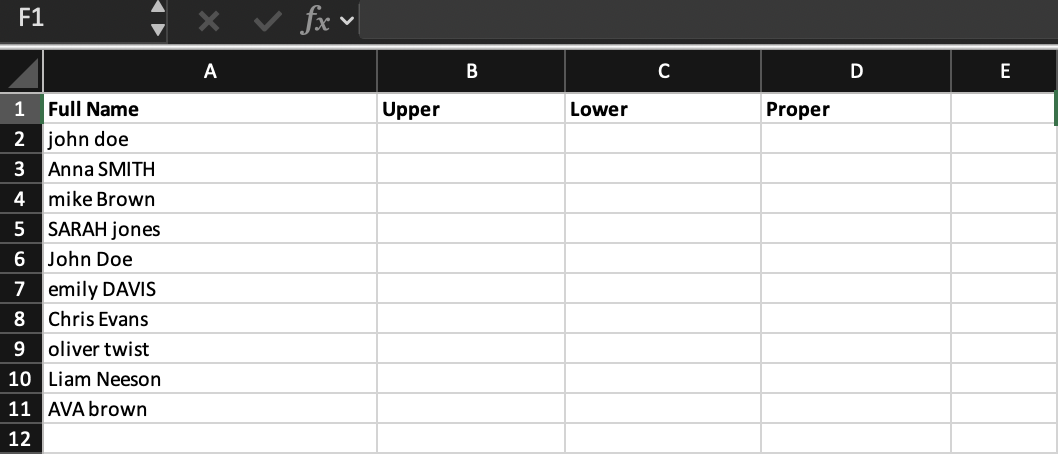
Let's consider a simple example:

Here, all values represent names, but the formatting is inconsistent. Some are lowercase, some uppercase, and some mixed.

Text Case Functions

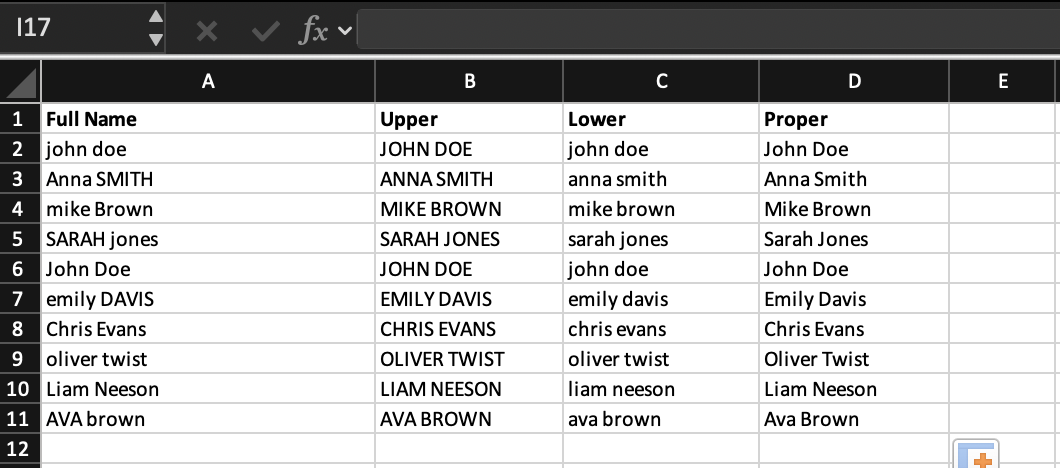
Excel provides three main functions to fix this:

UPPER → converts all text to uppercase;
LOWER → converts all text to lowercase;
PROPER → capitalizes the first letter of each word.

=UPPER(A2) → "JOHN DOE"
=LOWER(A2) → "john doe"
=PROPER(A2) → "John Doe"

In most real cases, PROPER is used for names, because it gives a clean and readable format.
carousel-imgcarousel-img

Task

Create a new column called Formatted Name.

Apply a formula to convert all values in the Full Name column into a consistent format, where each word starts with a capital letter.

Fill the formula down for all rows.

Note
Hint

Use =PROPER(A2) to capitalize each word in the text and apply the formula to all rows.

question mark

Which function converts text to "John Doe" format?

Vælg det korrekte svar

Var alt klart?

Hvordan kan vi forbedre det?

Tak for dine kommentarer!

Sektion 2. Kapitel 3

Spørg AI

expand

Spørg AI

ChatGPT

Spørg om hvad som helst eller prøv et af de foreslåede spørgsmål for at starte vores chat

Changing Text Case

When working with text data, you will often notice that the same type of values are written in different cases. For example, one name might be written as john doe, another as JOHN DOE, and another as John Doe. Even though they represent the same value, this inconsistency makes the data look unstructured and harder to work with.

Such differences can also affect sorting, filtering, and presentation. That's why one of the important steps in data cleaning is standardizing text case.

Let's consider a simple example:

Here, all values represent names, but the formatting is inconsistent. Some are lowercase, some uppercase, and some mixed.

Text Case Functions

Excel provides three main functions to fix this:

UPPER → converts all text to uppercase;
LOWER → converts all text to lowercase;
PROPER → capitalizes the first letter of each word.

=UPPER(A2) → "JOHN DOE"
=LOWER(A2) → "john doe"
=PROPER(A2) → "John Doe"

In most real cases, PROPER is used for names, because it gives a clean and readable format.
carousel-imgcarousel-img

Task

Create a new column called Formatted Name.

Apply a formula to convert all values in the Full Name column into a consistent format, where each word starts with a capital letter.

Fill the formula down for all rows.

Note
Hint

Use =PROPER(A2) to capitalize each word in the text and apply the formula to all rows.

Var alt klart?

Hvordan kan vi forbedre det?

Tak for dine kommentarer!

Sektion 2. Kapitel 3
some-alt