Hurtig Dataformatering
Stryg for at vise menuen
Tekst til kolonner, afgrænser-tilstand
Når værdier er samlet i én celle adskilt af et ensartet tegn — komma, mellemrum, bindestreg, lodret streg — er Tekst til kolonner det rette værktøj. Det opdeler kildens celle i lige så mange kolonner, som der er segmenter, ved at bruge afgrænseren som skæringspunkt.
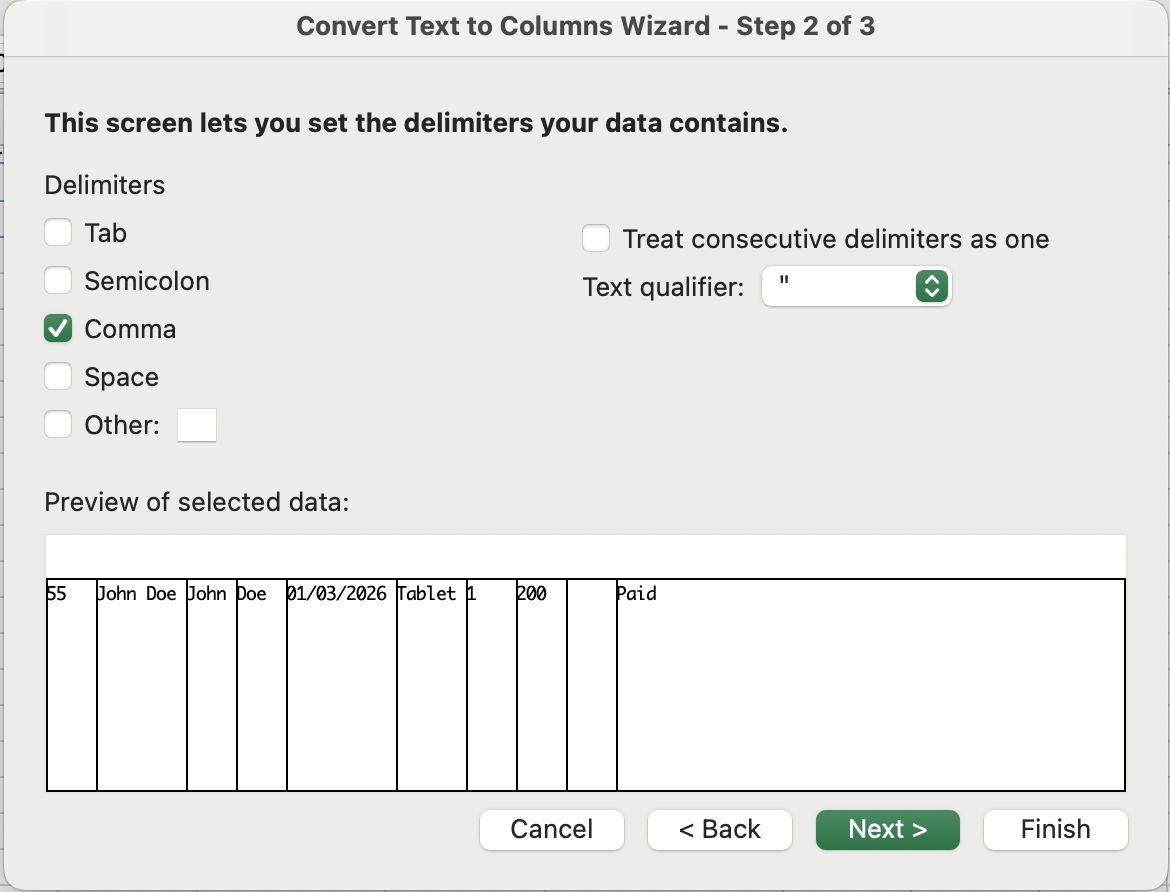
Sådan fungerer opdelingen visuelt — afgrænseren markerer hvert snit:
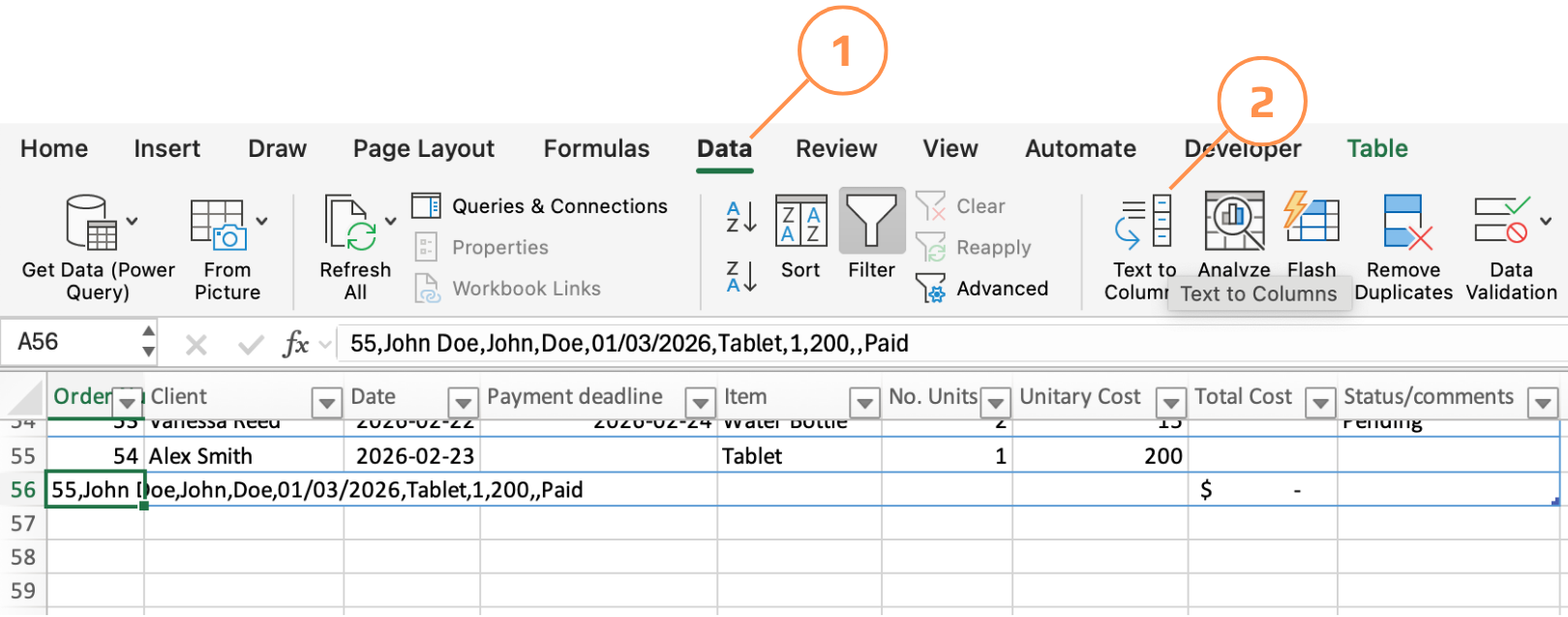
55,John Doe,John,Doe,01/03/2026,Tablet,1,200,,Paid
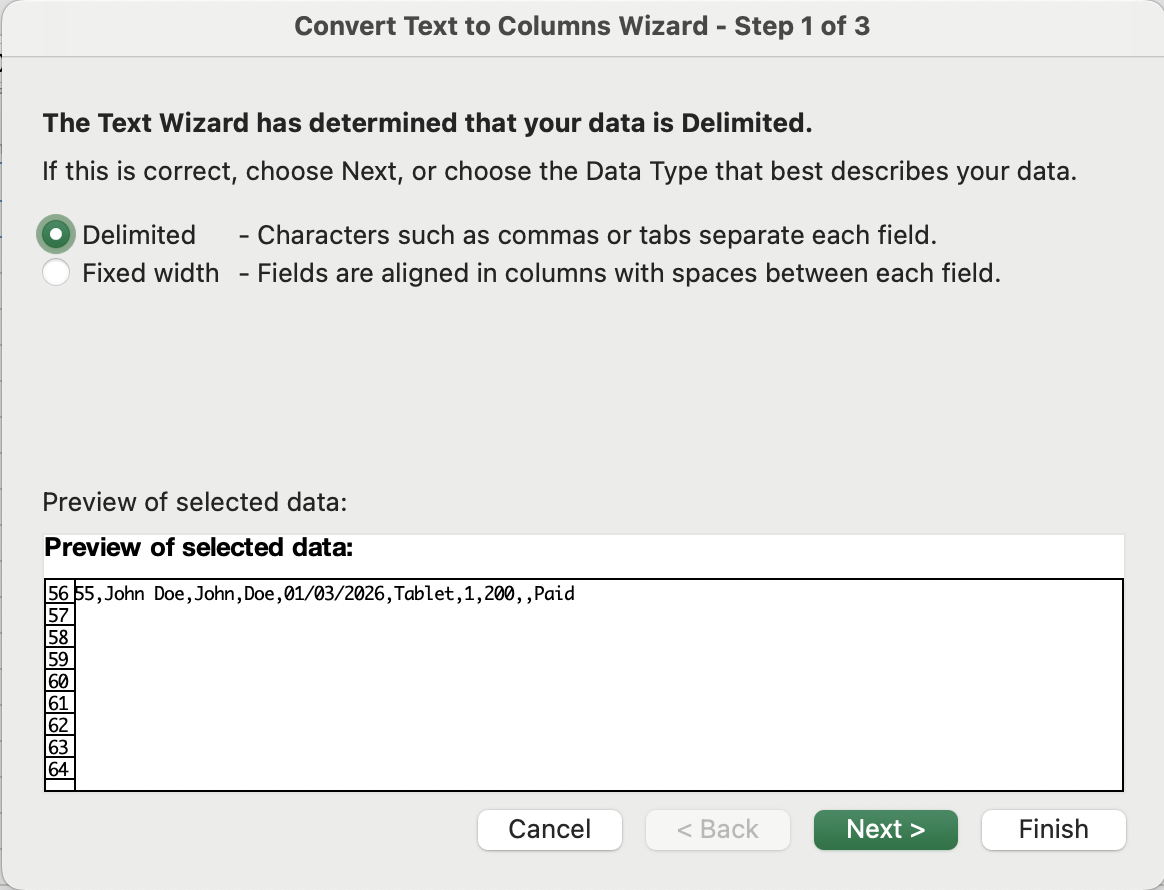
- Vælg kildeområdet → Data-fanen → Tekst til kolonner → vælg Afgrænset → Næste;
- Marker afgrænser-tegnet (komma, mellemrum, tabulator eller brugerdefineret) → forhåndsvisning opdateres i realtid → Næste;
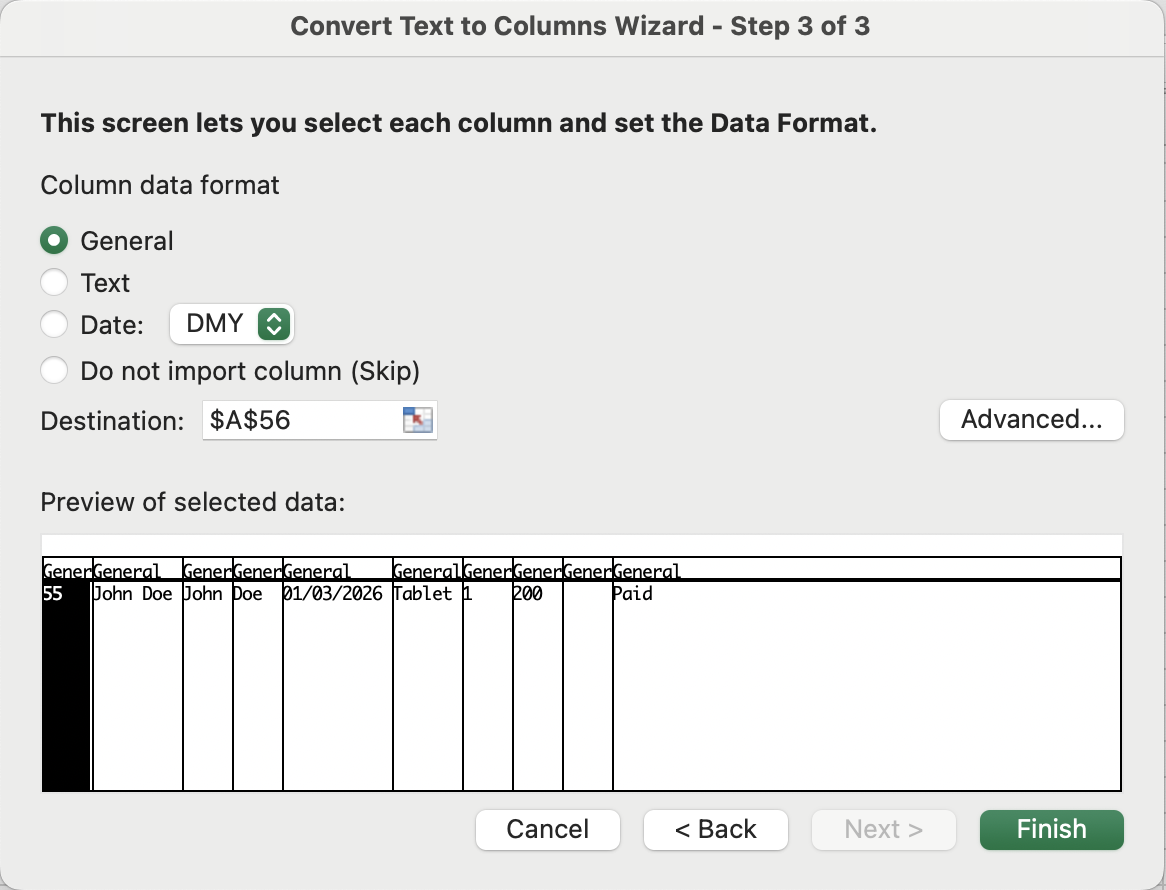
- Angiv eventuelt datatype for hver resulterende kolonne (Tekst, Dato, Generelt) → Udfør;
Tekst til kolonner, fast bredde
En Tekst til kolonner-tilstand, hvor du trækker lodrette brudlinjer i en forhåndsvisning for at definere kolonnegrænser ud fra tegnposition, ikke ud fra et afgrænser-tegn. Datastrukturen skal være visuelt ensartet — hvert felt optager det samme antal tegn i hver række.
&-operatoren
Ampersand-tegnet er Excels tekstlim. Det sammenkæder enhver kombination af cellehenvisninger, tekststrenge (i anførselstegn) og funktionsresultater til én samlet værdi.
=C2 & D2 & "@email.com" →
EmilyJohnson@email.com
Tak for dine kommentarer!
Spørg AI

Spørg AI

Spørg om hvad som helst eller prøv et af de foreslåede spørgsmål for at starte vores chat
