Effektiv Udfyldning af Data
Stryg for at vise menuen

Vi fortsætter med at arbejde i den samme projektmappe som i det forrige kapitel.

Autofyld og Lynudfyld handler begge om at reducere gentaget arbejde, men de har grundlæggende forskellige funktioner. Autofyld udvider, hvilket betyder, at det kopierer eller fortsætter det, der allerede findes. Lynudfyld transformerer, hvilket betyder, at det udtrækker eller omformaterer baseret på et mønster, du demonstrerer.
Den samme trækbevægelse på forskellige startværdier giver helt forskellig adfærd. Prøv hvert scenarie nedenfor for at se, hvad der faktisk sker:
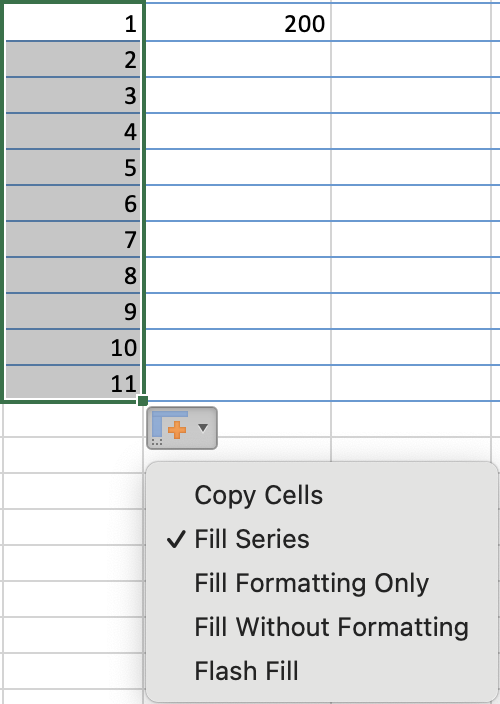
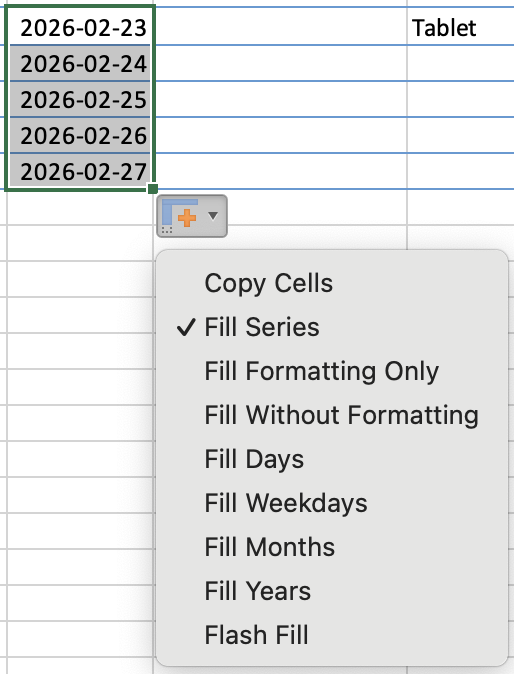
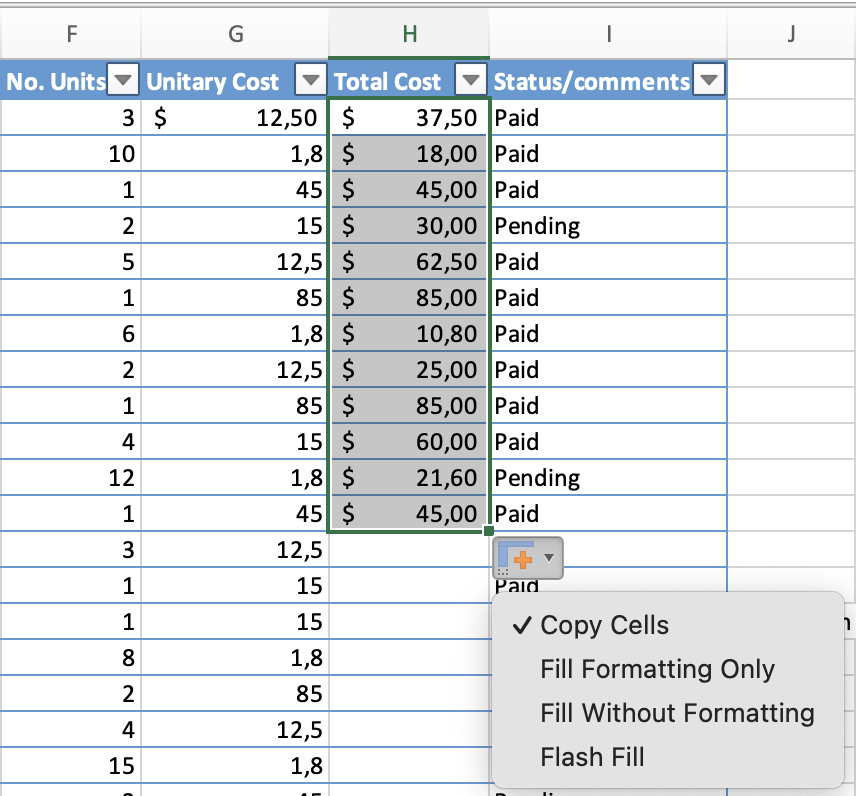
Menuen Autofyldningsindstillinger (det lille ikon, der vises efter trækning) fungerer som en sikkerhedsventil. Den giver dig mulighed for eksplicit at vælge fyldtypen i stedet for at stole på Excels fortolkning.
Dobbeltklik på fyldhåndtaget udfylder automatisk ned til den sidste række i den tilstødende kolonne, så du behøver ikke trække. Dette er klart den hurtigste måde at udbrede en formel ned gennem et helt datasæt. Den stopper ved den første tomme række i nabokolonnen, så det fungerer perfekt i en velstruktureret tabel.
Brugerdefinerede lister
Excel leveres med indbyggede sekvenser (Man–Søn, Jan–Dec), men du kan tilføje enhver sekvens, som din arbejdsgang kræver. Når den er registreret, fungerer den præcis som de indbyggede — skriv det første element og træk for at fortsætte.
Sådan opretter du en brugerdefineret liste (Windows):
- Filer → Indstillinger → Avanceret — rul ned til Generelt nederst;
- Klik på Rediger brugerdefinerede lister;
- I boksen Listeindgange skal du skrive hvert element på sin egen linje og trykke på Enter efter hver;
- Klik på Tilføj og derefter OK — sekvensen er nu tilgængelig globalt i alle projektmapper.
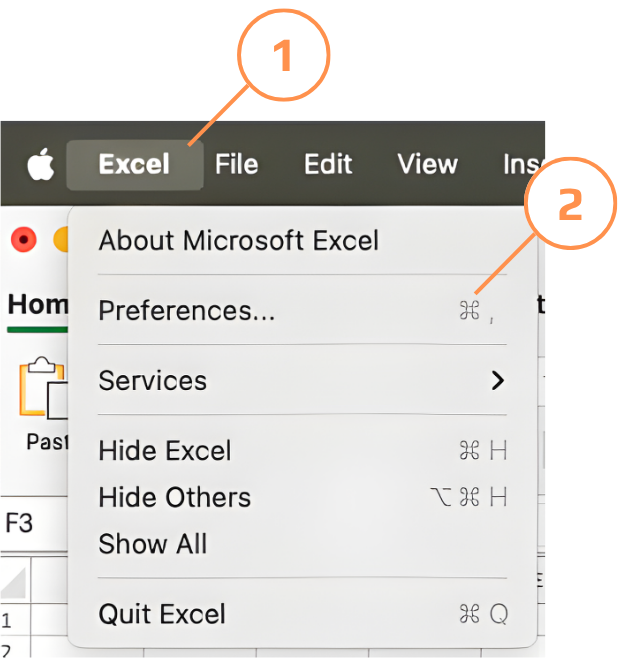
Sådan opretter du en brugerdefineret liste (Mac):
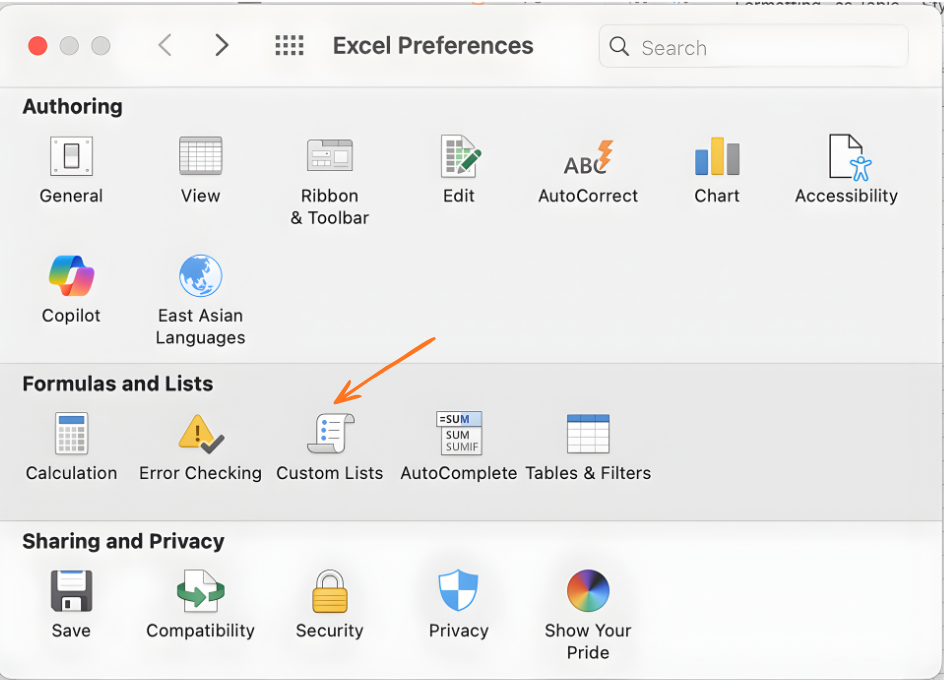
- Excel → Indstillinger → Brugerdefinerede lister — eller gå til Excel i menulinjen og vælg Præferencer;
- Klik på Brugerdefinerede lister under sektionen Formler og lister;
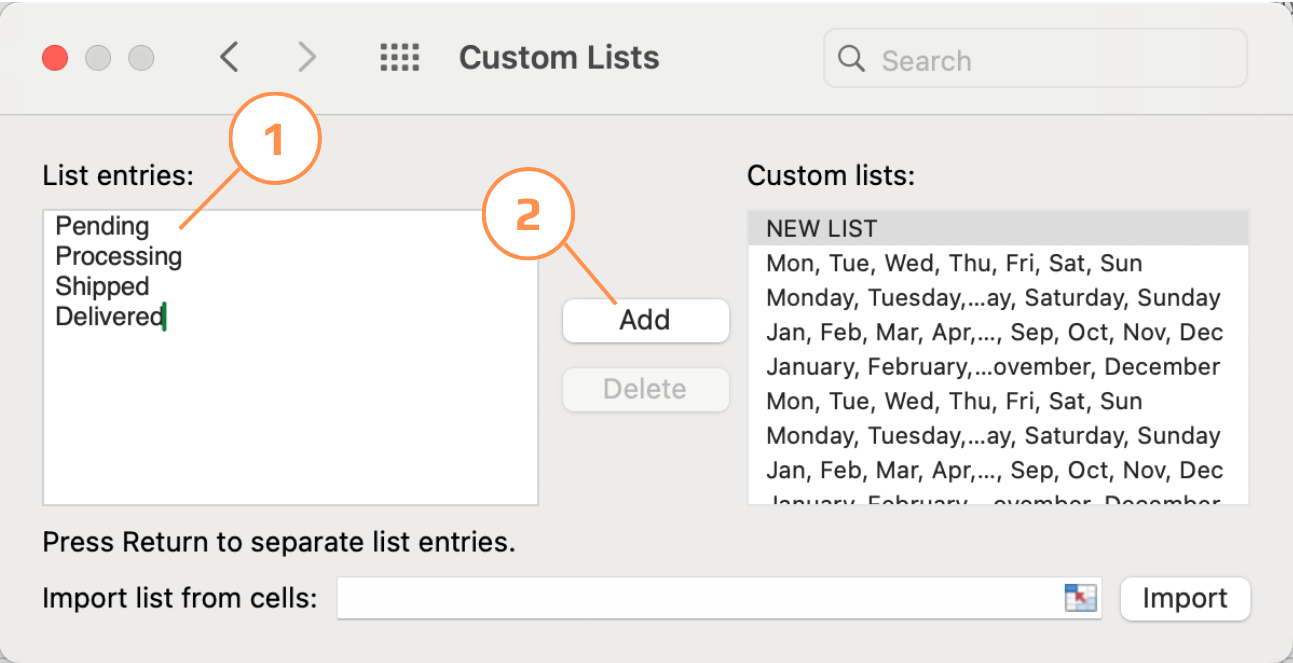
- I boksen Listeindgange skal du skrive hvert element på sin egen linje og trykke på Enter efter hver;
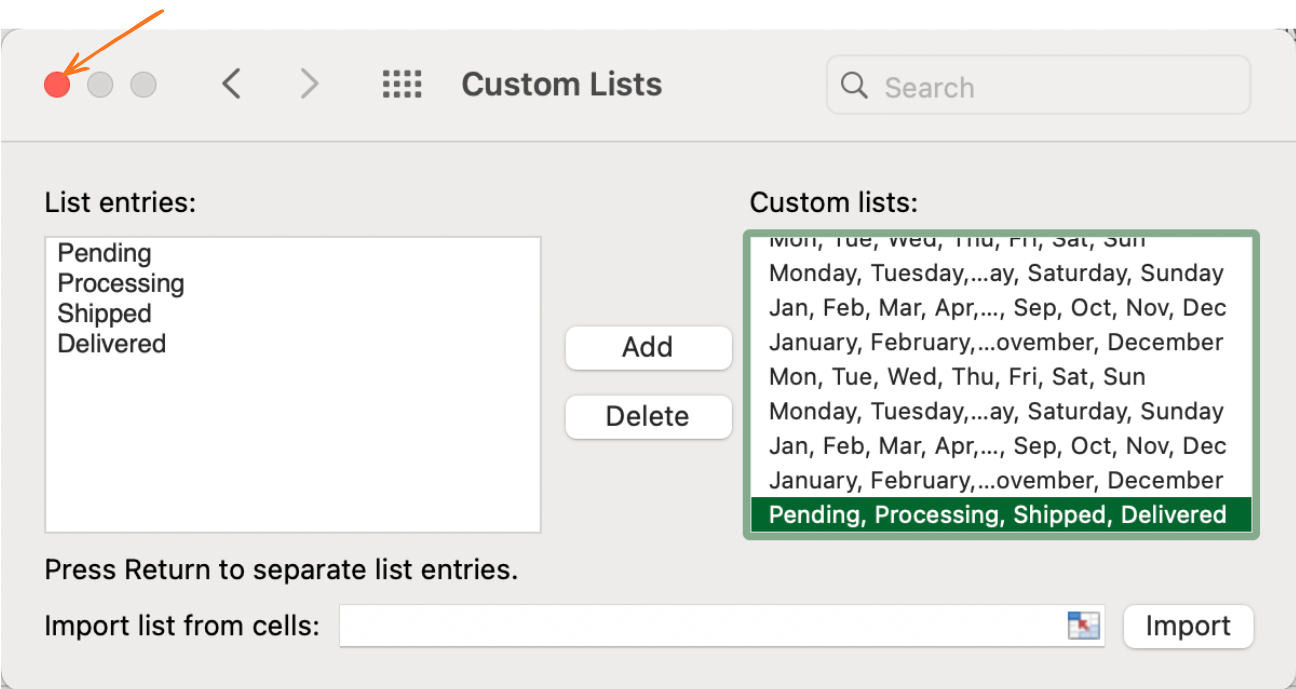
- Klik på Tilføj og derefter kan du lukke vinduet — sekvensen er nu tilgængelig globalt i alle projektmapper.
Lynudfyldning
Lynudfyldning aflæser mønsteret mellem din kildekolonne og det eksempel, du indtaster, og gentager derefter denne transformation for alle resterende rækker. Du behøver aldrig skrive en formel — du viser blot Excel, hvordan resultatet skal se ud.
Lynudfyldning håndterer et overraskende bredt udvalg af transformationer ud fra et enkelt eksempel:
- Opdel navne — kilde: "Emily Johnson" → eksempel: "Emily" → Lynudfyldning udtrækker alle fornavne;
- Udtræk domæne fra e-mail — kilde: "user@company.com" → eksempel: "company.com" → udfylder alle domæner;
- Omformater datoer — kilde: "2026-03-01" → eksempel: "01/03/2026" → omformaterer alle datoer;
- Kombiner kolonner — kilde kolonner A+B: "John" + "Smith" → eksempel: "John Smith" → sammensætter alle rækker;
- Udtræk koder — kilde: "ORDER-2024-0042" → eksempel: "0042" → henter de sidste tal fra alle rækker.
De udfyldte værdier er statiske. Hvis kildekolonnen ændres — et navn rettes, en e-mail opdateres — forbliver Flash Fill-resultatet som det var. Flash Fill bruges til engangsoprydning.
Tak for dine kommentarer!
Spørg AI

Spørg AI

Spørg om hvad som helst eller prøv et af de foreslåede spørgsmål for at starte vores chat
