Kontrol af referencer og formlerresultater
Stryg for at vise menuen
Når du trækker en formel nedad, justerer Excel automatisk hver cellehenvisning med én række. Oftest er det præcis det, du ønsker – formlen for række 10 skal referere til dataene i række 10. Men nogle henvisninger må aldrig flyttes: en skattesats gemt i en enkelt celle, en valutakurs, en fast tærskelværdi. Uden dollartegn ødelægger trækning disse henvisninger uden varsel.

Hvis =D9*G1 trækkes ned, bliver række 10 til =D10*G2, række 11 til =D11*G3 og så videre. G2 og G3 er tomme — så hver skatteberegning returnerer nul. Ingen fejlmeddelelse. Bare forkerte tal, der ser plausible ud.
Cellehenvisninger
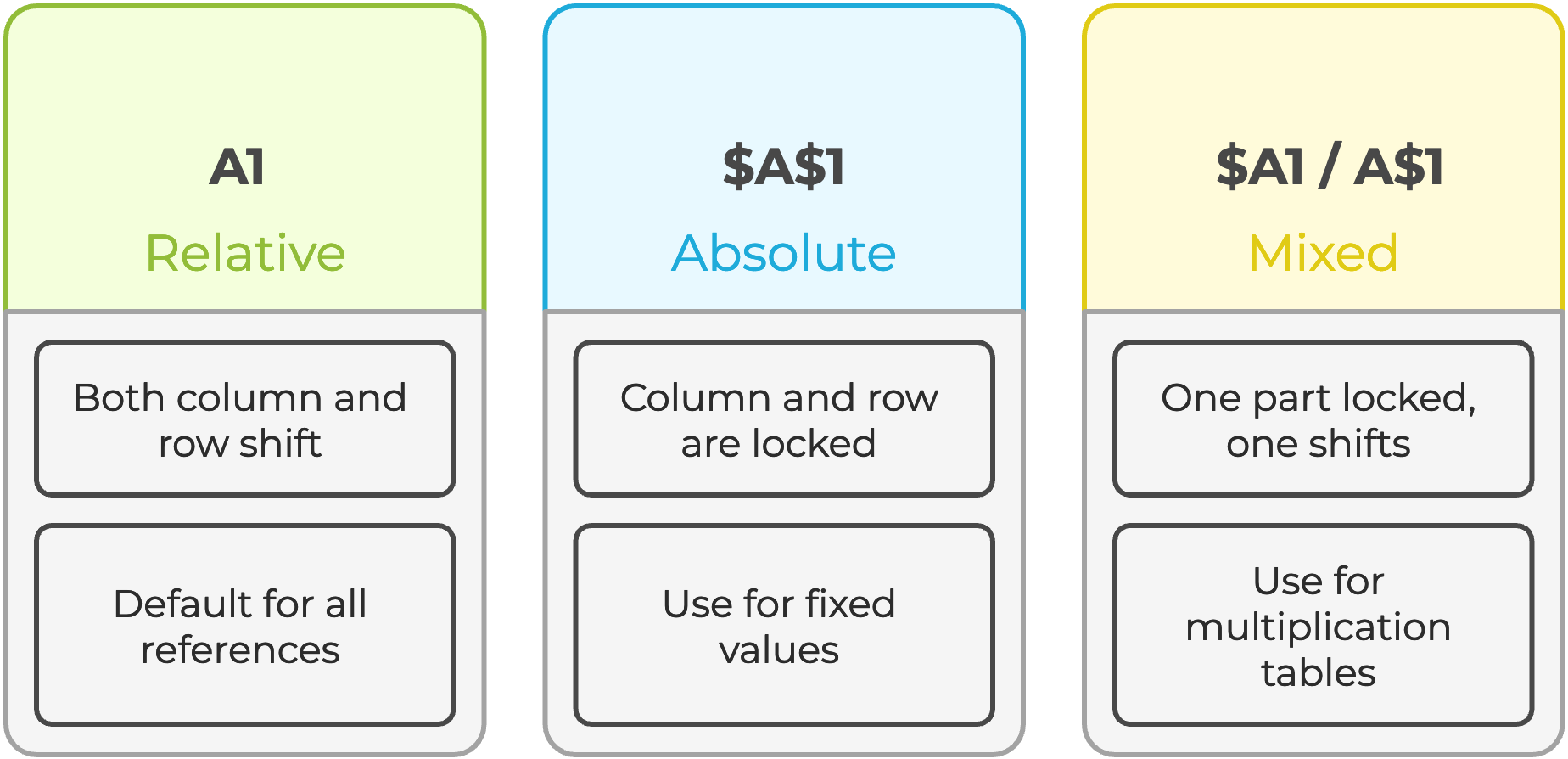
Vælg en hvilken som helst cellehenvisning i en formel i formellinjen, og tryk på F4 for automatisk at skifte mellem alle fire reference-typer.
Sæt ind speciel
Nogle gange er det nødvendigt at fastfryse beregnede resultater, sende et øjebliksbillede til en kollega, forhindre genberegning eller bryde en cirkulær reference. Indsæt værdier fjerner formlen og bevarer kun det tal, som formlen har givet.
- Brug genvejstasten
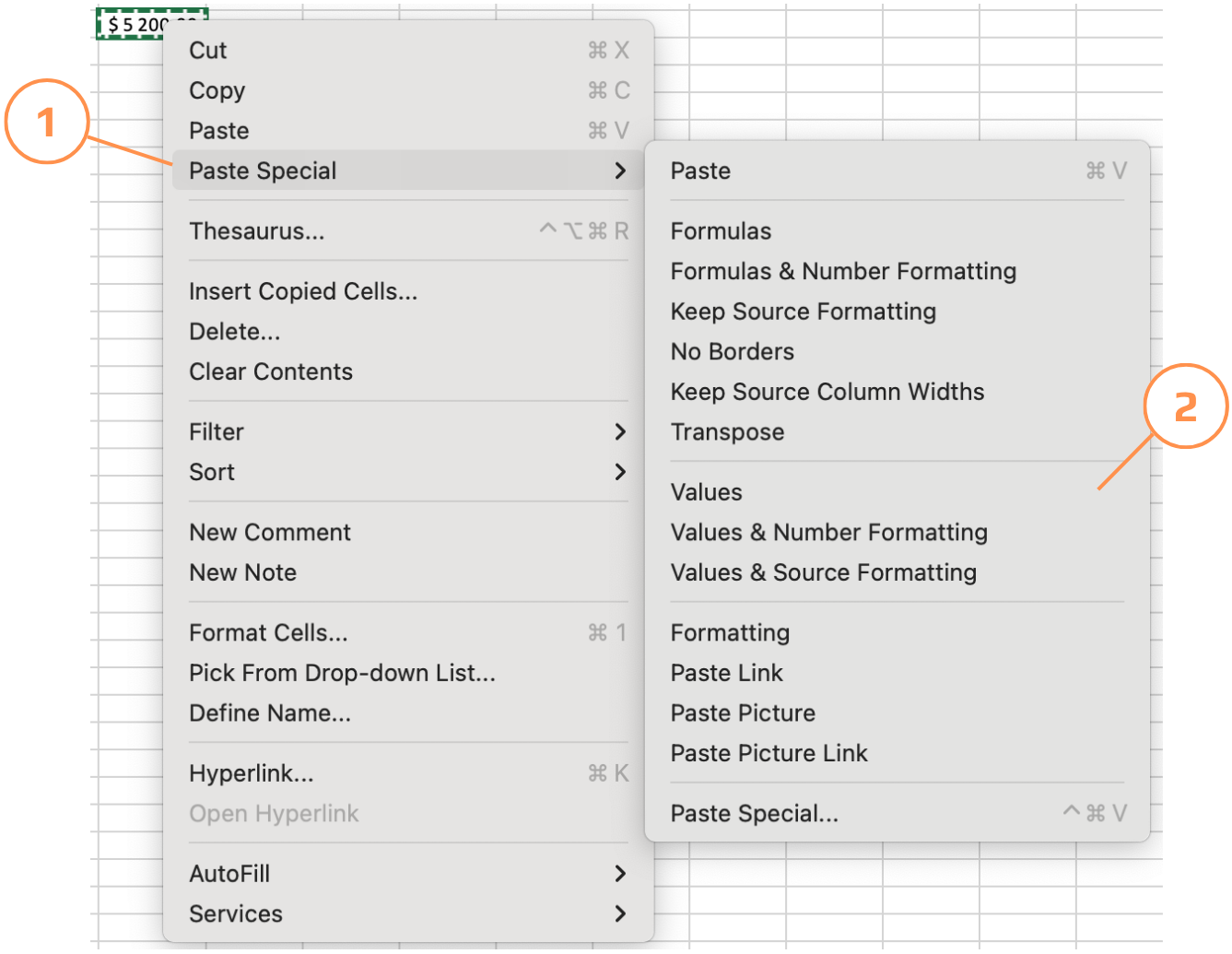
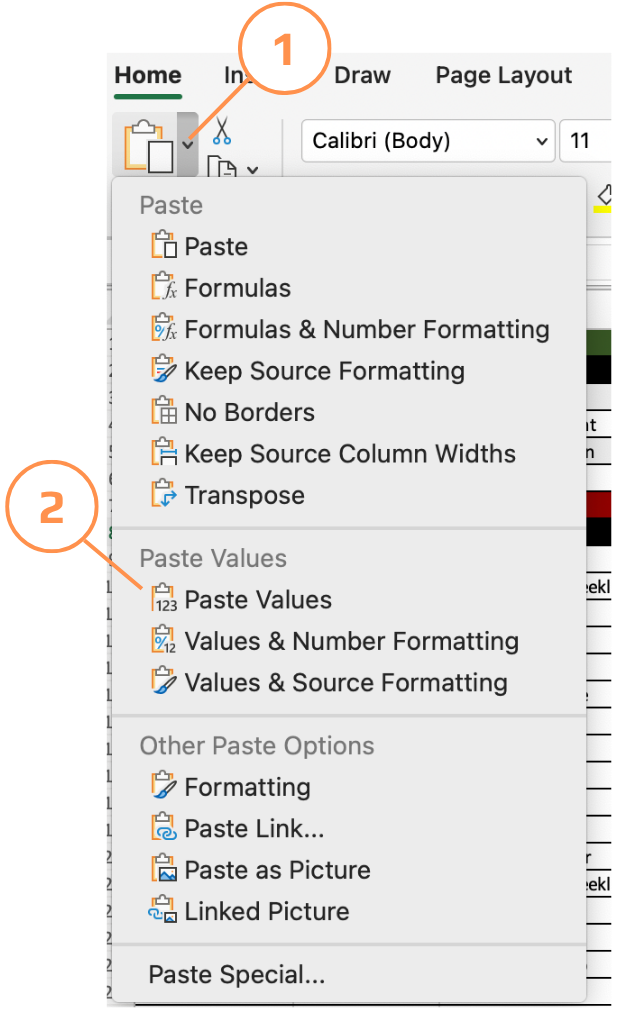
Ctrl+Alt+Vfor kun at indsætte værdier; - Kopiér cellerne → højreklik på destinationen → vælg Sæt ind speciel → Værdier;
- Menuen Sæt ind speciel tilbyder mere end værdier — du kan indsætte kun formater, kun formler, transponere rækker til kolonner eller indsætte som et linket billede. Alt sammen tilgængeligt fra Hjem → Sæt ind → Sæt ind speciel.
Hentning af data fra et andet ark
Når en værdi bruges på tværs af flere ark: en skattesats, et år, et firmanavn, er det langt mere overskueligt at gemme den én gang i et dedikeret ark og referere til den overalt, end at duplikere den. Hvis værdien ændres, opdaterer du den ét sted, og alle formler opdateres automatisk.
=D9*'Tax rate'!$A$2
! (udråbstegn) adskiller arkets navn fra celleadressen. Excel indsætter dette automatisk, når du klikker på en celle i et andet ark, mens du indtaster en formel, så du behøver ikke skrive det manuelt.
Tak for dine kommentarer!
Spørg AI

Spørg AI

Spørg om hvad som helst eller prøv et af de foreslåede spørgsmål for at starte vores chat
