Advanced XLOOKUP Applications
Stryg for at vise menuen
Using Approximate Match with XLOOKUP
Exact match works when identifiers must match perfectly. However, some business scenarios require matching values within ranges.
Example: commission rates based on sales thresholds.
Sales Table
If a salesperson has 12,000 in sales, the commission rate should be 8%. This requires approximate matching.
Syntax with Match Mode
=XLOOKUP(lookup_value, lookup_array, return_array, [if_not_found], match_mode)
match_mode options:
0: exact match;-1: exact match or next smaller value;1: exact match or next larger value;2: wildcard match.
For range-based lookups, use -1. This means that if no exact match is found, return the next smaller value.
Using Approximate Match
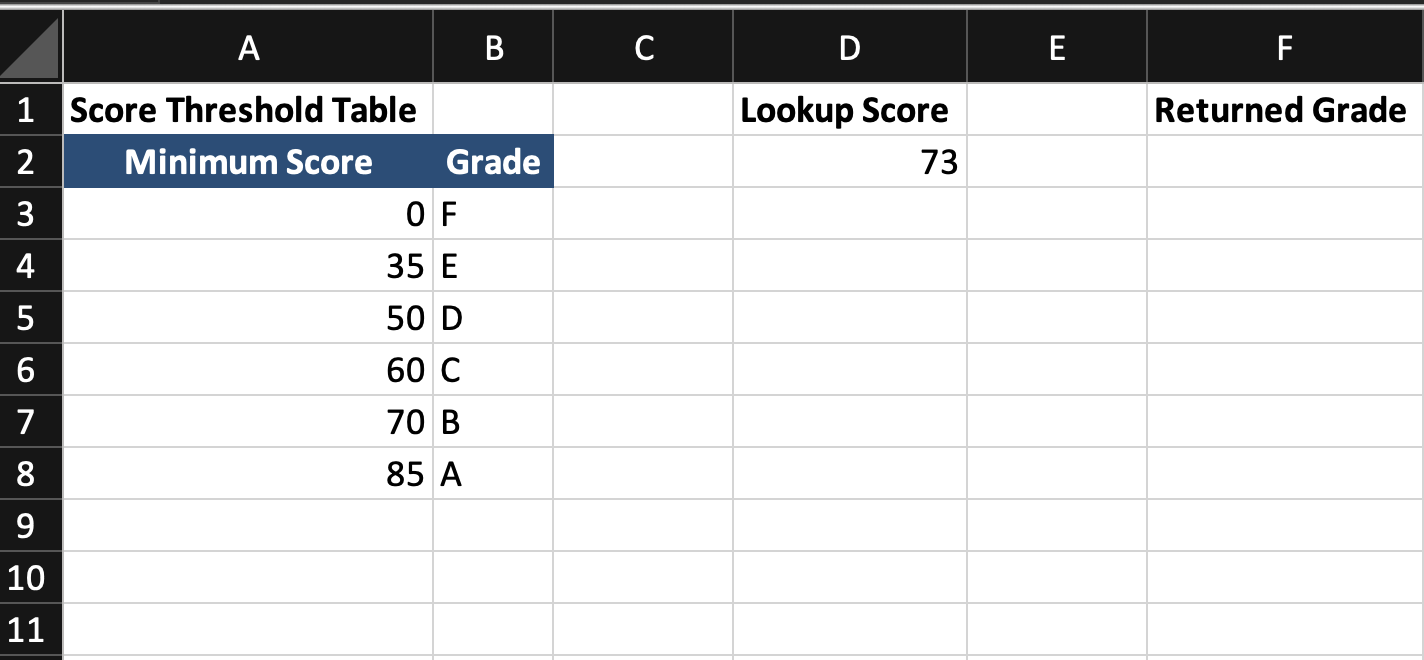
Assume you have a grading table.
Column A contains the minimum score required.
Column B contains the corresponding letter grade.
A student's score is entered in cell D2.
The goal is to return the correct letter grade based on the score.
The Minimum Score column must be sorted in ascending order.
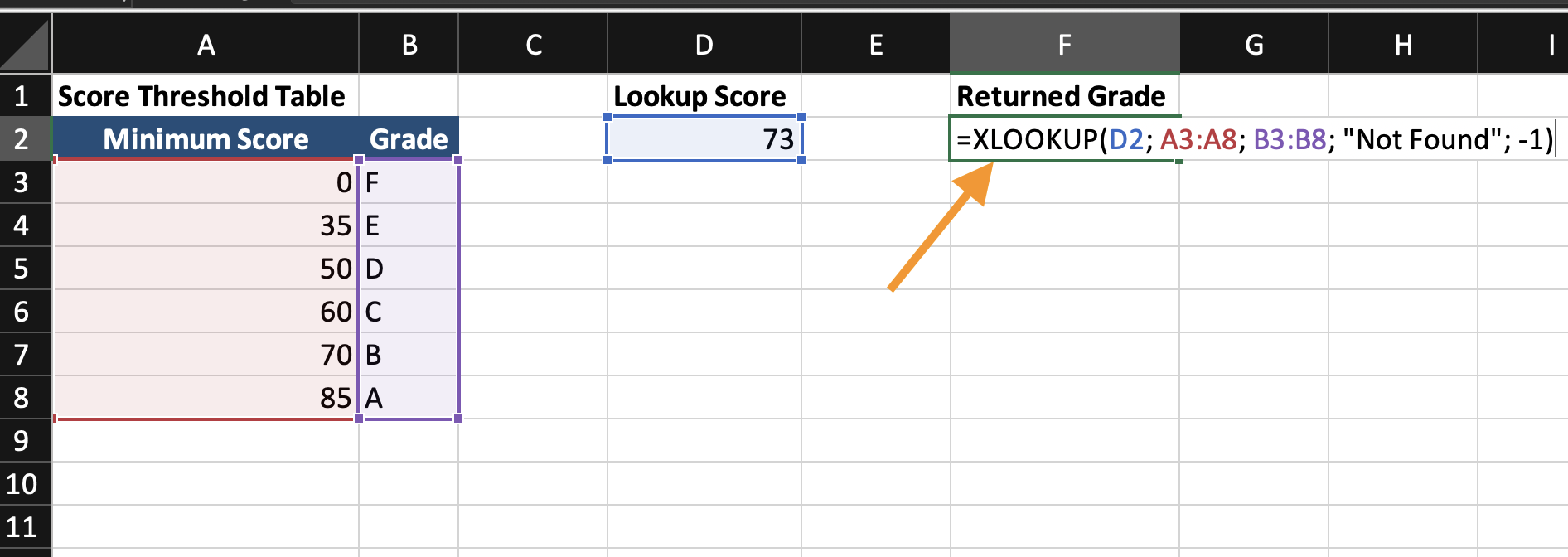
=XLOOKUP(D2; A3:A8; B3:B8; "Not Found"; -1)
D2: contains the student's numeric score;A3:A8: contains the minimum score thresholds;B3:B8: contains the letter grades;"Not Found": defines what to display if no match exists;-1: tells Excel to return the closest smaller value if an exact match is not found.
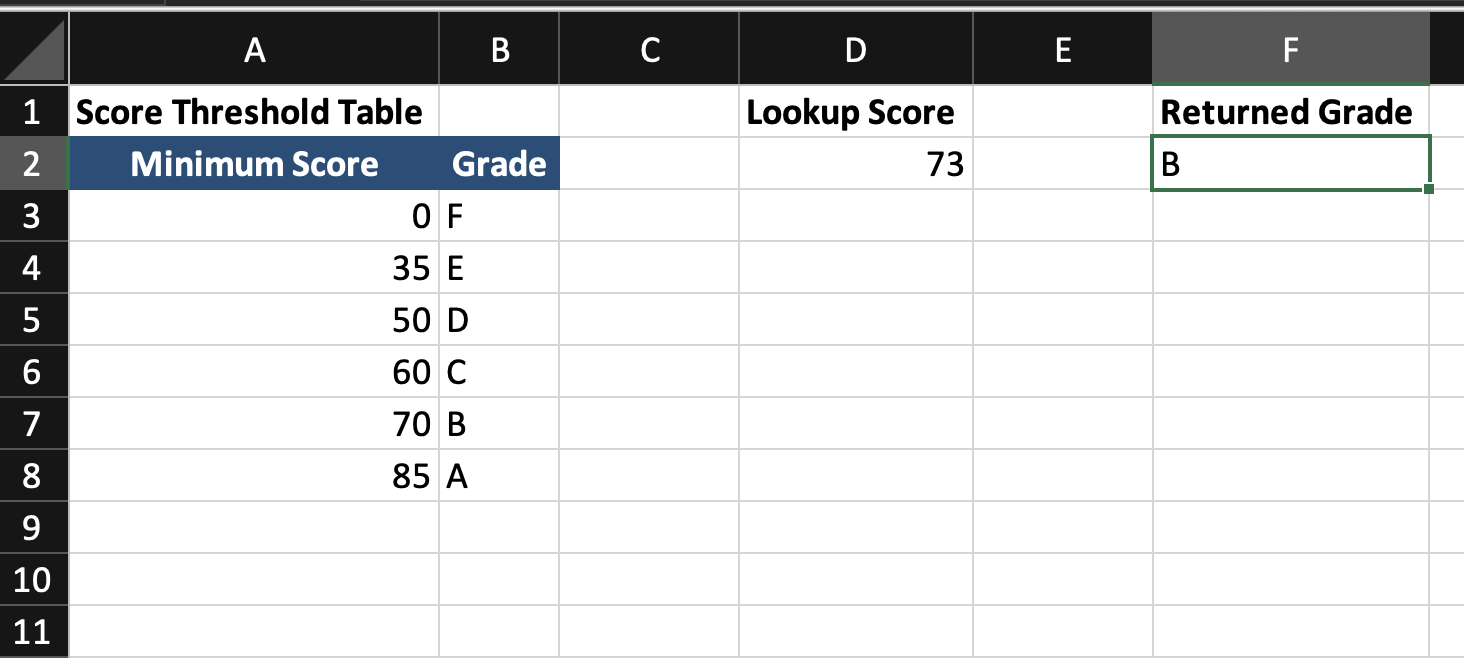

- If
D2equals73, Excel searches the minimum score column; - It does not find
73exactly; - It finds the closest smaller value, which is
70; - It returns the corresponding grade
B.
This is approximate matching based on ranges.
Returning Multiple Columns
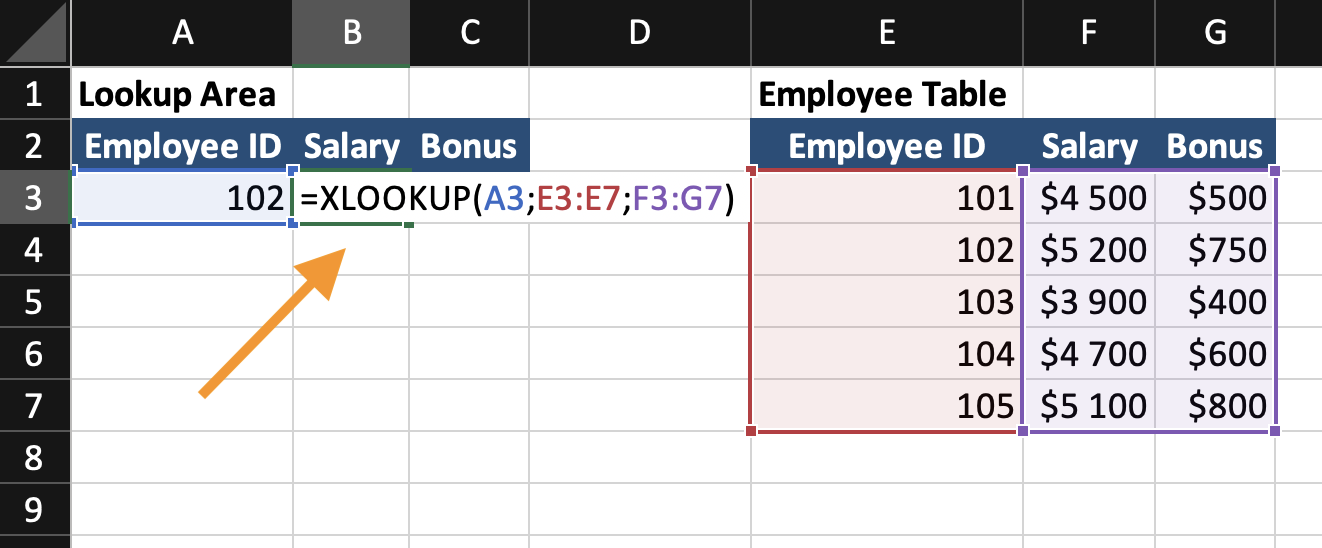
Assume you have an employee table: Employee ID | Salary | Bonus. You want to return both Salary and Bonus using a single lookup.
=XLOOKUP(A3;E3:E7;F3:G7)
A3: contains theEmployee ID;E3:E7: containsEmployee IDs in the lookup table;F3:G7: contains two columnsSalaryandBonus.
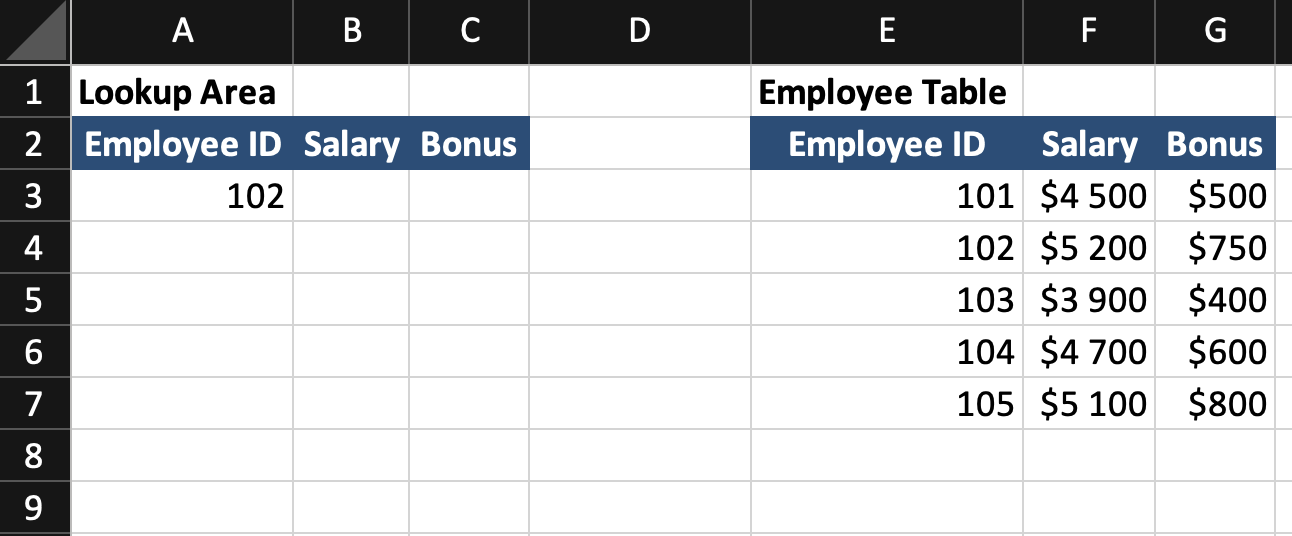
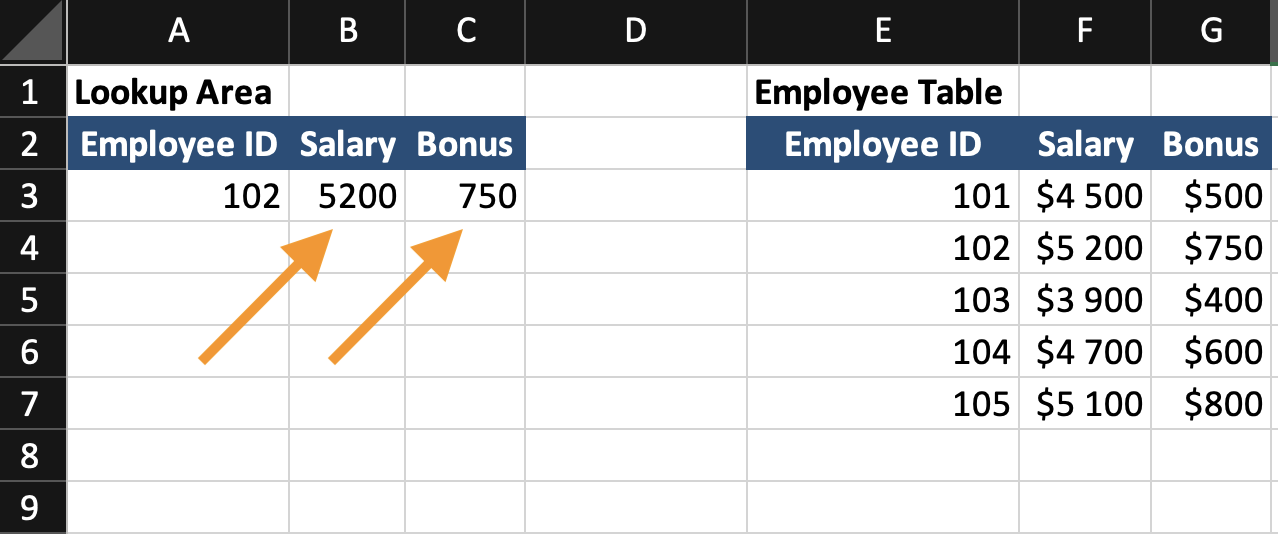
- Excel finds the matching
Employee IDin columnE; - It returns both
SalaryandBonusfrom columnsFandG; - The results automatically spill across two adjacent cells;
One formula returns multiple related fields.
Searching from Bottom
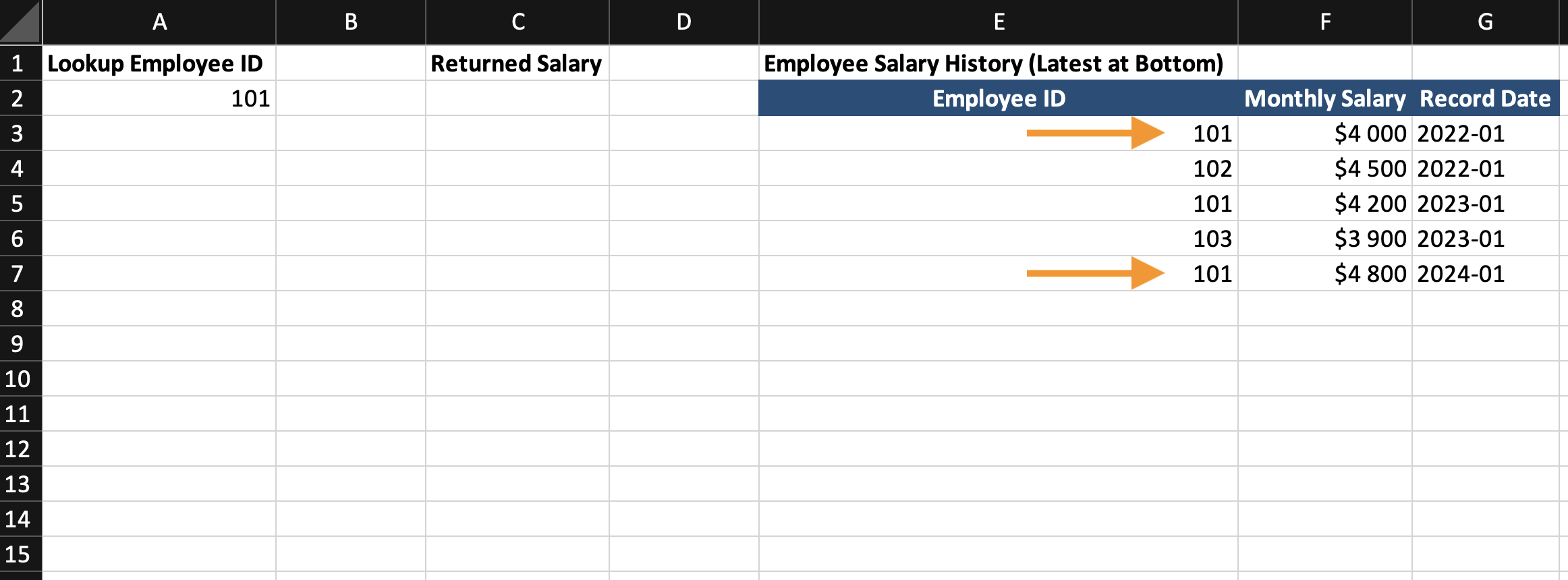
Assume the employee table contains duplicate Employee IDs over time.
The most recent record is always added at the bottom.
By default, XLOOKUP searches from top to bottom. To return the most recent record, search from bottom to top.
=XLOOKUP(A2; E3:E7; F3:F7; "Not Found"; 0; -1)
A2:Employee IDto search;E3:E7: lookup column;F3:F7: return column;0: forces exact match;-1: searches from bottom to top.
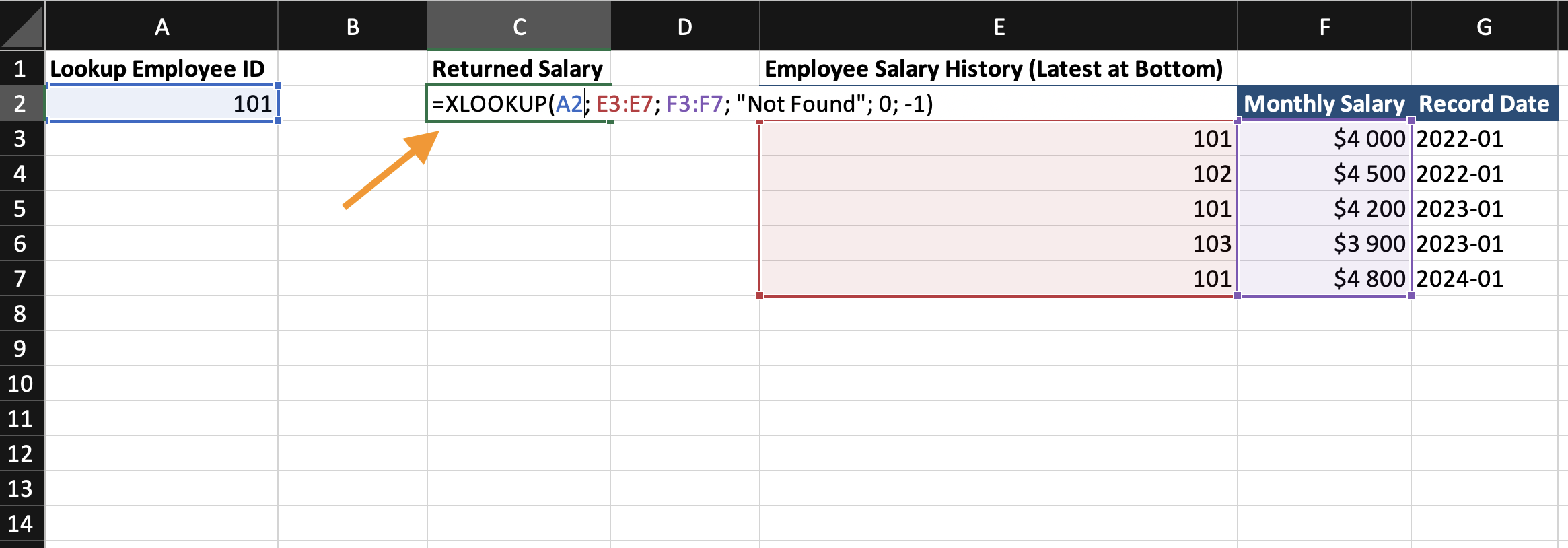
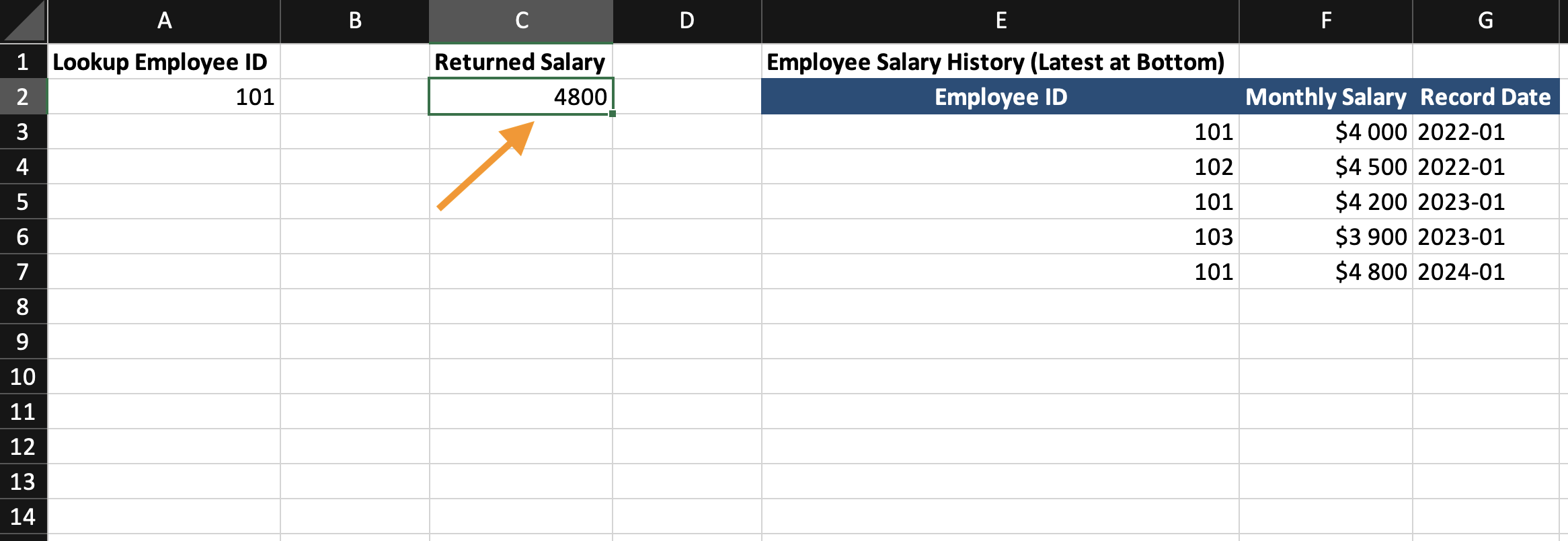
- Excel starts searching from the bottom of column
E; - It finds the first matching ID from the bottom;
- It returns the value from column
Fin that row.
This ensures the latest record is returned when duplicates exist.
Task
Scenario
The workbook contains three separate sheets.
Your goal is to apply advanced XLOOKUP to get the specific results.
Tak for dine kommentarer!
Spørg AI

Spørg AI

Spørg om hvad som helst eller prøv et af de foreslåede spørgsmål for at starte vores chat
Advanced XLOOKUP Applications
Using Approximate Match with XLOOKUP
Exact match works when identifiers must match perfectly. However, some business scenarios require matching values within ranges.
Example: commission rates based on sales thresholds.
Sales Table
If a salesperson has 12,000 in sales, the commission rate should be 8%. This requires approximate matching.
Syntax with Match Mode
=XLOOKUP(lookup_value, lookup_array, return_array, [if_not_found], match_mode)
match_mode options:
0: exact match;-1: exact match or next smaller value;1: exact match or next larger value;2: wildcard match.
For range-based lookups, use -1. This means that if no exact match is found, return the next smaller value.
Using Approximate Match
Assume you have a grading table.
Column A contains the minimum score required.
Column B contains the corresponding letter grade.
A student's score is entered in cell D2.
The goal is to return the correct letter grade based on the score.
The Minimum Score column must be sorted in ascending order.
=XLOOKUP(D2; A3:A8; B3:B8; "Not Found"; -1)
D2: contains the student's numeric score;A3:A8: contains the minimum score thresholds;B3:B8: contains the letter grades;"Not Found": defines what to display if no match exists;-1: tells Excel to return the closest smaller value if an exact match is not found.
- If
D2equals73, Excel searches the minimum score column; - It does not find
73exactly; - It finds the closest smaller value, which is
70; - It returns the corresponding grade
B.
This is approximate matching based on ranges.
Returning Multiple Columns
Assume you have an employee table: Employee ID | Salary | Bonus. You want to return both Salary and Bonus using a single lookup.
=XLOOKUP(A3;E3:E7;F3:G7)
A3: contains theEmployee ID;E3:E7: containsEmployee IDs in the lookup table;F3:G7: contains two columnsSalaryandBonus.
- Excel finds the matching
Employee IDin columnE; - It returns both
SalaryandBonusfrom columnsFandG; - The results automatically spill across two adjacent cells;
One formula returns multiple related fields.
Searching from Bottom
Assume the employee table contains duplicate Employee IDs over time.
The most recent record is always added at the bottom.
By default, XLOOKUP searches from top to bottom. To return the most recent record, search from bottom to top.
=XLOOKUP(A2; E3:E7; F3:F7; "Not Found"; 0; -1)
A2:Employee IDto search;E3:E7: lookup column;F3:F7: return column;0: forces exact match;-1: searches from bottom to top.
- Excel starts searching from the bottom of column
E; - It finds the first matching ID from the bottom;
- It returns the value from column
Fin that row.
This ensures the latest record is returned when duplicates exist.
Task
Scenario
The workbook contains three separate sheets.
Your goal is to apply advanced XLOOKUP to get the specific results.
Tak for dine kommentarer!
