Recording Simple Macros
Swipe to show menu
A macro is a recorded sequence of actions that Excel can replay on demand. Anything you do repeatedly — applying the same formatting to a monthly report, cleaning imported data, adding headers and totals to a new table — can be recorded once and run in seconds forever after.
The Macro Recorder captures your actions as you perform them and converts them into a replayable script automatically.
Enable the Developer Tab
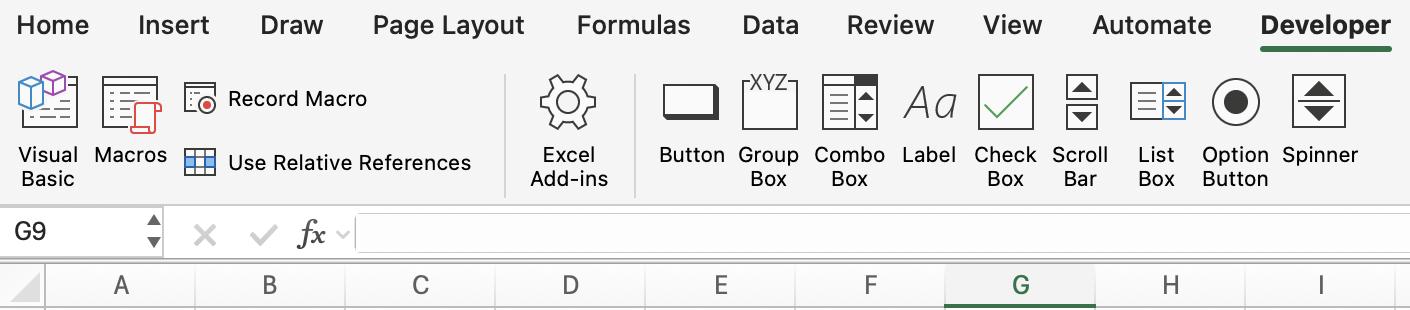
The macro recording tools live in the Developer tab, which is hidden by default.
To enable it:
- Windows: File → Options → Customize Ribbon → check Developer in the right panel → OK;
- Mac: Excel → Preferences → Ribbon & Toolbar → check Developer → Save.
Once enabled, the Developer tab appears in the ribbon with the Record Macro, Macros, and Visual Basic buttons.
Macro Storage
Before recording, Excel asks where to store the macro:
Storage locations:
- This Workbook: Macro is saved inside the current file — available only when that file is open;
- New Workbook: Macro is saved in a new workbook;
- Personal Macro Workbook: Macro is saved in a hidden workbook (
PERSONAL.XLSB) that opens automatically with Excel — available in every workbook, always.
Recording First Macro
-
Open the sales table. Click cell
A1; -
Go to Developer → Record Macro (or View → Macros → Record Macro);
-
In the dialog:
- Macro name: FormatHeader (no spaces — use underscores or camelCase);
- Shortcut key:
Ctrl + Shift + H(choose something not already used by Excel); - Store macro in: This Workbook;
- Description: formats header row with bold, blue fill, white font and autofits columns.
-
Click OK — recording begins. A small Stop Recording button appears in the status bar;
-
Now perform the formatting actions:
- Select row 1 (
Shift + Space); - Apply bold:
Ctrl + B; - Apply dark blue fill: Home → Fill Color → Dark Blue;
- Apply white font: Home → Font Color → White;
- Select all columns:
Ctrl + A; - Autofit columns: Home → Format → AutoFit Column Width.
- Select row 1 (
-
Click Stop Recording (Developer → Stop Recording or the button in the status bar).
The macro is recorded.
Running a Macro
Test the Macro
Delete the formatting from row 1, then press Ctrl + Shift + H. The formatting is reapplied exactly as recorded — in under a second.
Editing a Macro — A Brief Look
Every recorded macro generates VBA (Visual Basic for Applications) code that you can view and edit.
Opening the Visual Basic Editor: Developer → Visual Basic (or Alt + F11 on Windows, Opt + F11 on Mac) The recorded FormatHeader macro looks roughly like this:
Sub FormatHeader()
    Rows("1:1").Select
    Selection.Font.Bold = True
    With Selection.Interior
        .Color = RGB(0, 32, 96)
    End With
    Selection.Font.Color = RGB(255, 255, 255)
    Cells.Select
    Cells.EntireColumn.AutoFit
End Sub
You don't need to understand VBA to use macros — but even basic edits are accessible. Changing RGB(0, 32, 96) to a different colour, or changing "1:1" to "1:2" to format two header rows — these small tweaks are readable even without programming experience.
Saving a Macro-Enabled Workbook
Regular .xlsx files cannot store macros. When saving a workbook that contains macros, Excel prompts you to save as a macro-enabled format:
.xlsm— Excel Macro-Enabled Workbook (standard choice);.xlsb— Excel Binary Workbook (faster to open/save for very large files, also supports macros).

If you save as .xlsx, all macros are removed. Always save macro-containing files as .xlsm.
Record a formatting macro
-
Enable the Developer tab if not already visible.
-
Record a macro named
FormatSalesTablestored in This Workbook with shortcutCtrl + Shift + F:- Convert the data to a Table (Ctrl + T) with a style of your choice;
- Apply currency format to the Revenue column (
Ctrl + Shift + $); - Autofit all columns.
Stop recording.
Thanks for your feedback!
Ask AI

Ask AI

Ask anything or try one of the suggested questions to begin our chat
