Autofill Mastery
Swipe to show menu
A huge portion of repetitive Excel work is just extending things: continuing a date sequence, copying a formula down a column, repeating a pattern of values.
The Fill Handle
The fill handle is the small square at the bottom-right corner of any selected cell or range. It is the visual entry point for all Autofill operations.
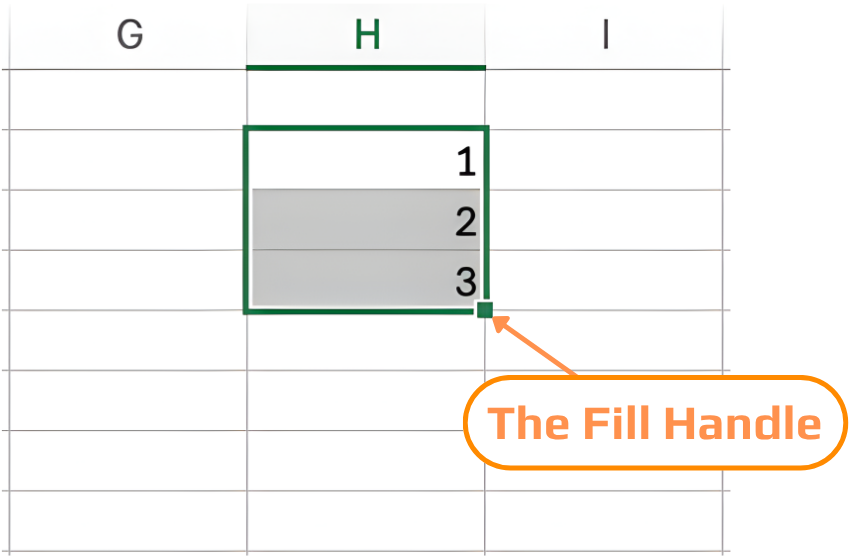
- Click and drag: drag the fill handle down, up, left, or right;
- Double-click: fills down automatically to match the length of an adjacent filled column. No dragging required.
Filling Sequences
Excel recognises a wide range of patterns and continues them automatically when you drag the fill handle.
1. Numbers
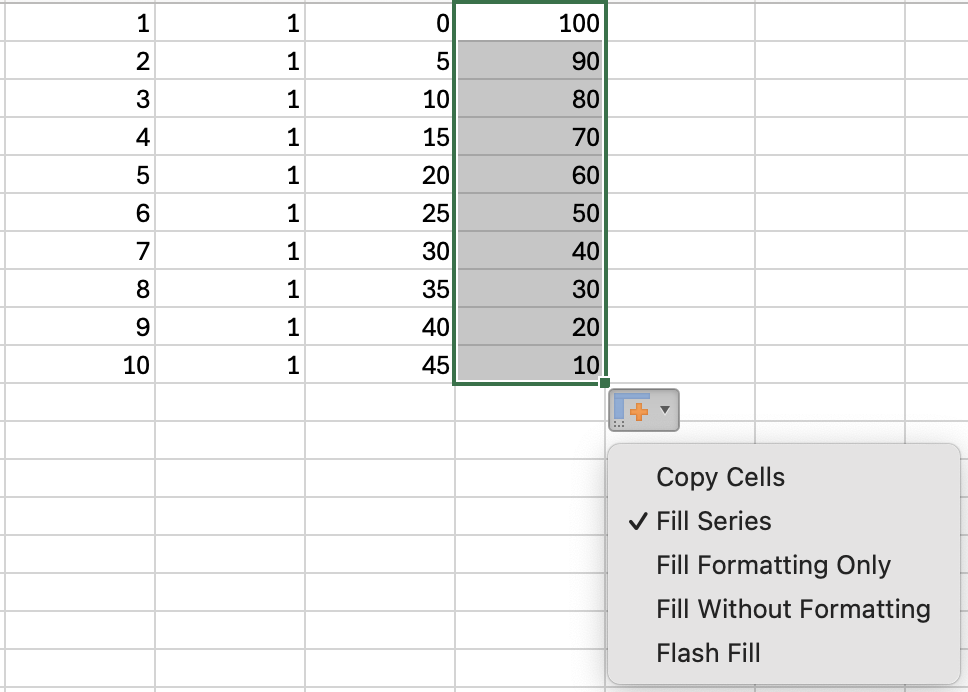
Type 1 in a cell and 2 in the cell below. Select both, drag the fill handle down → Excel continues: 3, 4, 5…
If you drag a single number, Excel copies it rather than incrementing. Always select two cells to establish the step size.
After dragging the fill handle, you can control how Excel completes the sequence using the Auto Fill Options menu (the small icon that appears). Select options like Fill Series, Copy Cells, or Fill Without Formatting to adjust the result.
2. Dates
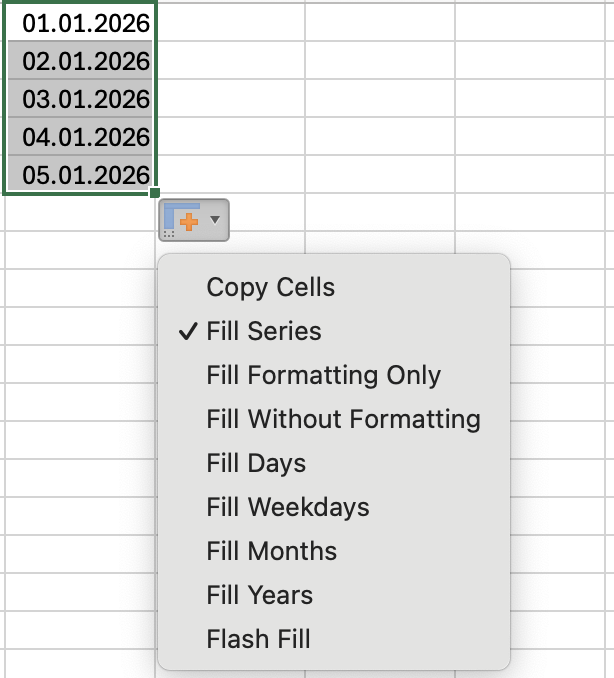
Date formats vary across regions (for example, DD/MM/YYYY vs MM/DD/YYYY). Because of this, Excel may interpret your dates differently and the fill handle can unexpectedly increment months instead of days, or vice versa.
To control how the sequence is filled, use the Auto Fill Options menu (the small icon that appears after dragging). From there, you can explicitly choose options like Fill Days, Fill Weekdays, Fill Months, or Fill Years to ensure the correct pattern.
3. Text Patterns
Excel has built-in recognition for common text sequences:
Custom sequences (like your own region list or product categories) can be defined as Custom Lists — covered in Chapter 3 of this section.
4. Filling Formulas
Autofill is most powerful when copying formulas down a column. Excel adjusts cell references automatically as it fills.
Suppose you want to calculate Revenue based on Units and Unit Cost.
- In the first row of the Revenue column (for example,
G2), enter the formula:
=E2*F2
- Press Enter;
- Select the cell with the formula (
G2) and drag the fill handle down or double-click the fill handle.
Excel will automatically adjust the formula for each row:
=E3*F3
=E4*F4
=E5*F5
and so on.
Add an Order ID column using Auto Fill:
-
Insert a new column at the beginning of the table and name it Order ID.
-
In the first data row (e.g., A2), enter:
ORD-001 -
In the next row (A3), enter:
ORD-002 -
Select both cells (A2:A3) and drag the fill handle down to the last row of the dataset.
Excel will automatically continue the sequence:
- ORD-003
- ORD-004
- ORD-005
- …
Thanks for your feedback!
Ask AI

Ask AI

Ask anything or try one of the suggested questions to begin our chat
