Find & Replace Advanced Usage
Swipe to show menu
Every dataset gets messy over time. Not in a dramatic way—just small things that quietly pile up.
Imagine you export data from a CSV file, and suddenly all your numbers use dots instead of commas. Now Excel reads them as text, and your calculations break. Or you move a file from one laptop to another, and all your formulas stop working because the old version used , while the new Excel expects ;.
Or maybe it's even simpler: a region is written as "North-East" in some rows and "Northeast" in others. A salesperson updates their name mid-year. A product code has an extra space you can't even see.
Fixing this manually means scrolling through hundreds or thousands of rows, trying not to miss anything. It's slow, frustrating, and easy to get wrong.
Find & Replace solves this in seconds. Instead of editing cell by cell, you can fix everything in one go—cleaning formats, correcting names, and standardizing your data across the entire table.
The Options Panel
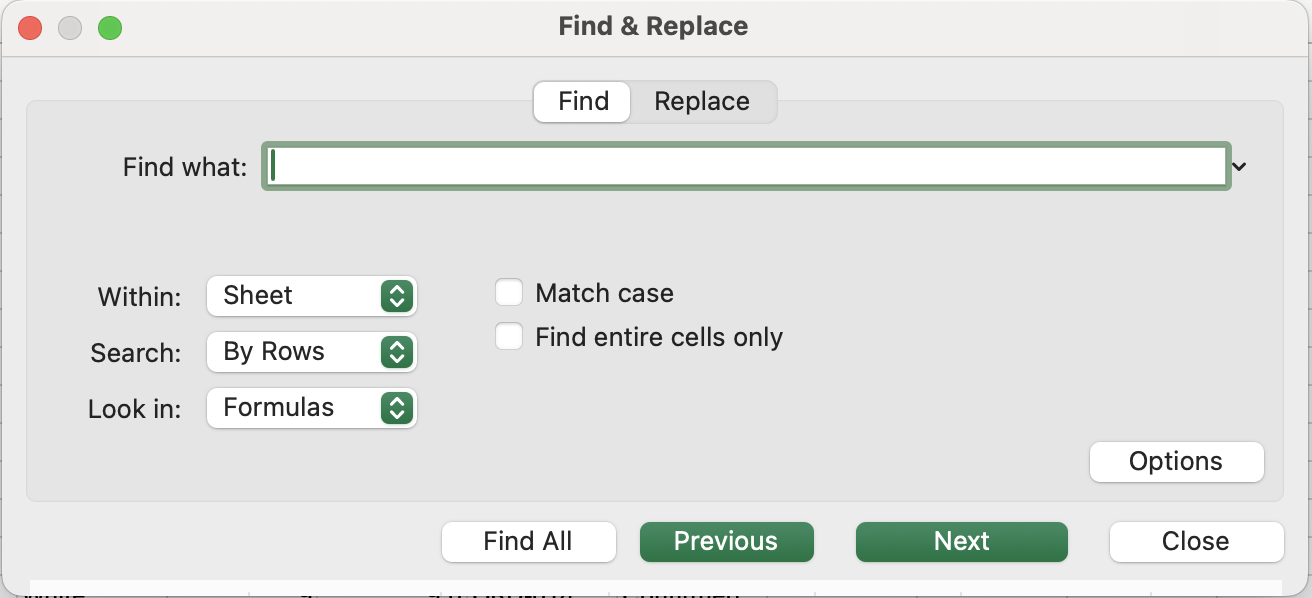
The basic dialog handles simple text swaps. Click Options >> to reveal the advanced controls that make Find & Replace genuinely powerful.
Match Case
By default, Find & Replace is case-insensitive — east, East, and EAST are all treated the same. Check Match case to find only the exact capitalization you specify.
Find Entire Cell Contents
By default, Excel finds your search term anywhere inside a cell — East would match East, East Coast, Northeast, and SouthEast. Check Find entire cell contents to find only cells where the entire content is exactly your search term.
Search Scope — Sheet vs Workbook
The "Within" dropdown defaults to Sheet. Change it to Workbook to search and replace across every sheet in the file simultaneously — useful when the same error appears across multiple monthly sheets.
Look In — Values, Formulas, or Notes
The "Look in" dropdown controls what Excel searches through:

Excel reports how many replacements were made. Ctrl + Z undoes them all at once if needed.
Using Wildcards
Wildcards let you search for patterns rather than exact values — powerful for cleaning inconsistent data.
Fix decimal separators in Unit Cost.
In the Unit Cost column, some values use a dot (.) instead of a comma (,), which may cause Excel to treat them as text or break calculations.
Your task is to replace all dots with commas only in the Unit Cost column.
- Select the Unit Cost column first (important to avoid changing other data).
- Change data type from General to Number.
- Press
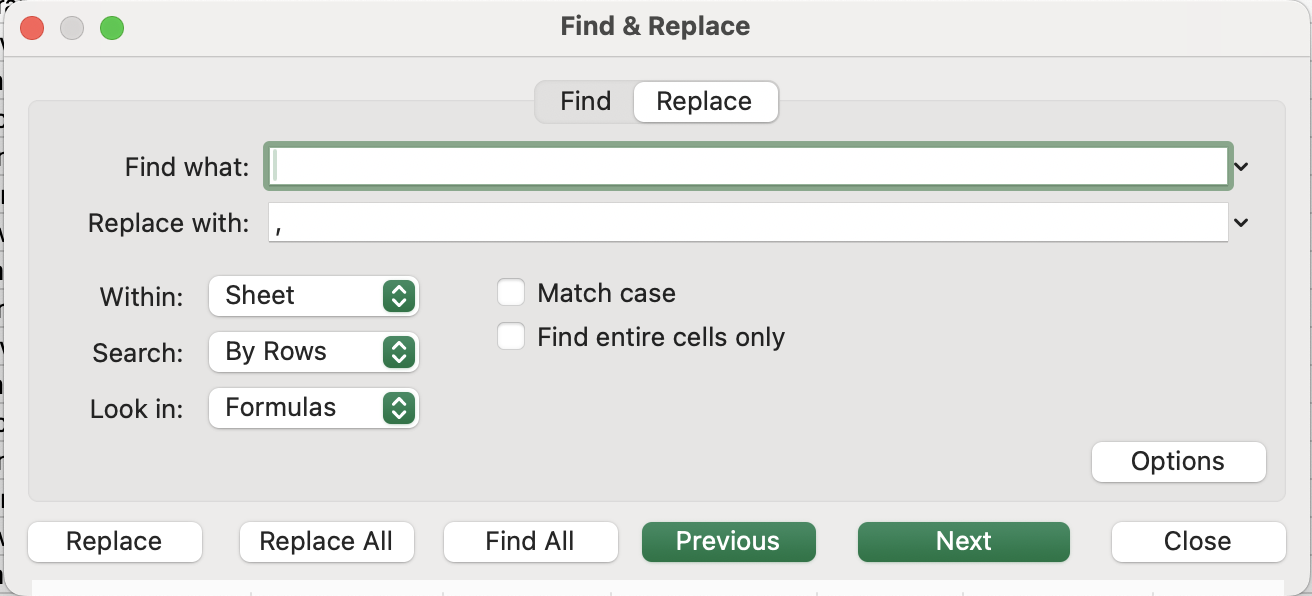
Ctrl + H(Windows) orcontrol + H(Mac) to open Find & Replace. - In Find what, enter:
. - In Replace with, enter:
, - Click Replace All.
Thanks for your feedback!
Ask AI

Ask AI

Ask anything or try one of the suggested questions to begin our chat
Find & Replace Advanced Usage
Every dataset gets messy over time. Not in a dramatic way—just small things that quietly pile up.
Imagine you export data from a CSV file, and suddenly all your numbers use dots instead of commas. Now Excel reads them as text, and your calculations break. Or you move a file from one laptop to another, and all your formulas stop working because the old version used , while the new Excel expects ;.
Or maybe it's even simpler: a region is written as "North-East" in some rows and "Northeast" in others. A salesperson updates their name mid-year. A product code has an extra space you can't even see.
Fixing this manually means scrolling through hundreds or thousands of rows, trying not to miss anything. It's slow, frustrating, and easy to get wrong.
Find & Replace solves this in seconds. Instead of editing cell by cell, you can fix everything in one go—cleaning formats, correcting names, and standardizing your data across the entire table.
The Options Panel
The basic dialog handles simple text swaps. Click Options >> to reveal the advanced controls that make Find & Replace genuinely powerful.
Match Case
By default, Find & Replace is case-insensitive — east, East, and EAST are all treated the same. Check Match case to find only the exact capitalization you specify.
Find Entire Cell Contents
By default, Excel finds your search term anywhere inside a cell — East would match East, East Coast, Northeast, and SouthEast. Check Find entire cell contents to find only cells where the entire content is exactly your search term.
Search Scope — Sheet vs Workbook
The "Within" dropdown defaults to Sheet. Change it to Workbook to search and replace across every sheet in the file simultaneously — useful when the same error appears across multiple monthly sheets.
Look In — Values, Formulas, or Notes
The "Look in" dropdown controls what Excel searches through:
Excel reports how many replacements were made. Ctrl + Z undoes them all at once if needed.
Using Wildcards
Wildcards let you search for patterns rather than exact values — powerful for cleaning inconsistent data.
Fix decimal separators in Unit Cost.
In the Unit Cost column, some values use a dot (.) instead of a comma (,), which may cause Excel to treat them as text or break calculations.
Your task is to replace all dots with commas only in the Unit Cost column.
- Select the Unit Cost column first (important to avoid changing other data).
- Change data type from General to Number.
- Press
Ctrl + H(Windows) orcontrol + H(Mac) to open Find & Replace. - In Find what, enter:
. - In Replace with, enter:
, - Click Replace All.
Thanks for your feedback!
