Sharing Files and Managing Access
Swipe to show menu
Excel allows users to share workbooks directly through OneDrive and collaborate without sending file attachments manually. Instead of creating multiple workbook copies, teams can work inside the same shared file.
Before a workbook can be shared, it must be stored in OneDrive or SharePoint. Local files saved only on a computer cannot use modern collaboration features.
Opening the Share Window
To share a workbook:
- Open the Excel workbook;
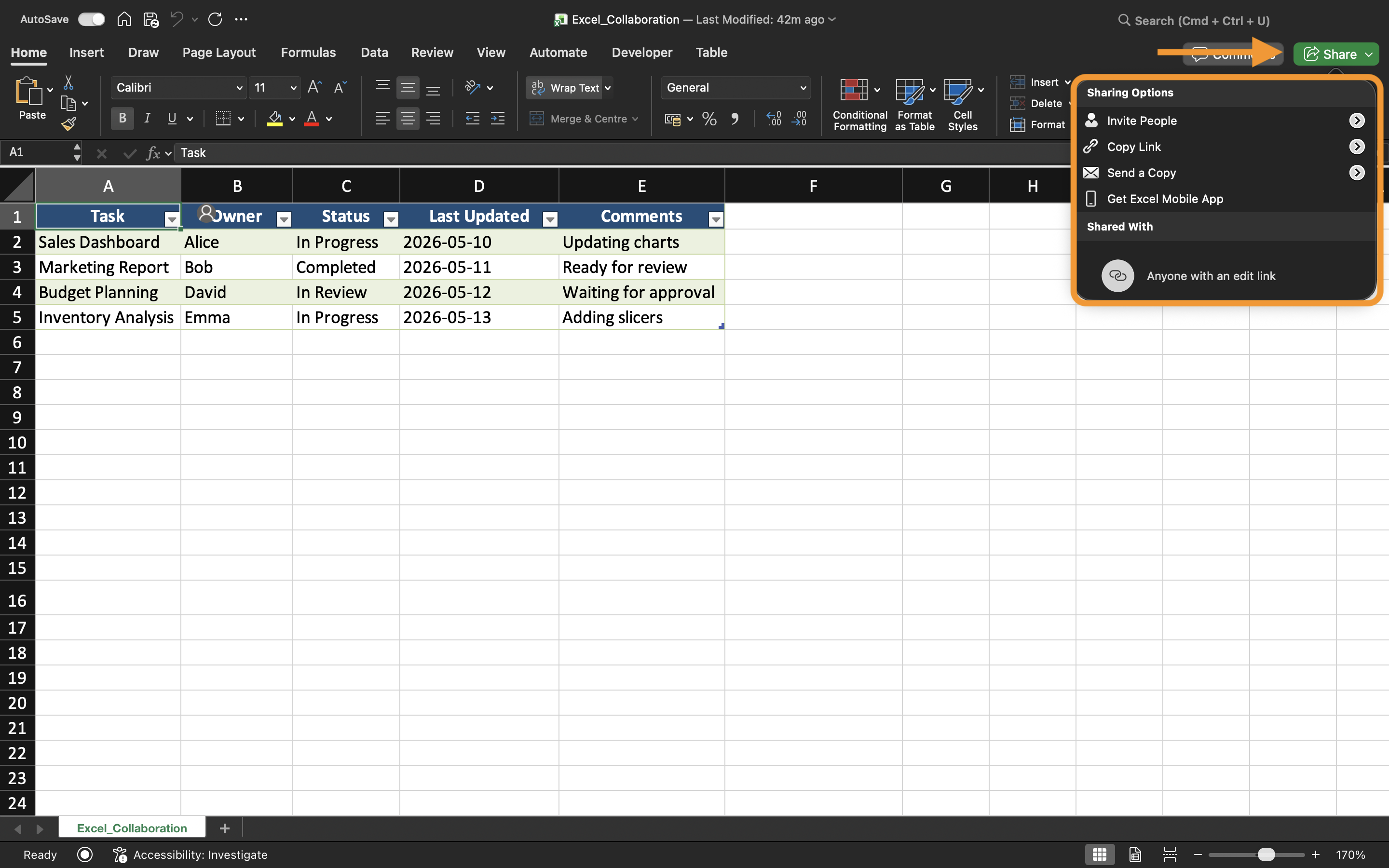
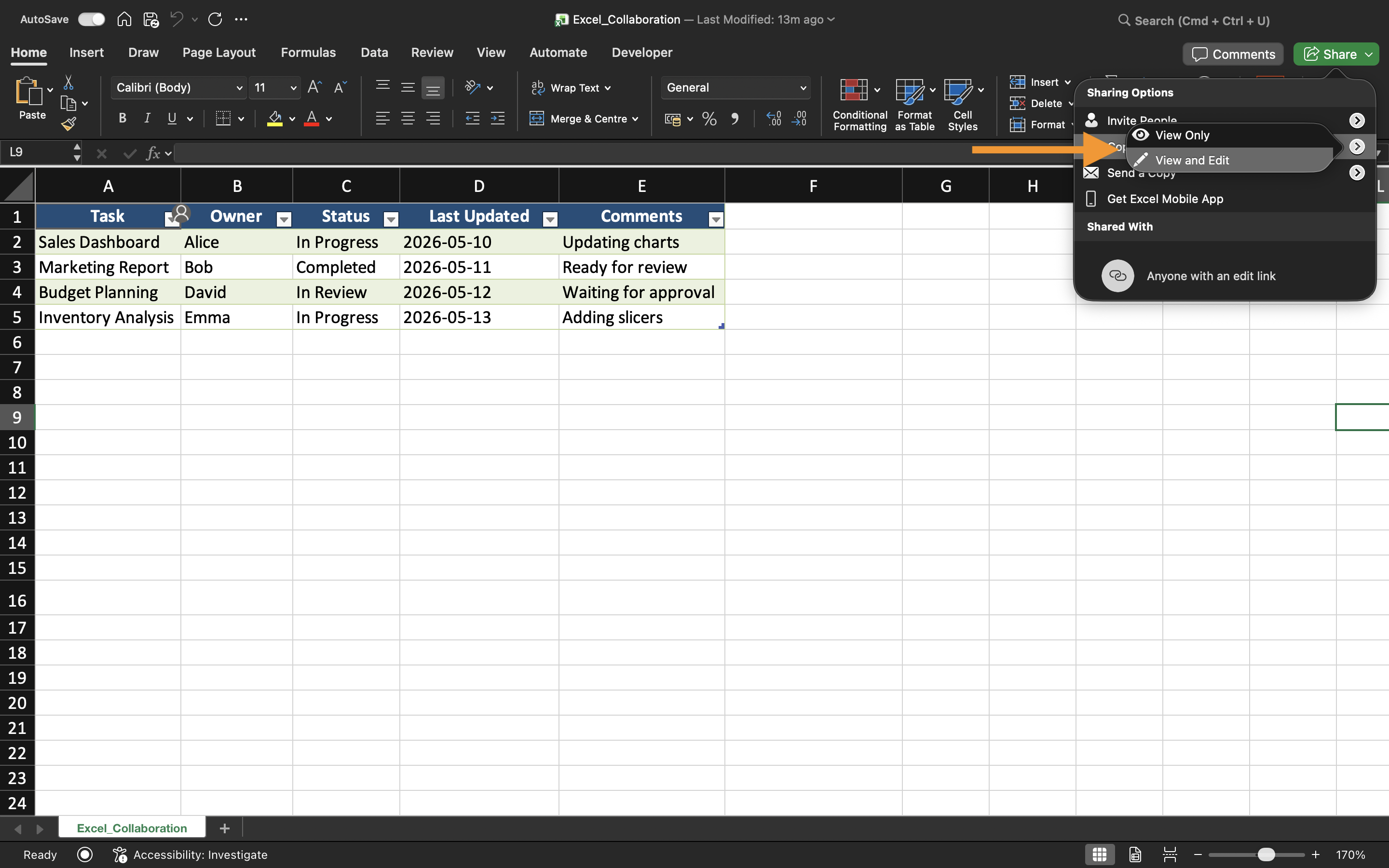
- Select the Share button near the top-right corner;
- Choose how the file will be shared.
Excel allows users to invite collaborators through email addresses or generate sharing links.
Understanding Permission Types
When sharing a workbook, Excel allows different permission levels depending on how collaborators should interact with the file.
The two most common permission types are:
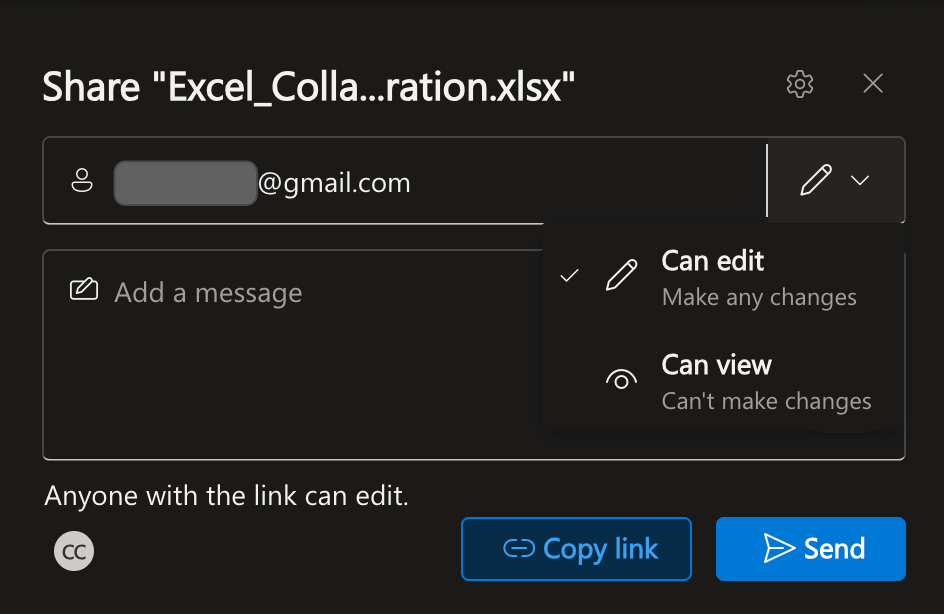
- Can Edit: users can modify workbook contents;
- Can View: users can only view the workbook.
Choosing the correct permission type is important when working with sensitive reports or finalized files.
For example, a finance manager may allow the accounting team to edit a workbook while executives receive view-only access.
Sharing Through Email Invitations
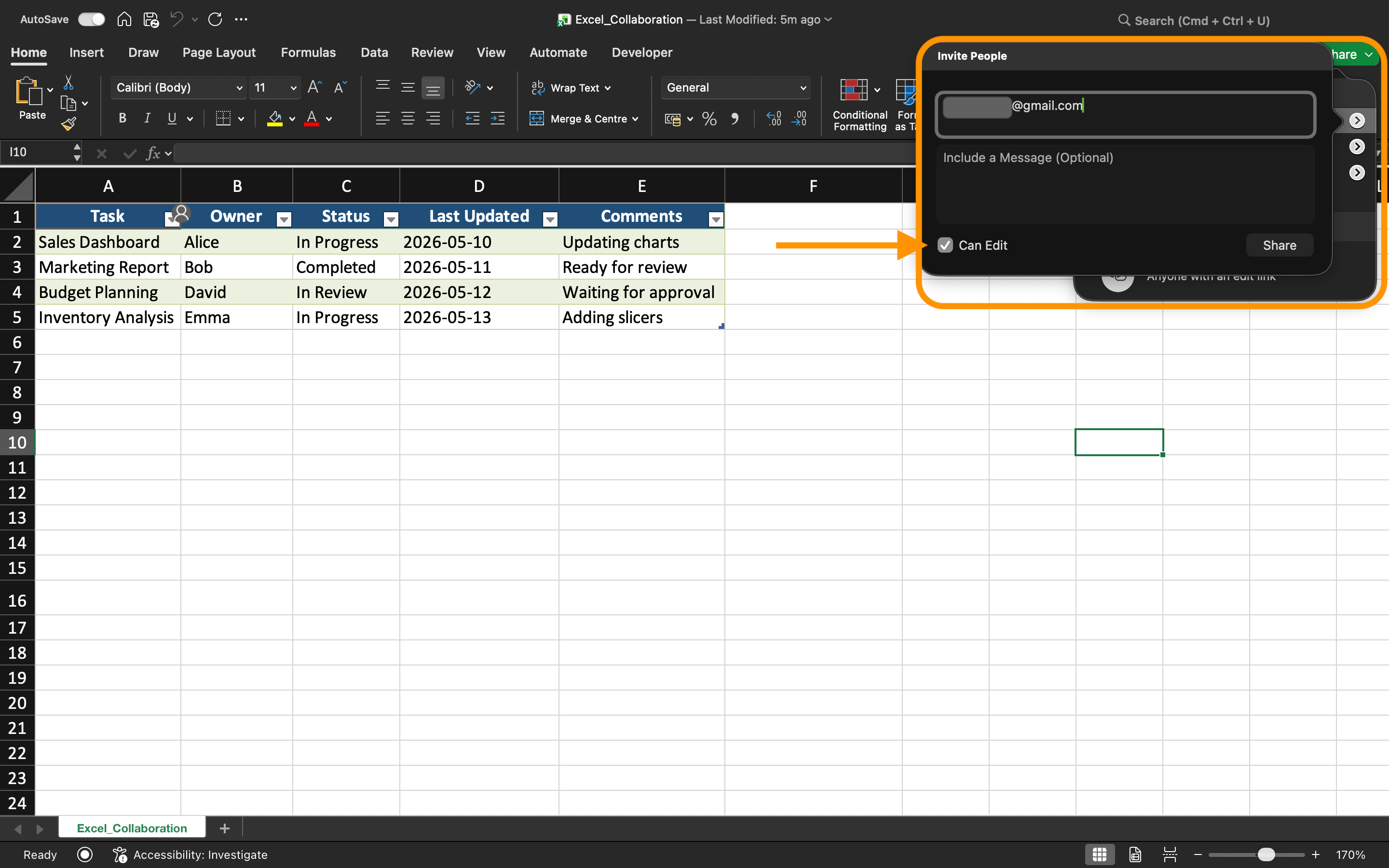
Excel can send workbook invitations directly through email. After entering collaborator email addresses, users receive a link that opens the shared workbook automatically.
This approach is commonly used inside organizations because access stays connected to specific user accounts.
When sharing through invitations, Excel also allows users to:
- Add a short message;
- Control editing permissions;
- Prevent collaborators from resharing the file.
Creating Sharing Links
Instead of inviting users individually, Excel can generate collaboration links.
Common link types include:
- View-only links;
- Editable links;
- Organization-only links.
Links make collaboration faster, especially when many users require access to the same workbook.
However, permission settings should always be reviewed carefully before sending links externally.
Managing Workbook Access
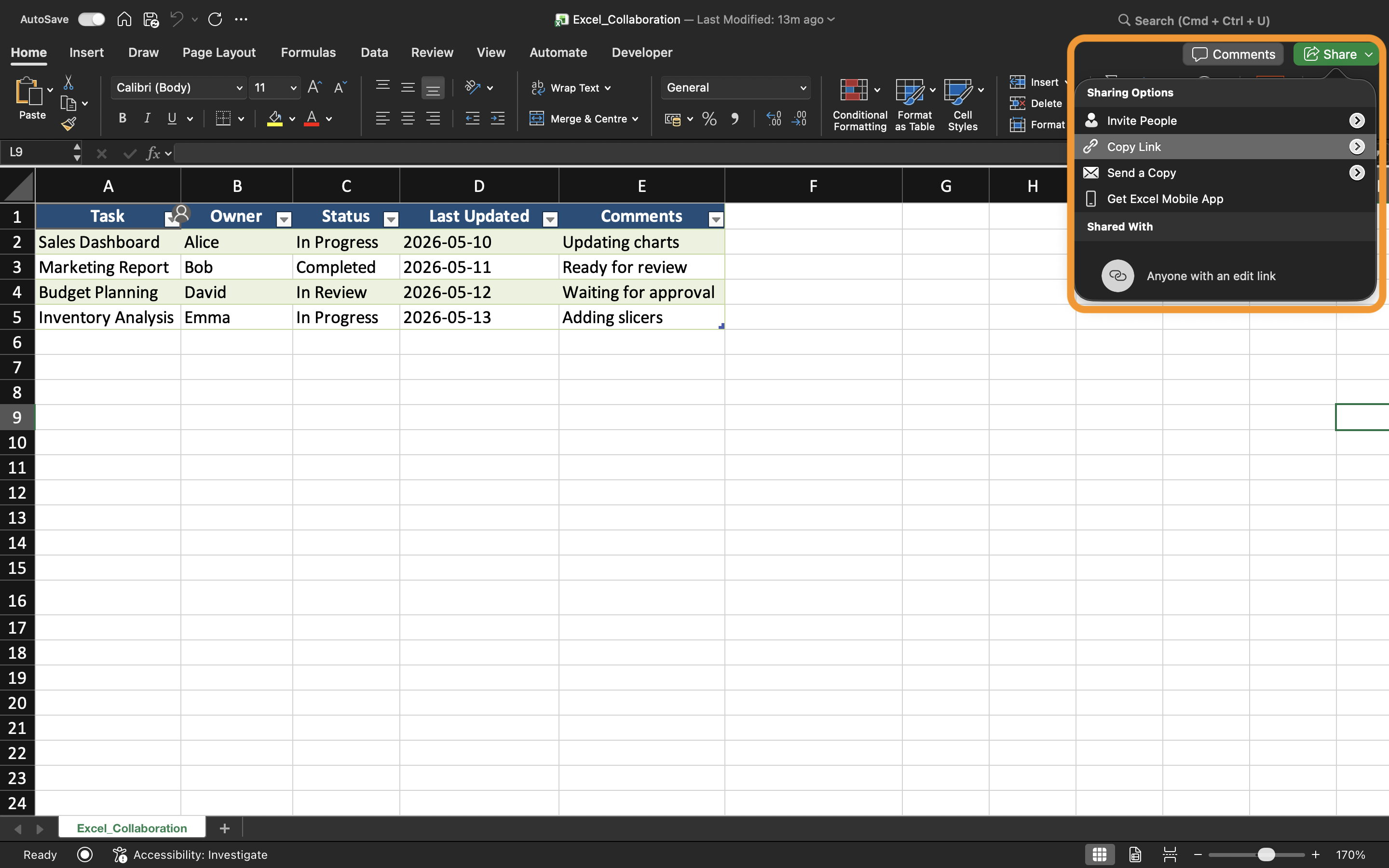
Workbook access can be modified at any time through the Share settings.
Excel allows users to:
- Remove collaborators;
- Change permissions;
- Disable sharing links;
- Review who currently has access.
This helps maintain better security and prevents unauthorized workbook changes.
Best Practices for Shared Files
When sharing Excel workbooks professionally:
- Use clear workbook names;
- Store files inside organized folders;
- Avoid sending duplicate attachments;
- Limit editing permissions when possible;
- Review collaborator access regularly.
These habits help teams maintain cleaner and safer collaboration workflows.
Task
The workbook contains a monthly sales report used by multiple department managers. The goal is to share the workbook with edit access for team members and create a separate view-only link for executives.
- Save the workbook to OneDrive;
- Open the Share window;
- Create a sharing invitation with edit permissions;
- Generate a view-only sharing link;
- Review current workbook access settings.
Thanks for your feedback!
Ask AI

Ask AI

Ask anything or try one of the suggested questions to begin our chat
