Account Setup and Analytics Integration
Swipe to show menu
What Google Ads Can Do for Your Business or Clients
Google Ads meets users at the exact moment they're looking for solutions.
This makes it one of the most efficient and measurable forms of advertising.
Depending on your goals, you can create campaigns to:
- Sell products through online stores (eCommerce);
- Generate qualified leads for services;
- Drive traffic to local businesses;
- Promote mobile apps or YouTube videos;
- Retarget visitors who didn't convert.
Each campaign can be tracked in detail, allowing you to measure every step of the user journey from impression to conversion.
Overview of Campaign Types
1. Search Campaigns
They show text ads on Google search results when users type in specific queries.
They're ideal for capturing high-intent users (people actively looking for products or services like yours). These ads rely heavily on keywords that match user intent.
Tip: add negative keywords to filter out irrelevant searches and avoid wasting budget.
2. Display Campaigns
They use visual banner or image ads that appear across millions of websites and apps within the Google Display Network (GDN).
They're perfect for building brand awareness and retargeting visitors who didn't convert earlier.
3. Video Campaigns
They show video ads before, during, or after YouTube videos and across Google's video partner sites.
They excel at storytelling, product education, and building trust through visuals and sound.
4. Shopping Campaigns
They display product listings (image, price, and store name) directly in Google Search.
These are made for e-commerce, helping shoppers compare products instantly and click straight to purchase pages.
5. App Campaigns
They promote mobile apps across Google Search, YouTube, Google Play, and the Display Network.
They automatically generate and optimize ads to drive installs or in-app actions.
6. Performance Max Campaigns (PMax)
They use automation and machine learning to show ads across all Google channels — Search, Display, YouTube, Gmail, Discover, and Maps.
They simplify multi-channel targeting by optimizing placements, bids, and creative combinations automatically.
Inside the Google Ads Interface
1. Home Dashboard
It's the first screen you see after logging in. It provides an overview of your account's overall performance.
2. Campaigns Tab
It's where you can view, edit, and manage all your advertising campaigns.
3. Tools & Settings Menu
This menu located at the top of the screen, the Tools & Settings menu is your backend control panel.
4. Reports & Analytics
It includes a built-in custom reporting tool for analyzing results in depth.
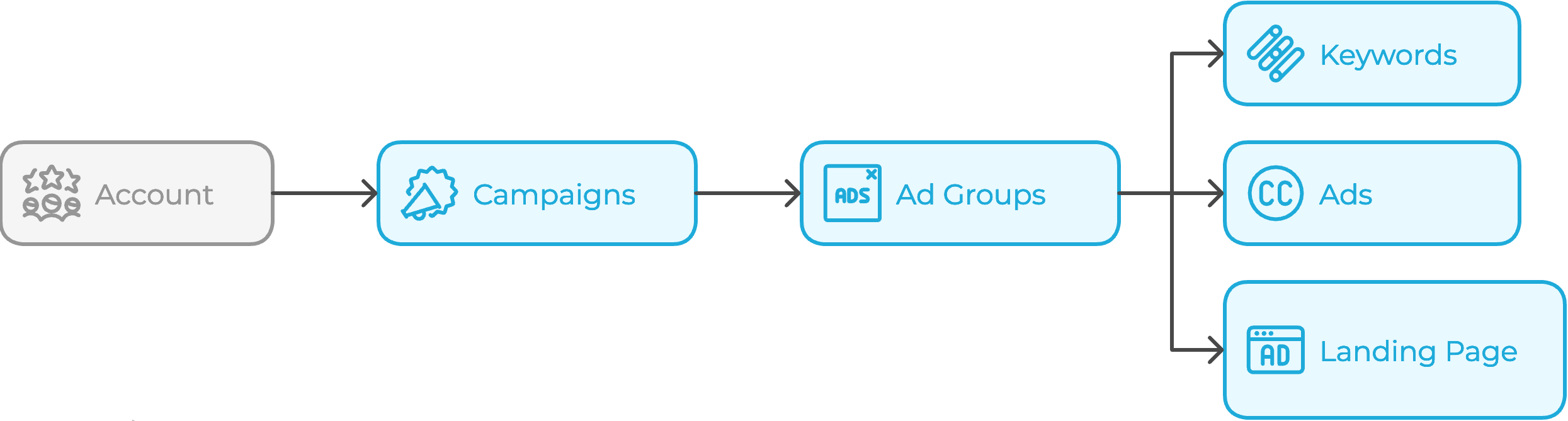
How to Structure a Professional Google Ads Account
Golden Rules
Do
- Keep ad groups tight (5–20 closely related keywords);
- Align keyword → ad copy → landing page (message match);
- Separate brand vs non-brand campaigns;
- Start with phrase/exact. Add broad only with smart bidding + strong negatives;
- Build negatives continuously (search terms mining).
Don't
- Mix unrelated keywords in one ad group;
- Use "Campaign 1/Test" as names;
- Launch 15 campaigns day one (you won't learn fast);
- Point everything to the homepage;
- Skip conversion tracking (you'll fly blind).
Example Blueprint (Search, Non-Brand, US)
Campaign: Search_US_NonBrand_RunningShoes
- Geo: US | Budget: $150/day | Bidding: tCPA (after data) / Manual CPC (start)
Ad Groups
NB_Running_Shoes_Men→ LP:/running-shoes/men;NB_Running_Shoes_Women→ LP:/running-shoes/women.- Keywords (per AG):
- Exact: [men's running shoes];
- Phrase: "best running shoes for men";
- Exact: [lightweight running shoes].
Ads
- RSA_v1, RSA_v2 (test USP and headline order);
- Assets: sitelinks (New Arrivals, Size Guide, Returns), callouts (Free Shipping), snippets (Brands).
Connecting Analytics Tag Manager and GA4
Linking Google Ads to GA4
- Go to the Tools menu;
- Under Data Manager, find the Connected Products tab;
- You'll see which platforms are already linked;
- Under Featured Products, select Google Analytics (GA4);
- Choose your GA4 property and click Next;
- Enable both options: "Import Google Analytics metrics" and "Import audiences for remarketing".
- Click Link to connect the accounts.

You'll need admin permissions in both Ads and GA4 to complete this step.
Once linked, GA4 can share audiences, conversion events, and engagement data with Google Ads.
Setting Up Google Tag Manager
Google Tag Manager is a powerful tool that helps you manage all your tracking tags without having to manually edit your website's code.
Follow these steps to get started:
- Visit tagmanager.google.com;
- Create a new Account and Container;
- Install the container snippet on every page of your website — either manually or through your CMS (like WordPress or Shopify);
- Publish your container.
Setting Up Billing, Permissions and Business Settings
Before launching campaigns, it's essential to make sure the admin side of your Google Ads account is properly configured.
Billing Setup
Head to the top menu → Billing → Settings.
Here's what you'll need to do:
-
Choose your payment method:
- Manual payments: you prepay your account balance before ads run;
- Automatic payments: ads run, then Google charges you after reaching your billing threshold.
-
Add your payment details:
- Use a business credit or debit card to earn points or cashback;
- Ensure your billing country matches your business registration — otherwise, you may face verification issues.
-
Add business information for invoicing.
Managing User Permissions
Go to Admin → Access & Security.
You can invite teammates, clients, or contractors with different permission levels:
Best Practice:
- Always apply the least necessary level of access;
- Regularly remove inactive users to protect account security.
Business Settings Review
Before launching any ads, double-check these key areas:
1. Account Name & Time Zone
These can't easily be changed later, so make sure they reflect your organization's setup.
2. Email Preferences
You can disable unnecessary alerts (like policy updates or marketing emails) but keep performance and billing notifications active.
3. Linked Accounts
Verify that your connected platforms are synced correctly:
- Google Analytics 4 (GA4);
- YouTube Channel;
- Google Tag Manager;
- CRM or Data Tools (HubSpot, Salesforce, etc.).
1. What's the main purpose of adding negative keywords in a Search campaign?
2. Match campaign type to the best use case:
3. Which permission level should you assign to a marketing teammate who manages campaigns but shouldn't access billing information?
Thanks for your feedback!
Ask AI

Ask AI

Ask anything or try one of the suggested questions to begin our chat
Account Setup and Analytics Integration
What Google Ads Can Do for Your Business or Clients
Google Ads meets users at the exact moment they're looking for solutions.
This makes it one of the most efficient and measurable forms of advertising.
Depending on your goals, you can create campaigns to:
- Sell products through online stores (eCommerce);
- Generate qualified leads for services;
- Drive traffic to local businesses;
- Promote mobile apps or YouTube videos;
- Retarget visitors who didn't convert.
Each campaign can be tracked in detail, allowing you to measure every step of the user journey from impression to conversion.
Overview of Campaign Types
1. Search Campaigns
They show text ads on Google search results when users type in specific queries.
They're ideal for capturing high-intent users (people actively looking for products or services like yours). These ads rely heavily on keywords that match user intent.
Tip: add negative keywords to filter out irrelevant searches and avoid wasting budget.
2. Display Campaigns
They use visual banner or image ads that appear across millions of websites and apps within the Google Display Network (GDN).
They're perfect for building brand awareness and retargeting visitors who didn't convert earlier.
3. Video Campaigns
They show video ads before, during, or after YouTube videos and across Google's video partner sites.
They excel at storytelling, product education, and building trust through visuals and sound.
4. Shopping Campaigns
They display product listings (image, price, and store name) directly in Google Search.
These are made for e-commerce, helping shoppers compare products instantly and click straight to purchase pages.
5. App Campaigns
They promote mobile apps across Google Search, YouTube, Google Play, and the Display Network.
They automatically generate and optimize ads to drive installs or in-app actions.
6. Performance Max Campaigns (PMax)
They use automation and machine learning to show ads across all Google channels — Search, Display, YouTube, Gmail, Discover, and Maps.
They simplify multi-channel targeting by optimizing placements, bids, and creative combinations automatically.
Inside the Google Ads Interface
1. Home Dashboard
It's the first screen you see after logging in. It provides an overview of your account's overall performance.
2. Campaigns Tab
It's where you can view, edit, and manage all your advertising campaigns.
3. Tools & Settings Menu
This menu located at the top of the screen, the Tools & Settings menu is your backend control panel.
4. Reports & Analytics
It includes a built-in custom reporting tool for analyzing results in depth.
How to Structure a Professional Google Ads Account
Golden Rules
Do
- Keep ad groups tight (5–20 closely related keywords);
- Align keyword → ad copy → landing page (message match);
- Separate brand vs non-brand campaigns;
- Start with phrase/exact. Add broad only with smart bidding + strong negatives;
- Build negatives continuously (search terms mining).
Don't
- Mix unrelated keywords in one ad group;
- Use "Campaign 1/Test" as names;
- Launch 15 campaigns day one (you won't learn fast);
- Point everything to the homepage;
- Skip conversion tracking (you'll fly blind).
Example Blueprint (Search, Non-Brand, US)
Campaign: Search_US_NonBrand_RunningShoes
- Geo: US | Budget: $150/day | Bidding: tCPA (after data) / Manual CPC (start)
Ad Groups
NB_Running_Shoes_Men→ LP:/running-shoes/men;NB_Running_Shoes_Women→ LP:/running-shoes/women.- Keywords (per AG):
- Exact: [men's running shoes];
- Phrase: "best running shoes for men";
- Exact: [lightweight running shoes].
Ads
- RSA_v1, RSA_v2 (test USP and headline order);
- Assets: sitelinks (New Arrivals, Size Guide, Returns), callouts (Free Shipping), snippets (Brands).
Connecting Analytics Tag Manager and GA4
Linking Google Ads to GA4
- Go to the Tools menu;
- Under Data Manager, find the Connected Products tab;
- You'll see which platforms are already linked;
- Under Featured Products, select Google Analytics (GA4);
- Choose your GA4 property and click Next;
- Enable both options: "Import Google Analytics metrics" and "Import audiences for remarketing".
- Click Link to connect the accounts.
You'll need admin permissions in both Ads and GA4 to complete this step.
Once linked, GA4 can share audiences, conversion events, and engagement data with Google Ads.
Setting Up Google Tag Manager
Google Tag Manager is a powerful tool that helps you manage all your tracking tags without having to manually edit your website's code.
Follow these steps to get started:
- Visit tagmanager.google.com;
- Create a new Account and Container;
- Install the container snippet on every page of your website — either manually or through your CMS (like WordPress or Shopify);
- Publish your container.
Setting Up Billing, Permissions and Business Settings
Before launching campaigns, it's essential to make sure the admin side of your Google Ads account is properly configured.
Billing Setup
Head to the top menu → Billing → Settings.
Here's what you'll need to do:
-
Choose your payment method:
- Manual payments: you prepay your account balance before ads run;
- Automatic payments: ads run, then Google charges you after reaching your billing threshold.
-
Add your payment details:
- Use a business credit or debit card to earn points or cashback;
- Ensure your billing country matches your business registration — otherwise, you may face verification issues.
-
Add business information for invoicing.
Managing User Permissions
Go to Admin → Access & Security.
You can invite teammates, clients, or contractors with different permission levels:
Best Practice:
- Always apply the least necessary level of access;
- Regularly remove inactive users to protect account security.
Business Settings Review
Before launching any ads, double-check these key areas:
1. Account Name & Time Zone
These can't easily be changed later, so make sure they reflect your organization's setup.
2. Email Preferences
You can disable unnecessary alerts (like policy updates or marketing emails) but keep performance and billing notifications active.
3. Linked Accounts
Verify that your connected platforms are synced correctly:
- Google Analytics 4 (GA4);
- YouTube Channel;
- Google Tag Manager;
- CRM or Data Tools (HubSpot, Salesforce, etc.).
Thanks for your feedback!
