Generating Images with Magic Media
Swipe to show menu
Magic Media turns a written description into an original image or a short video clip, directly on your canvas. It is useful when a stock photo does not match your exact idea — a mascot in a specific pose, a product mockup in an unusual color, or an abstract background for a title slide.
To generate an image:
- Select Apps → Magic Media;
- Choose the Text to Image tab;
- Type a description of the scene, subject, and style;
- Pick a style preset such as Photo, Watercolor, or 3D;
- Click Generate to produce four variations.
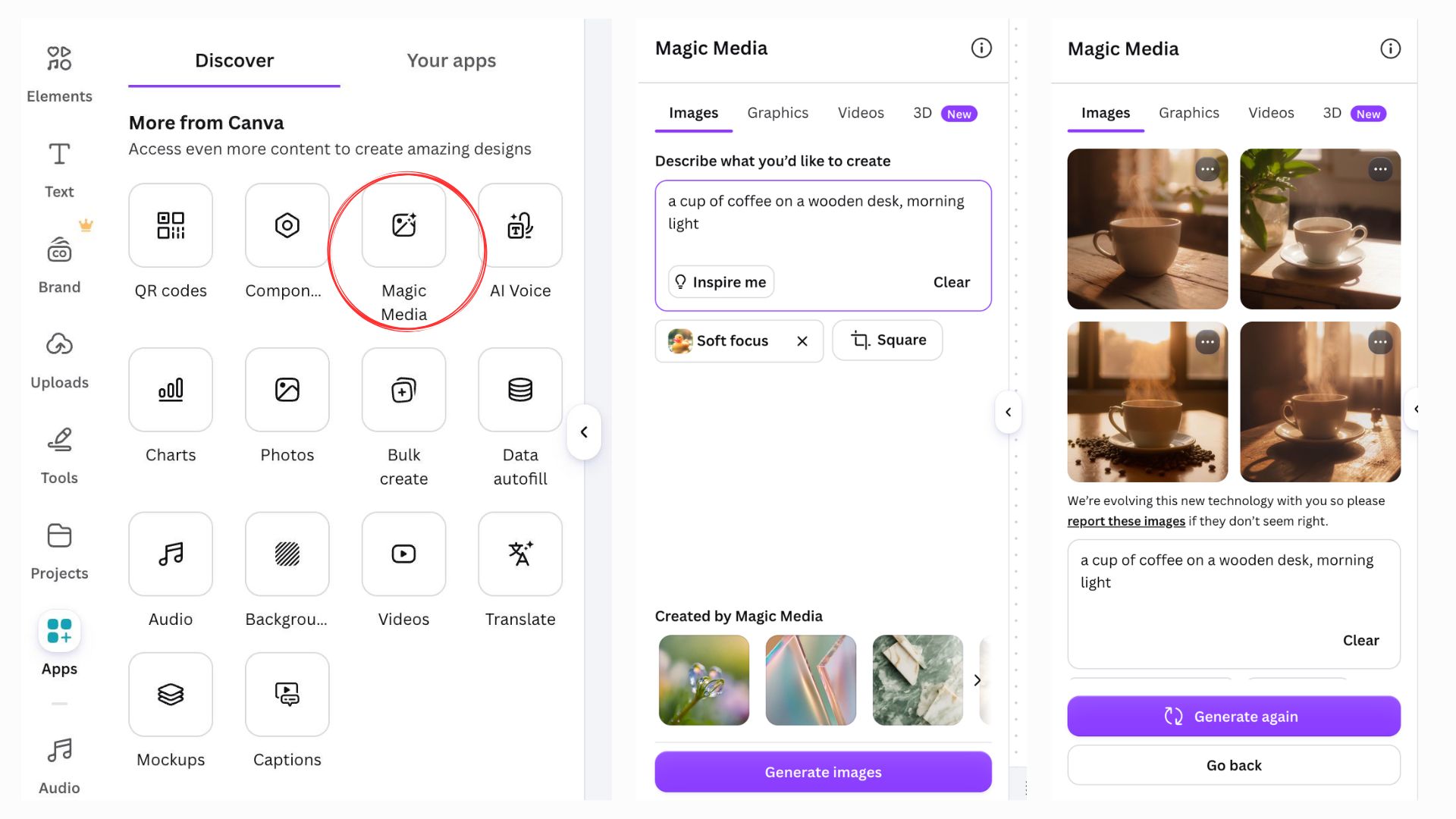
The more specific the prompt, the closer the result matches what you pictured. A prompt like "a red bicycle" returns a generic result; "a red vintage bicycle leaning against a brick wall, autumn leaves on the ground" gives Magic Media enough detail to make deliberate choices about composition and lighting.
Once you like a result, click it to place it on the page, then resize or crop it like any other image.
Thanks for your feedback!
Ask AI

Ask AI

Ask anything or try one of the suggested questions to begin our chat
