Combining FILTER, SORT, and UNIQUE in One Formula
Swipe to show menu
In dynamic business environments, you often need to analyze project lists that change frequently. Imagine you are working with an Employee_Projects table containing columns like Project Name, Department, and Status.
Analyzing such data dynamically means you need formulas that can handle multiple steps at once—such as filtering by a specific department and status, removing duplicates, and then sorting the results. This multi-step logic is where Excel's dynamic array functions really shine, letting you chain together operations for powerful, real-time analysis.
=SORT(UNIQUE(FILTER(Employee_Projects[Project];(Employee_Projects[Department]="Marketing"))))
or
=SORT(UNIQUE(FILTER(E2:E27;(D2:D27="Marketing"))))
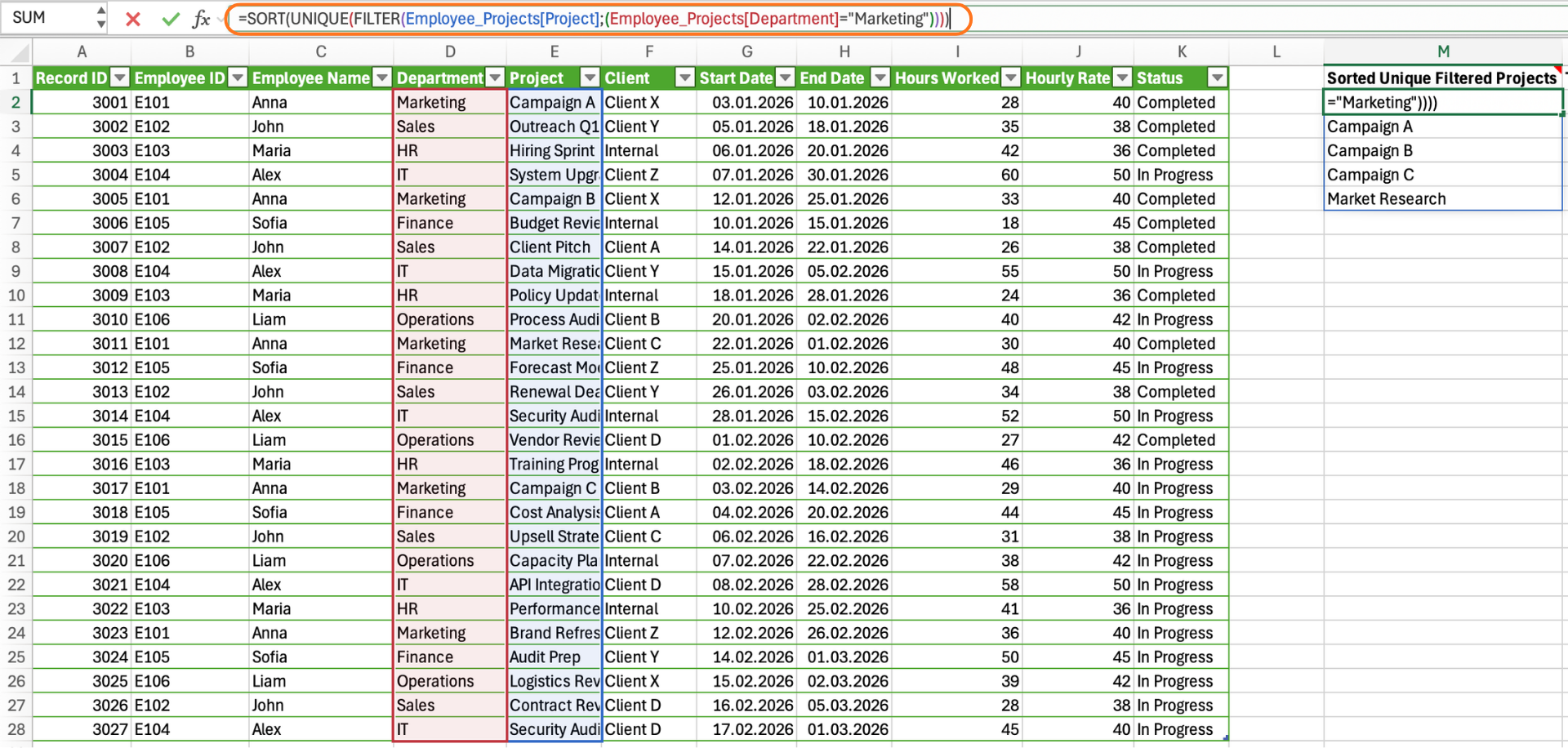
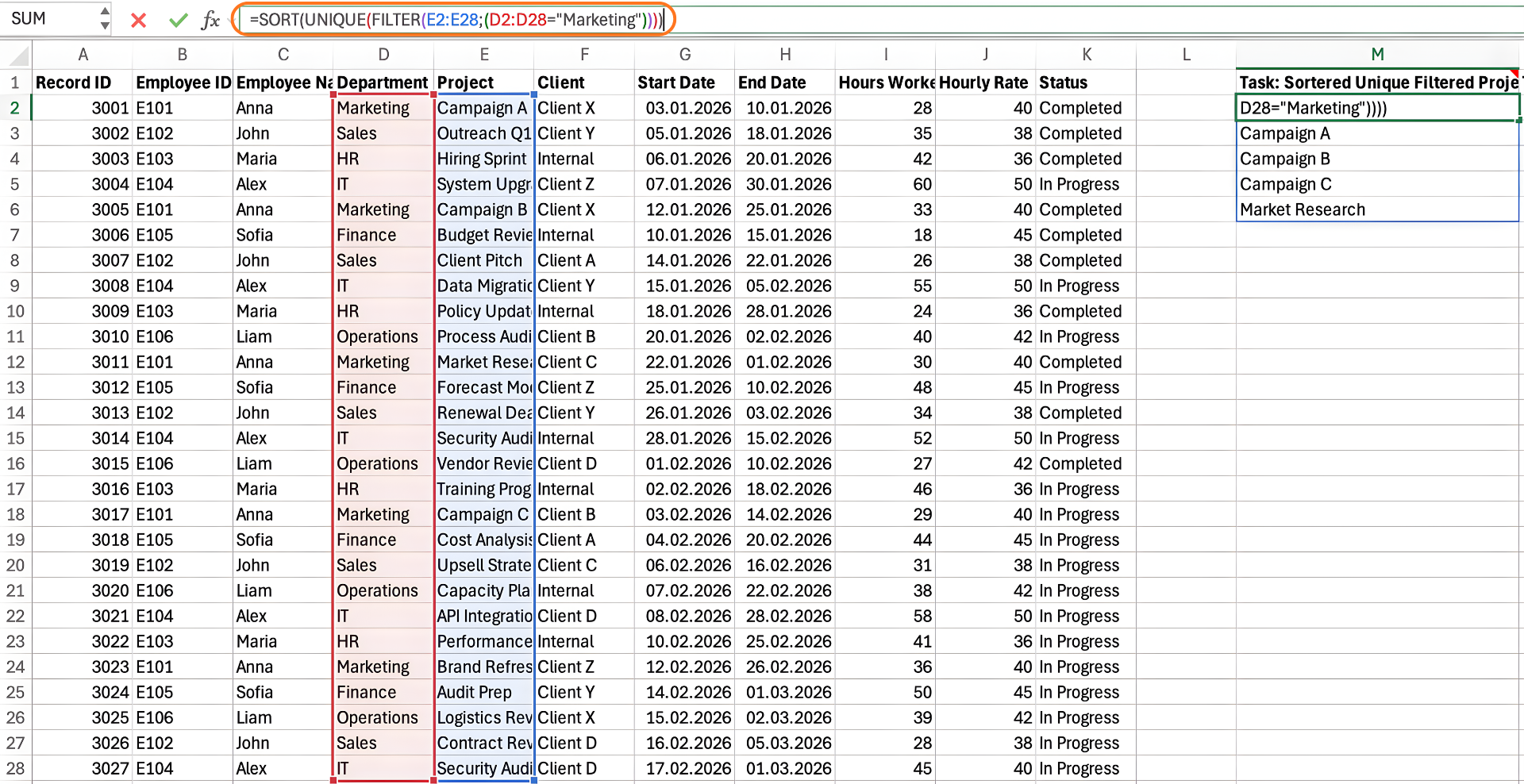

Excel evaluates formulas from the inside out. This means that when multiple functions are combined, the innermost function is calculated first, and its result is then passed to the next function.
For example, in a formula like =SORT(UNIQUE(FILTER(...))), Excel:
- First applies FILTER to return matching data;
- Then applies UNIQUE to remove duplicates from that result;
- Finally applies SORT to order the final output.
Understanding this order helps you build complex formulas step by step and troubleshoot them more easily.
By combining these functions, your formula becomes highly adaptive. As soon as you update the source data—such as adding a new project, changing a project's status, or moving a project to a different department—the result instantly reflects those changes.
Likewise, if you adjust the criteria (for example, by referencing a cell for the department name), the formula recalculates, delivering a fresh, accurate list without manual intervention. This approach streamlines your workflow and ensures your analysis is always up to date, even as your data evolves.
Use the Employee_Projects table to create a dynamic list of unique Project names for projects that are currently "In Progress", sorted alphabetically.
Use a single formula combining FILTER, UNIQUE, and SORT.
=SORT(UNIQUE(FILTER(Employee_Projects[Project]; Employee_Projects[Status]="In Progress")))
or
=SORT(UNIQUE(FILTER(E2:E28; K2:K28="In Progress")))
Thanks for your feedback!
Ask AI

Ask AI

Ask anything or try one of the suggested questions to begin our chat
Combining FILTER, SORT, and UNIQUE in One Formula
In dynamic business environments, you often need to analyze project lists that change frequently. Imagine you are working with an Employee_Projects table containing columns like Project Name, Department, and Status.
Analyzing such data dynamically means you need formulas that can handle multiple steps at once—such as filtering by a specific department and status, removing duplicates, and then sorting the results. This multi-step logic is where Excel's dynamic array functions really shine, letting you chain together operations for powerful, real-time analysis.
=SORT(UNIQUE(FILTER(Employee_Projects[Project];(Employee_Projects[Department]="Marketing"))))
or
=SORT(UNIQUE(FILTER(E2:E27;(D2:D27="Marketing"))))
Excel evaluates formulas from the inside out. This means that when multiple functions are combined, the innermost function is calculated first, and its result is then passed to the next function.
For example, in a formula like =SORT(UNIQUE(FILTER(...))), Excel:
- First applies FILTER to return matching data;
- Then applies UNIQUE to remove duplicates from that result;
- Finally applies SORT to order the final output.
Understanding this order helps you build complex formulas step by step and troubleshoot them more easily.
By combining these functions, your formula becomes highly adaptive. As soon as you update the source data—such as adding a new project, changing a project's status, or moving a project to a different department—the result instantly reflects those changes.
Likewise, if you adjust the criteria (for example, by referencing a cell for the department name), the formula recalculates, delivering a fresh, accurate list without manual intervention. This approach streamlines your workflow and ensures your analysis is always up to date, even as your data evolves.
Use the Employee_Projects table to create a dynamic list of unique Project names for projects that are currently "In Progress", sorted alphabetically.
Use a single formula combining FILTER, UNIQUE, and SORT.
=SORT(UNIQUE(FILTER(Employee_Projects[Project]; Employee_Projects[Status]="In Progress")))
or
=SORT(UNIQUE(FILTER(E2:E28; K2:K28="In Progress")))
Thanks for your feedback!
