Essential Excel Functions
Excel functions are the secret sauce that turns a simple spreadsheet into a powerful data analysis tool. This chapter will introduce you to some of the most common and versatile functions: SUM, AVERAGE, MIN, MAX, and COUNT.
You will also learn how to select cells individually and combine them inside functions like SUM and AVERAGE, allowing you to work with specific values instead of entire ranges. To select multiple individual cells, hold Ctrl on Windows or Command (⌘) on Mac while clicking the cells you want to include.
Key Points
- The
SUMfunction adds up a range of numbers; - The
AVERAGEfunction finds the average value in a range, ignoring empty cells and text; - The
MAXfunction identifies the largest number in a range; - The
MINfunction finds the smallest number in a range; - The
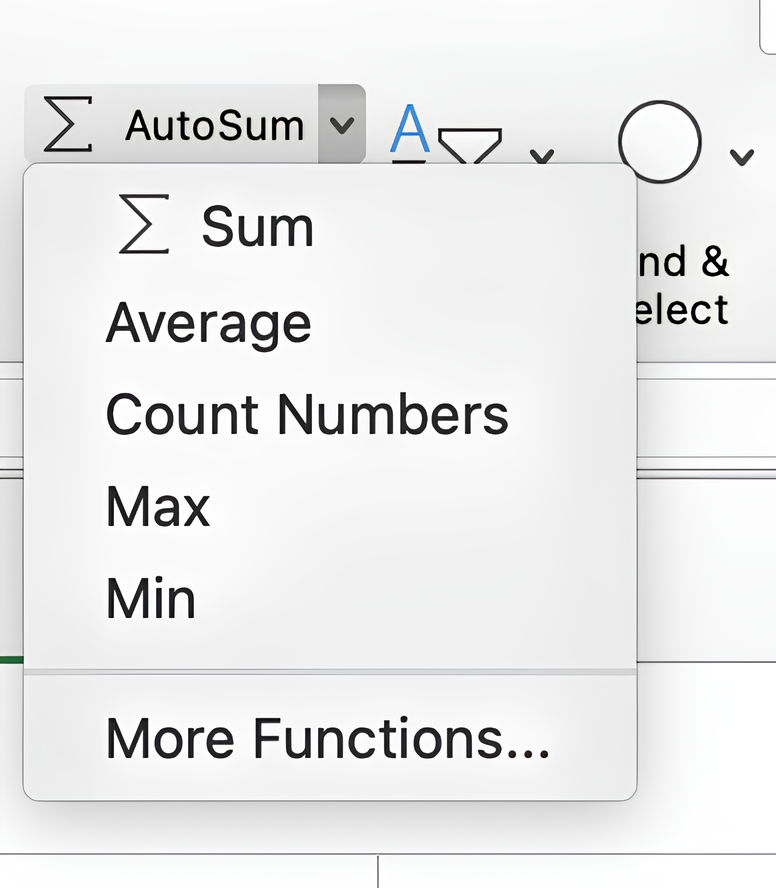
COUNTfunction tallies the number of cells that contain numbers in a range; - AutoSum quickly adds up a range of cells and can also be used for
AVERAGE,COUNT,MAX, andMIN.
Thanks for your feedback!
Essential Excel Functions
Swipe to show menu
Excel functions are the secret sauce that turns a simple spreadsheet into a powerful data analysis tool. This chapter will introduce you to some of the most common and versatile functions: SUM, AVERAGE, MIN, MAX, and COUNT.
You will also learn how to select cells individually and combine them inside functions like SUM and AVERAGE, allowing you to work with specific values instead of entire ranges. To select multiple individual cells, hold Ctrl on Windows or Command (⌘) on Mac while clicking the cells you want to include.
Key Points
- The
SUMfunction adds up a range of numbers; - The
AVERAGEfunction finds the average value in a range, ignoring empty cells and text; - The
MAXfunction identifies the largest number in a range; - The
MINfunction finds the smallest number in a range; - The
COUNTfunction tallies the number of cells that contain numbers in a range; - AutoSum quickly adds up a range of cells and can also be used for
AVERAGE,COUNT,MAX, andMIN.
Swipe to start coding
- Select
E13→ type=SUM→ chooseSUM→ selectE6:E12→ pressEnter. - Select
F13→ type=SUM→ chooseSUM→ select the cells fromF6toF12individually → pressEnter. - Select
B29→ type=AVERAGE→ chooseAVERAGE→ selectB20:B26→ pressEnter. - Select
B30→ type=MAX→ chooseMAX→ selectB20:B26→ pressEnter. - Select
B31→ type=MIN→ chooseMIN→ selectB20:B26→ pressEnter. - Select
B29:B31→ drag the fill handle across to columnF. - Select
C13→ type=COUNT→ chooseCOUNT→ selectC6:C12→ pressEnter. - Select
E27.- If you are working in Microsoft Excel:
Hometab →Editinggroup → clickAutoSum (Σ). - If you are working on the platform:
Formulastab →Common Functions→ selectSUM.
- If you are working in Microsoft Excel:
- Select
B32→ type=AVERAGE, then addMAX(B20:B26)andMIN(B20:B26)inside → pressEnter.
 Switch to desktop for real-world practiceContinue from where you are using one of the options below
Thanks for your feedback!
Ask AI

Ask AI

Ask anything or try one of the suggested questions to begin our chat
