Fast Data Shaping
Swipe to show menu
Text to Columns, Delimiter Mode
When values are crammed into one cell separated by a consistent character — a comma, space, dash, pipe — Text to Columns is the right tool. It splits the source cell into as many columns as there are segments, using the separator as the cut point.
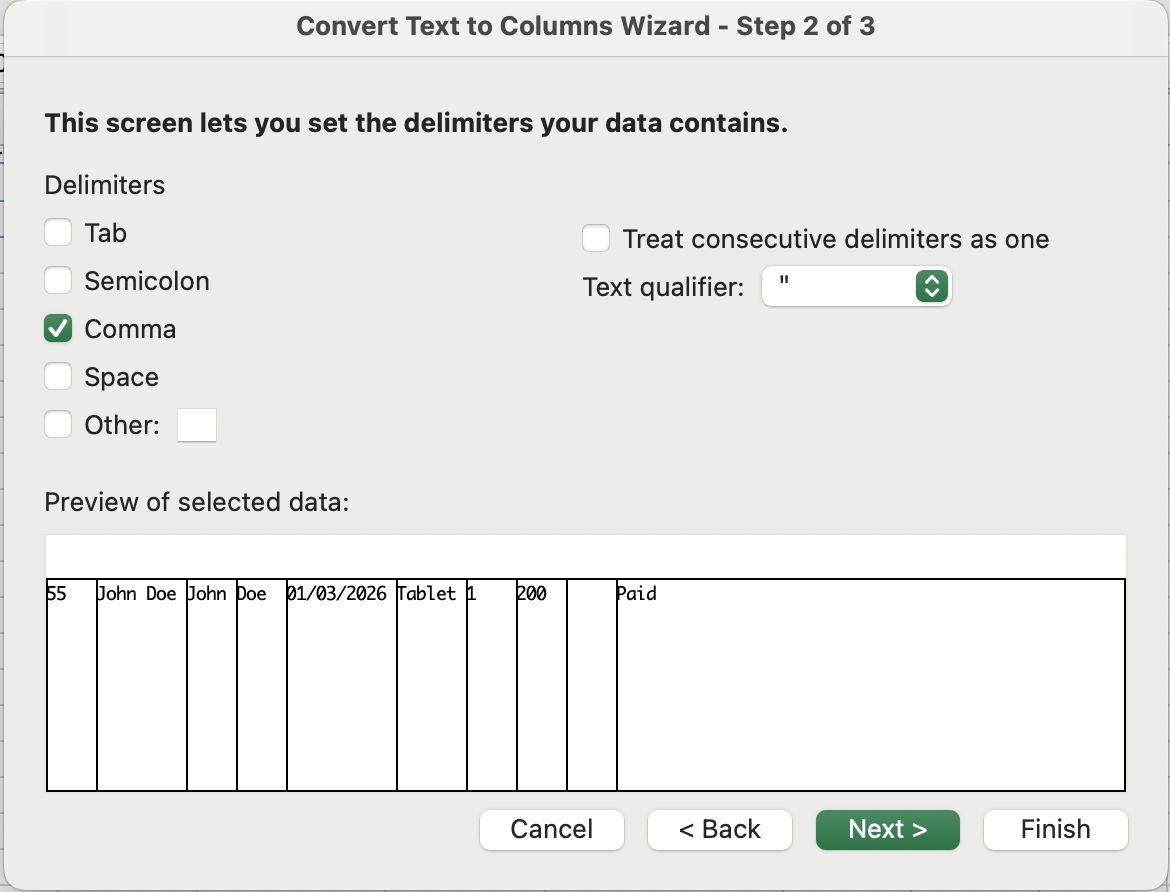
How the split works visually — the delimiter marks every cut:
55,John Doe,John,Doe,01/03/2026,Tablet,1,200,,Paid
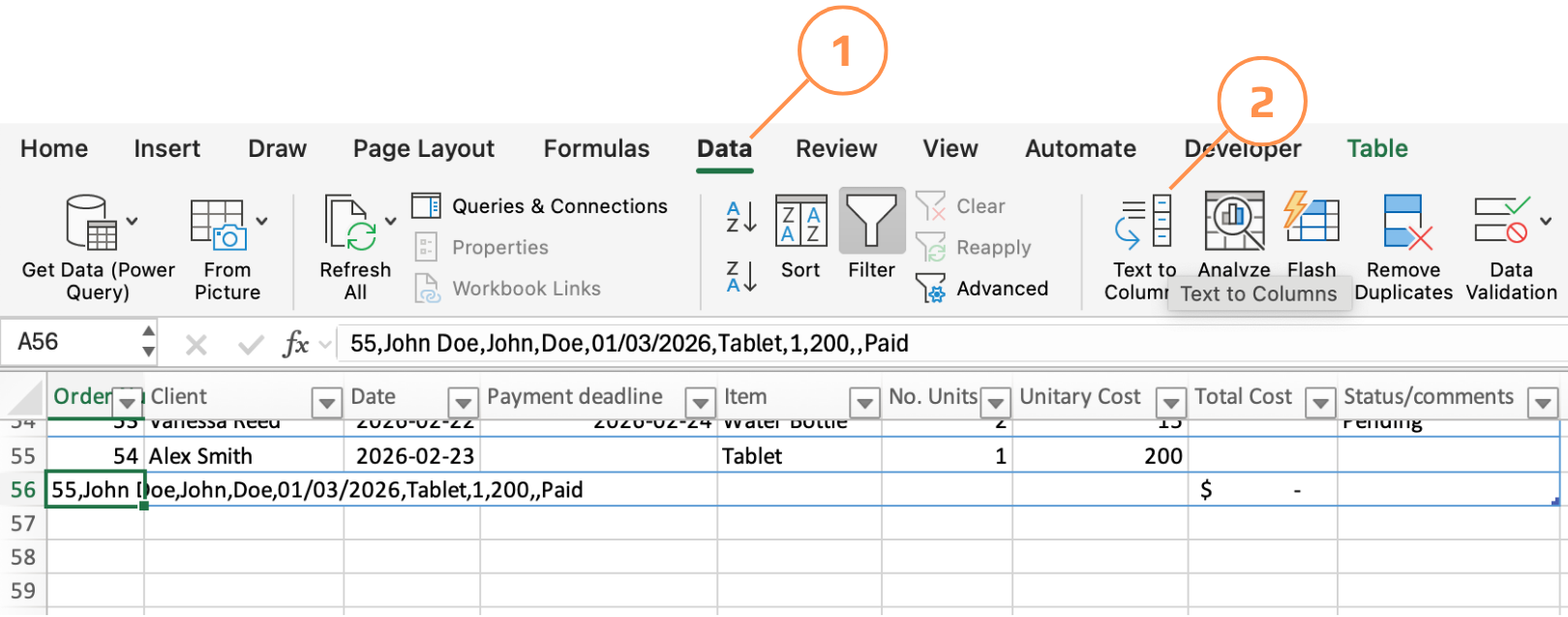
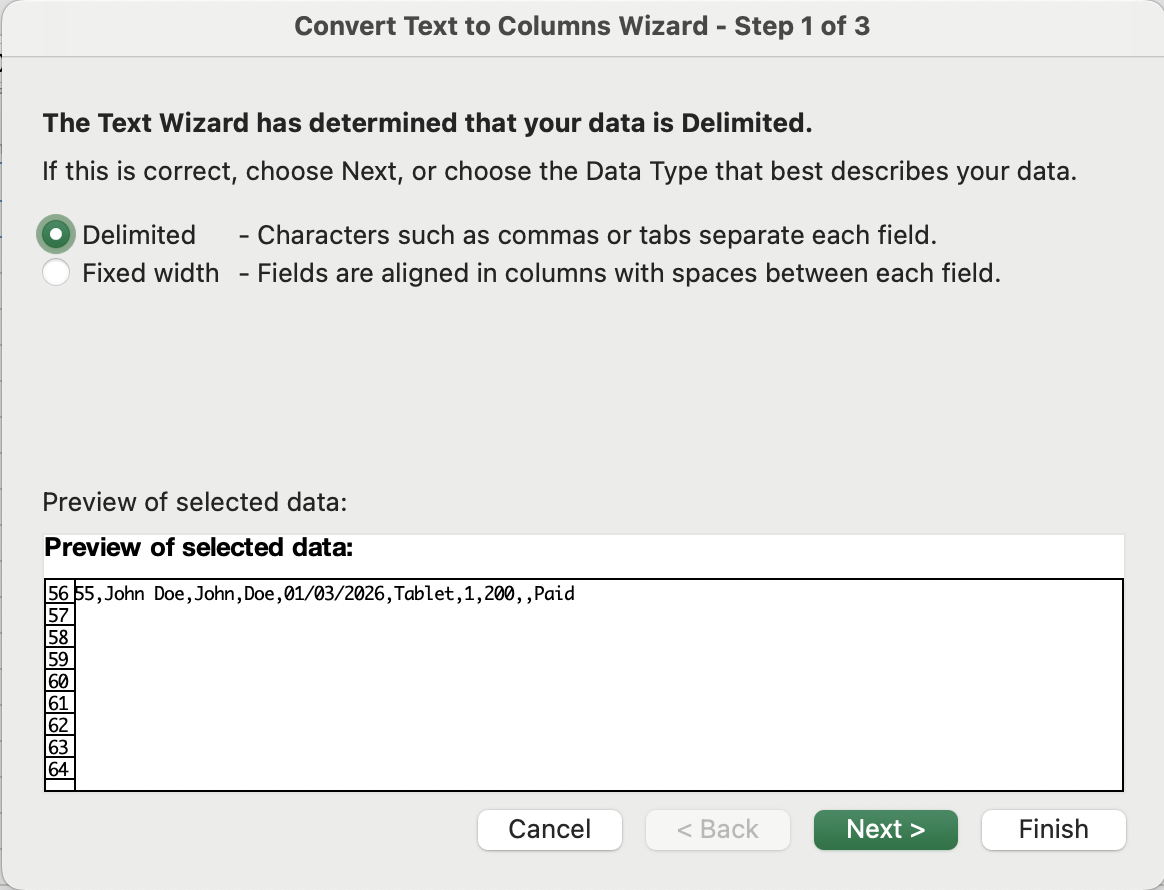
- Select the source range → Data tab → Text to Columns → choose Delimited → Next;
- Check the delimiter character (comma, space, tab, or custom) → preview updates in real time → Next;
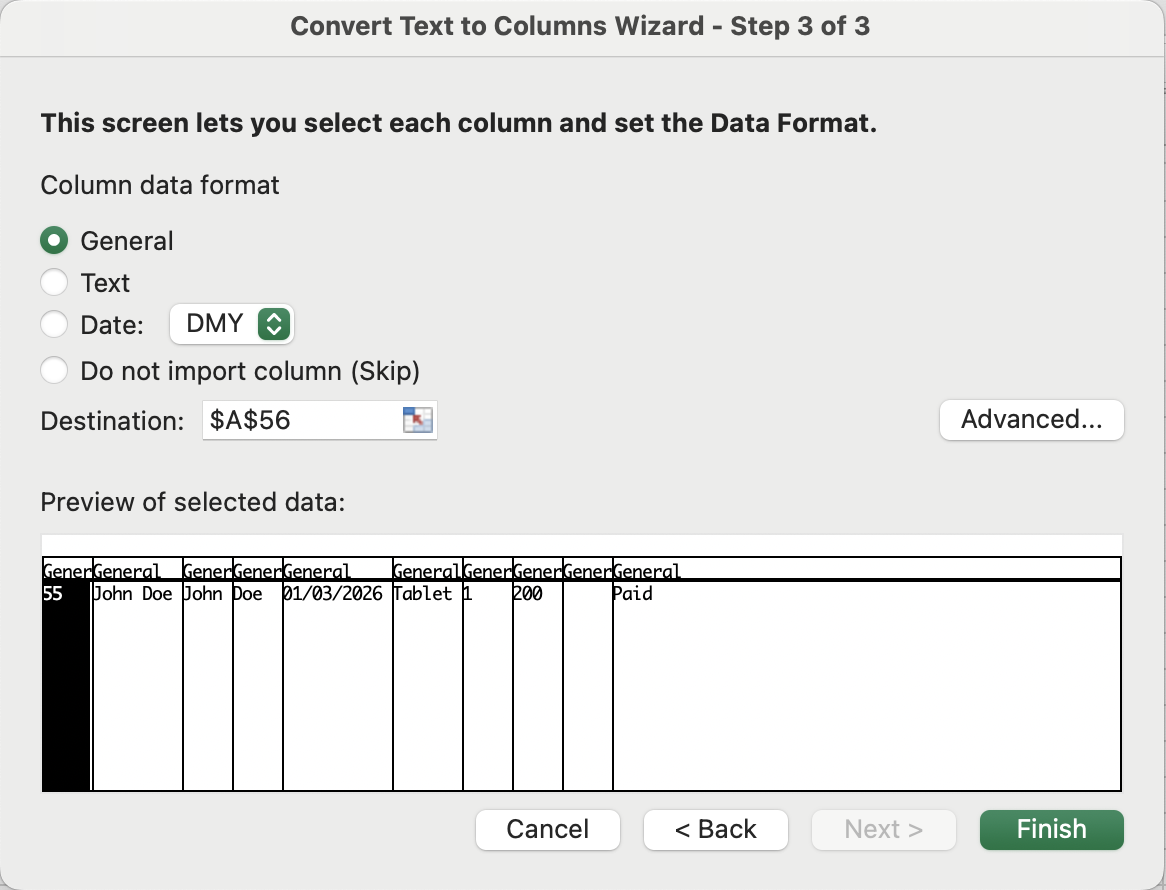
- Optionally set the data type for each resulting column (Text, Date, General) → Finish;
Text to Columns, Fixed Width
A Text to Columns mode where you drag vertical break lines in a preview to define column boundaries by character position, not by a separator character. The data structure must be visually consistent — each field occupies the same number of characters in every row.
The & Operator
The ampersand is Excel's text glue. It joins any combination of cell references, literal text strings (in quotes), and function results into a single value.
=C2 & D2 & "@email.com" →
EmilyJohnson@email.com
Thanks for your feedback!
Ask AI

Ask AI

Ask anything or try one of the suggested questions to begin our chat
