Tables
Swipe to show menu
Ranges are powerful, but they're static. When your data keeps growing — new rows, new clients, new transactions — you need something smarter. That's where Tables come in.
Key Takeaways
- A Table turns a range into a structured, growing dataset;
- Press Ctrl / Cmd + T to convert any range into a Table;
- Tables add filters, structured references, and automatic expansion;
- Each column = one data type. Each row = one record. No empty rows inside.
What is a Table?
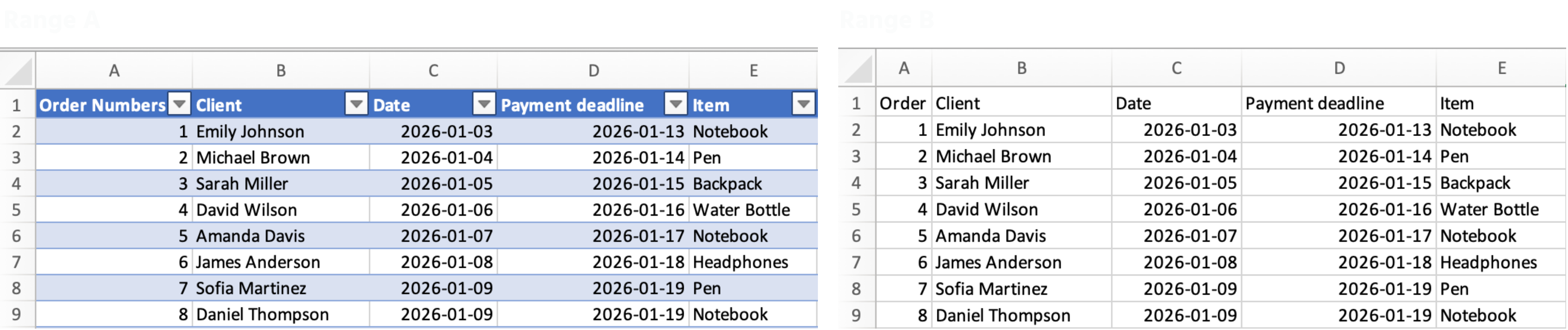
A Table is a structured range that tells Excel: "this is a growing dataset, treat it as one."
Once you convert a range into a Table, Excel automatically:
- Adds filters and sort buttons to the headers;
- Extends formulas and formatting to every new row;
- Uses structured references like
Sales[Total_Cost]instead ofK2:K54.
How to create a Table
- Click anywhere inside your data;
- Press Ctrl + T (Windows) or Cmd + T (Mac);
- Confirm that your data has headers → click OK.
Everything was clear?
Thanks for your feedback!
Section 1. Chapter 2
Ask AI

Ask AI

Ask anything or try one of the suggested questions to begin our chat
Section 1. Chapter 2
