Formatting
Swipe to show menu
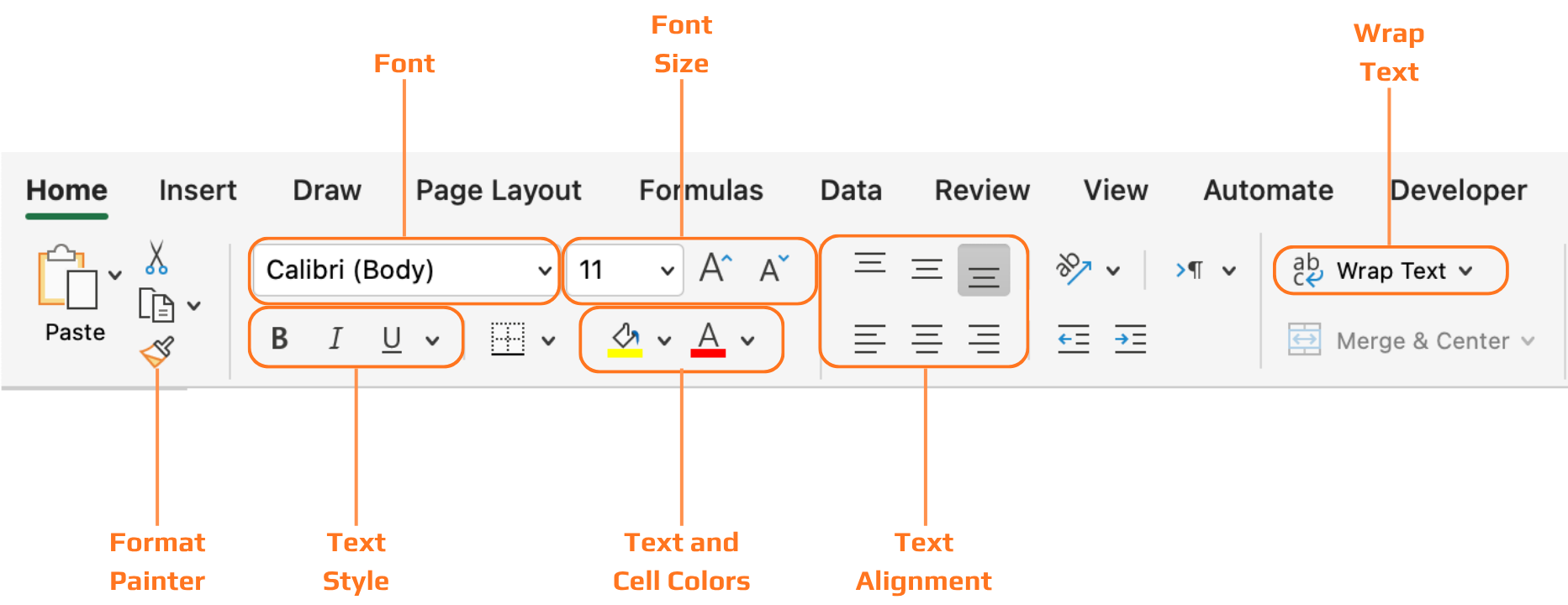
All the tools covered in this chapter live on the Home tab of the ribbon, organized into groups: Font, Alignment, Number, and Styles. You work by selecting cells first, then applying formatting to whatever is selected.
Headers
Without formatted headers, a table of data is just a grid of text. The reader has to work to figure out what each column means before they can start reading the values. Bold text and background shading solve this at a glance — the header row visually separates itself from the data rows, and the eye immediately knows where to look for column labels.

When you convert a range to an Excel Table using Ctrl+T, header formatting is applied automatically — and you can choose from predefined table styles on the Table Design tab. This is often the fastest way to get clean, consistent header formatting without doing it manually.
Thanks for your feedback!
Ask AI

Ask AI

Ask anything or try one of the suggested questions to begin our chat
