Creating and Attaching Your First Notebook
Swipe to show menu

A Databricks Notebook is an interactive web-based document that contains live code, visualizations, and narrative text. To execute code, a notebook must be "attached" to an active compute resource (cluster).
In this chapter, you will create your first working file and link it to the processing power required to run code. In Databricks, a notebook is essentially a shell until it is connected to a cluster.
Creating a New Notebook
There are two primary ways to create a notebook in the interface:
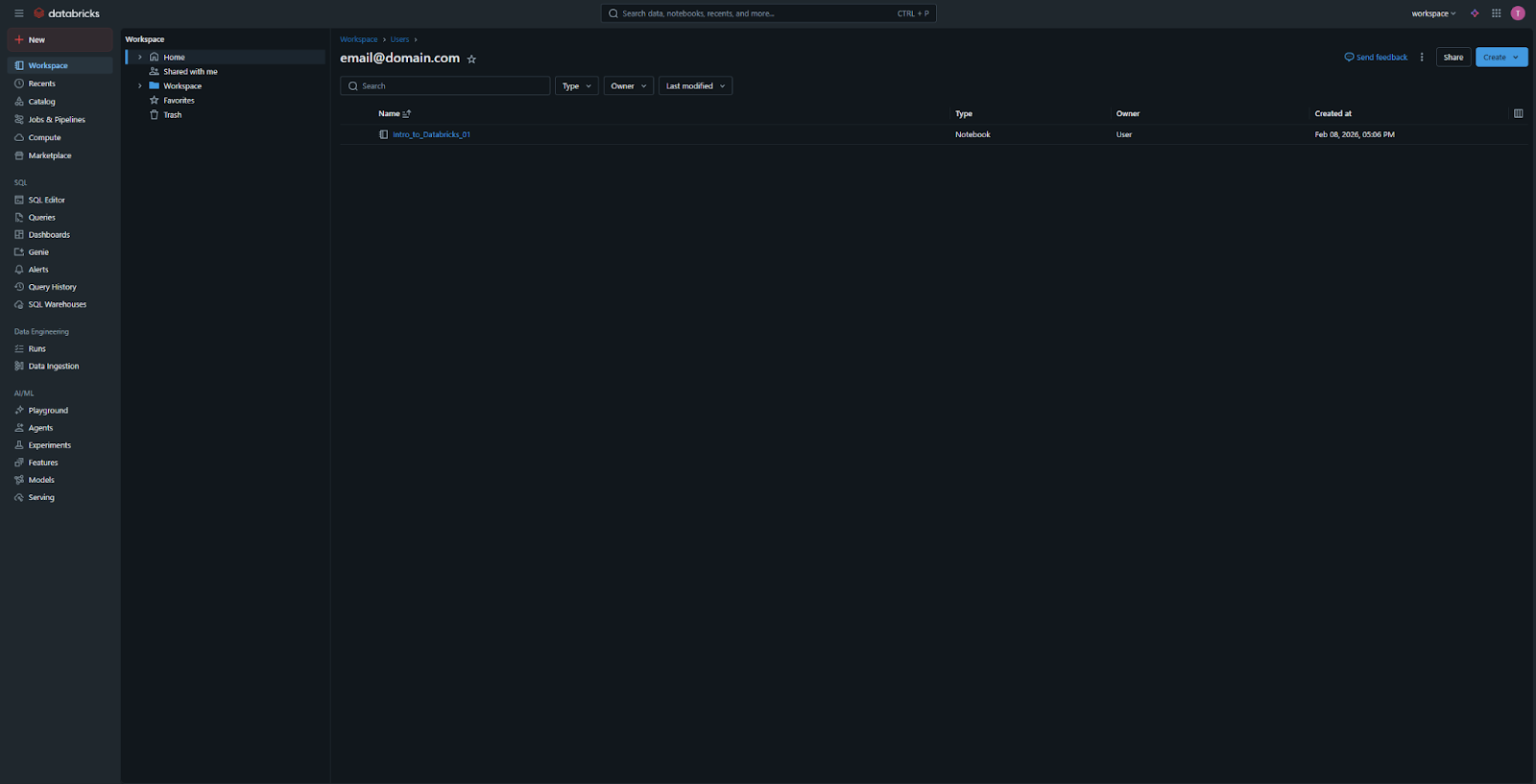
- The "New" Button: click the "New" button in the sidebar and select "Notebook". This is the fastest method;
- Workspace Menu: Navigate to the Workspace tab, right-click on your user folder (or a specific project folder), and select Create > Notebook.
Basic Notebook Configuration
When you create a new notebook, you will be prompted to provide basic details:
- Name: enter a descriptive name (e.g.,
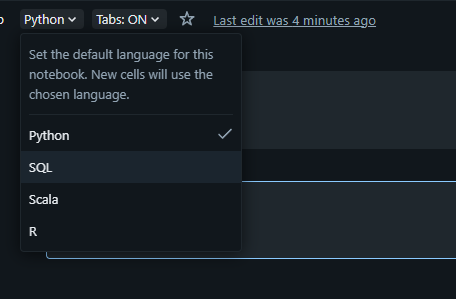
01_Intro_to_Notebooks); - Default Language: select the primary language for the notebook. The options are SQL, Python, Scala, or R. For this course, you will primarily use Python or SQL. Note that you can change this later or mix languages within the same notebook.
Attaching to Compute
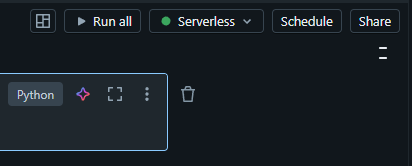
Once the notebook opens, you will see a dropdown menu at the top right labeled "Connect" or showing a compute icon.
- Click the dropdown to see a list of available clusters;
- Select the cluster you created in Section 2 (e.g.,
Student_Cluster_1); - Status Indicators:
- If the cluster is Terminated, you can start it directly from this menu;
- A Green Circle indicates the notebook is successfully attached and ready to run code;
- A Gray Circle means the notebook is detached and cannot execute commands.
Databricks does allow you to select and use their own processing power instead of a Cluster of your own, and you can do that by selecting Serverless from the Clusters dropdown.
Detaching and Reattaching
You can switch clusters at any time. This is useful if you need to move a notebook from a small, low-cost cluster to a larger, more powerful one for a specific task. To do this, simply click the compute dropdown again and select "Detach" or choose a different cluster from the list.
1. What must you do before you can run any code inside a Databricks notebook?
2. Which of the following is NOT a default language option for a Databricks notebook?
3. If your cluster is currently "Terminated," can you start it directly from the Notebook interface?
Thanks for your feedback!
Ask AI

Ask AI

Ask anything or try one of the suggested questions to begin our chat
