Cluster Management
Swipe to show menu

Cluster Management refers to the process of controlling the lifecycle of your compute resources. Knowing when to start, stop, and restart a cluster is essential for managing performance and controlling cloud costs.
Now that you know how to build a cluster, you need to know how to manage it. In the cloud, you are billed for every second a cluster is in the "Running" state. Being a professional data engineer or analyst means not just knowing how to write code, but also knowing how to manage your resources efficiently so you don't waste your company's (or your own) budget.
Understanding Cluster Statuses

When you look at the Compute page, you will see different status icons next to your cluster name. Understanding these is key to knowing if you can run code:
- Running (Green Circle): the engine is warm and ready. You can run notebooks and queries instantly;
- Terminated (Gray Circle): the engine is off. It costs $0, but you cannot run any code until you start it again;
- Pending (Spinning Circle): the cluster is "warming up." The cloud provider is currently allocating the hardware for you;
- Restarting: the cluster is shutting down and immediately starting back up, which is useful if you've changed a configuration setting.
Manual Controls: Start, Stop, and Restart
On the right-hand side of your cluster in the list view, you will see several action icons:
- The Play Button (Start): use this when you arrive at work in the morning. It takes about 3 - 5 minutes to go from "Terminated" to "Running.";
- The Square Button (Terminate/Stop): use this the moment you are finished with a task. Clicking this immediately stops the billing clock. Important: Terminating a cluster does not delete your work or your notebooks; it simply turns off the "engine" and clears the memory (so variables stored in memory will be deleted, as would be the case if you were shutting down your own computer).
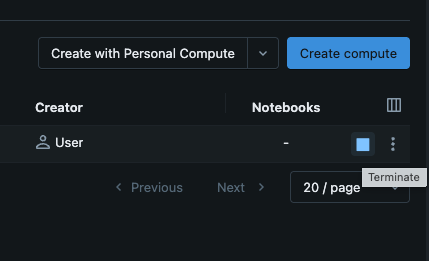
- The Circular Arrow (Restart): if your cluster feels sluggish or you have installed a new library that requires a refresh, use the Restart button.
Edit vs. Clone
Sometimes you realize the "engine" you built isn't quite right.
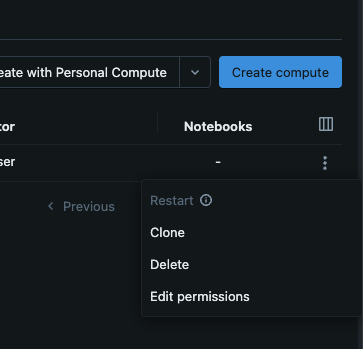
- Edit: you can change the size of your cluster or the runtime version by clicking the name and selecting "Edit." Note that you usually have to terminate the cluster before you can save changes to its hardware;
- Clone: if you like your current setup but want a second, identical cluster (perhaps for a different project), the "Clone" button saves you the time of re-filling all the settings from scratch.
The Golden Rule of Saving Money
The most expensive cluster is the one that is "Running" but doing absolutely nothing. Always make it a habit to check your Compute tab before you log out for the day. If you see a green light and you aren't running any more code, click that Square (Stop) button. In the world of Big Data, "Stopping" is just as important as "Starting."
1. Does "Terminating" a cluster delete the notebooks you have written?
2. Which status indicates that the cluster is currently warming up and not yet ready to run code?
3. You have finished your analysis for the day. What is the best practice to ensure you don't incur unnecessary cloud costs overnight?
Thanks for your feedback!
Ask AI

Ask AI

Ask anything or try one of the suggested questions to begin our chat
