A Quick Tour to the Databricks Interface
Swipe to show menu

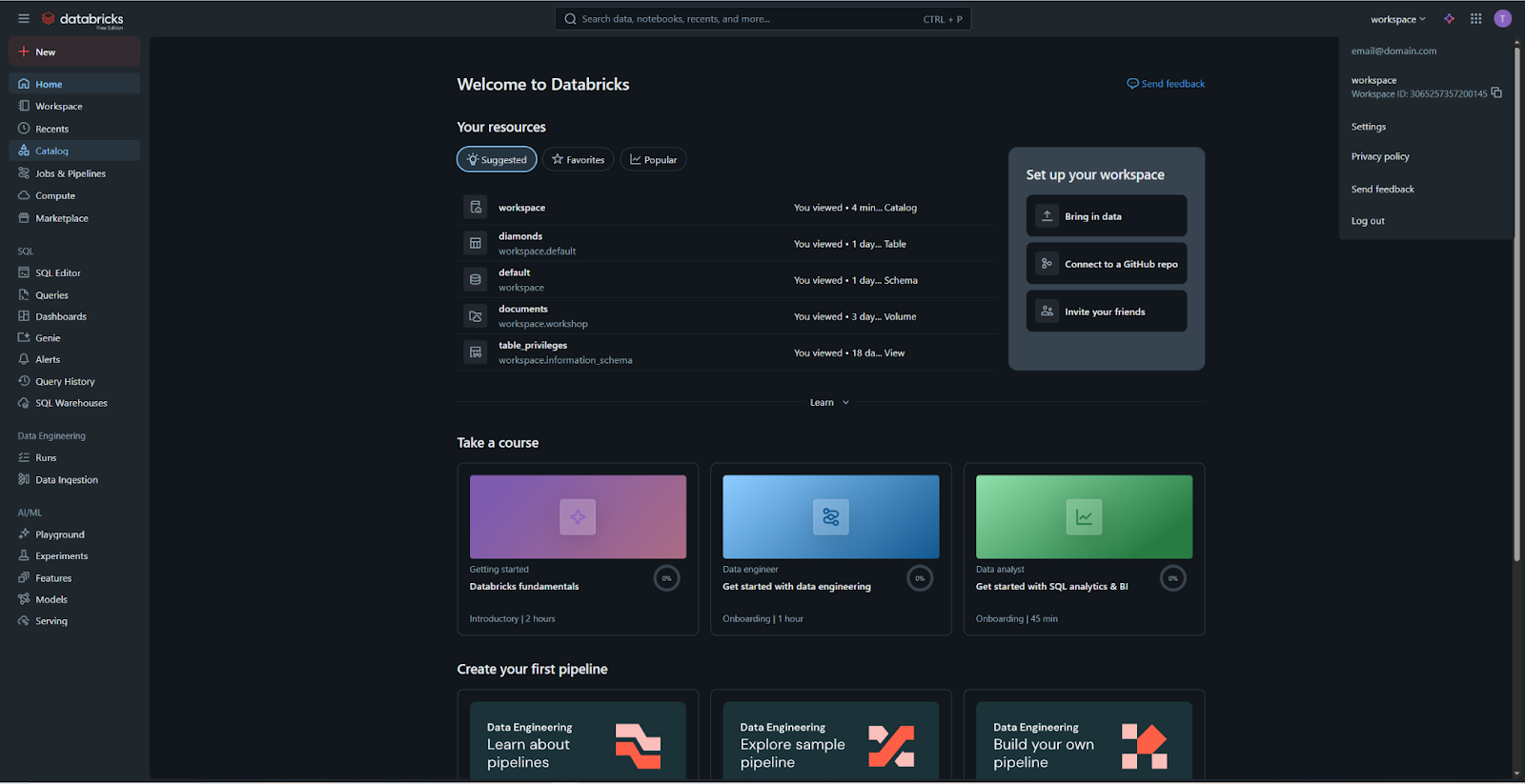
The Databricks Workspace is a unified interface that organizes the entire data lifecycle - from storage and compute to SQL analytics and AI - into a single, integrated sidebar.
Now that you've covered the "what" and "where" of Databricks, it's time to take our first look inside. When you first log in, you will see a clean, comprehensive sidebar on the left-hand side. Unlike older systems that required switching "modes," the modern Databricks interface lays out every capability in a single, logical flow, allowing you to move between engineering and analytics seamlessly.
Global Navigation and the "New" Button
At the very top of the sidebar, you’ll find the "New" button. This is your universal shortcut to create any asset, such as a notebook, a cluster, or a SQL query, without digging through menus. Below this, the global section includes:
- Workspace: your digital filing cabinet where all your folders and notebooks are stored. The term here is a bit confusing, as we use "Workspace" to denote the entire platform as well. In this case, clicking this leads you to the File System, where you can save and work on your Notebooks;
- Recents: a quick-access list of the files you've worked on most recently;
- Catalog: the central hub for exploring your data tables, schemas, and databases;
- Compute: where you manage the clusters that provide the "horsepower" for your code.
The SQL Category
For users focused on business intelligence and data analysis, the SQL section provides a dedicated suite of tools:
- SQL Editor & Queries: where you write, save, and execute SQL code;
- Dashboards & Genie: tools for visualizing your data and using natural language to ask questions of your datasets;
- SQL Warehouses: specialized compute resources optimized specifically for fast SQL performance.
Data Engineering and AI/ML
When you move further down the sidebar, you can find specialized tools for the more technical stages of the data pipeline:
- Data Engineering: this section focuses on Job Runs and Data Ingestion, allowing you to automate how data moves from raw sources into your Lakehouse;
- AI & Machine Learning: this is the home for advanced data science. It includes the Playground for testing, Experiments for tracking model progress, and Serving for deploying AI models into production.
User Profile and Settings
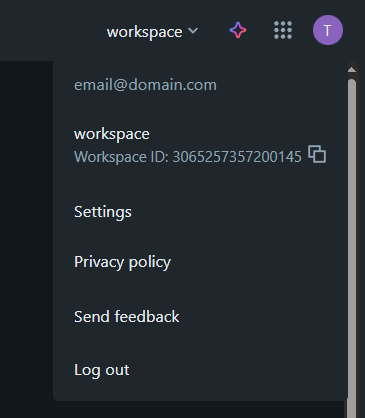
In the corner of the interface, you will find your Profile and Settings menu. This is a critical area for both regular users and administrators:
- User Settings: where you can manage your personal profile, change your theme, or generate Access Tokens for secure connections;
- Admin Settings: if you have administrative privileges, this is where you manage the entire workspace, including user access, billing, and global security policies.
Search and Discovery

At the top of the interface, the Search bar allows you to find anything across the ecosystem instantly. It doesn't just look for file names; it searches inside your notebooks and through your data catalog to help you find specific tables or lines of code in seconds.
1. Which sidebar section is used to manage the "virtual engines" (clusters) that run your code?
2. If you want to create a visual report or a chart based on a SQL query, which category in the sidebar would you look under?
3. Where are your personal folders and collaborative project files kept?
Thanks for your feedback!
Ask AI

Ask AI

Ask anything or try one of the suggested questions to begin our chat
